With Selzy’s omnichannel automation, you can use your Telegram bots to create automated omnichannel scenarios and incorporate different channels, including emails. Telegram blocks allow you to send texts, voice and video notes, polls, mini-games, reminders, and other messages to reach your subscribers.
There are multiple scenario blocks to use under four categories:
- Triggers — to start the scenario with a Telegram keyword, link, or command.
- Communication — to send a video note, text, or voice message.
- Notification — to send a text message to yourself or your team via Telegram after a subscriber performed a certain action.
- Condition — to check whether a subscriber is a member of your Telegram channel or group, or if they started the bot before proceeding to the next step in the scenario.
Telegram trigger blocks
Any omnichannel automation scenario must start with a trigger event, such as adding a new contact to the specified list. It is possible for one scenario to include multiple triggers, covering different potential trigger events.
Choose one or several triggers to start your scenario in the “Start with the trigger” section of the workspace or in the “Triggers” tab in the toolbox. Next connect your Telegram bot to the scenario.
There are three Telegram trigger blocks to choose from.
Start by command trigger
The “Start by command trigger” block starts the scenario when a subscriber opens the Telegram bot and sends the set command to start interaction.
The default command is /start command. You can change the command in the block settings if needed.
The command must follow the rules:
- Be no longer than 32 characters
- Contain only Latin letters, digits, and underscores
- Spaces are not allowed
If you are using multiple triggers, each must have a unique command. Identical commands cannot be used within the same scenario.
Keyword trigger
The “Keyword trigger” block starts a scenario when a user enters a specific word in a chat with a Telegram bot. For example, if a subscriber enters the code word “sun25”, they receive a 25% discount coupon. If they enter “guide,” they receive a guide on how to use the product. The system converts text to lowercase and removes extra spaces, so users only need to enter the required word or phrase to start the scenario chain.
We recommend adding different variations of a code word with typos or mistakes (for example, “sun25” and “sn25.”)
Link trigger
The “Link trigger” block starts a scenario when a contact follows a special link to a Telegram bot. To create a link, select the chatbot first. Once you add the bot, a unique link will be generated inside the block. To copy the link, click the button next to it.
You can use this link in an email campaign or on your website. You can also create a scenario with multiple triggers using different links at the same time.
The trigger will activate your scenario when a contact follows this link.
Each trigger generates its own unique link. You can use these links across different communication channels to track and segment contacts more effectively.
The link generated in the block is tied to the selected Telegram bot. If you reuse the same scenario with a different Telegram bot, the link is generated again and will change automatically.
If you've already shared the original link on your website, social media, or other channels, make sure to replace it with the new one after switching Telegram bots. Otherwise, users will continue to access the old bot's link.
Telegram communication blocks
Communication blocks let you send different types of content automatically when a subscriber reaches a certain point in the scenario. To add a communication block to the scenario, select it in the “Communication” tab in the toolbox or choose it from the “Add next block” menu. Then, connect your Telegram bot.
Telegram message
The Telegram message block allows you to send a text message via Telegram to a subscriber when they reach this step. You can add attachments to the text, for example, product images, video instructions, price lists, or other helpful materials.
After adding your block to the scenario and connecting your Telegram chatbot, add the text.
The following rules apply to the message:
- Maximum length: 4,096 characters, or 1,024 characters if attachments are included.
- Characters < and > need to be replaced or removed, since they may cause sending errors in your scenario.
You can also format the text, add emojis, links, and merge tags for personalization. Merge tags will be replaced with subscriber data from custom fields, such as a subscriber’s name or phone number.
You can also:
- Attach files. This includes up to 10 files, images and videos. Notice that media files will be compressed before sending.
- Add buttons to the message. Each button can contain a link or lead your subscriber to the next step of the scenario. Click on the button, type its label, and add a link. You can also enable tracking for each link.
- Enable data collection. Choose the field where the information will be saved. The list includes all fields previously created in the “Custom fields” section of your Selzy account.
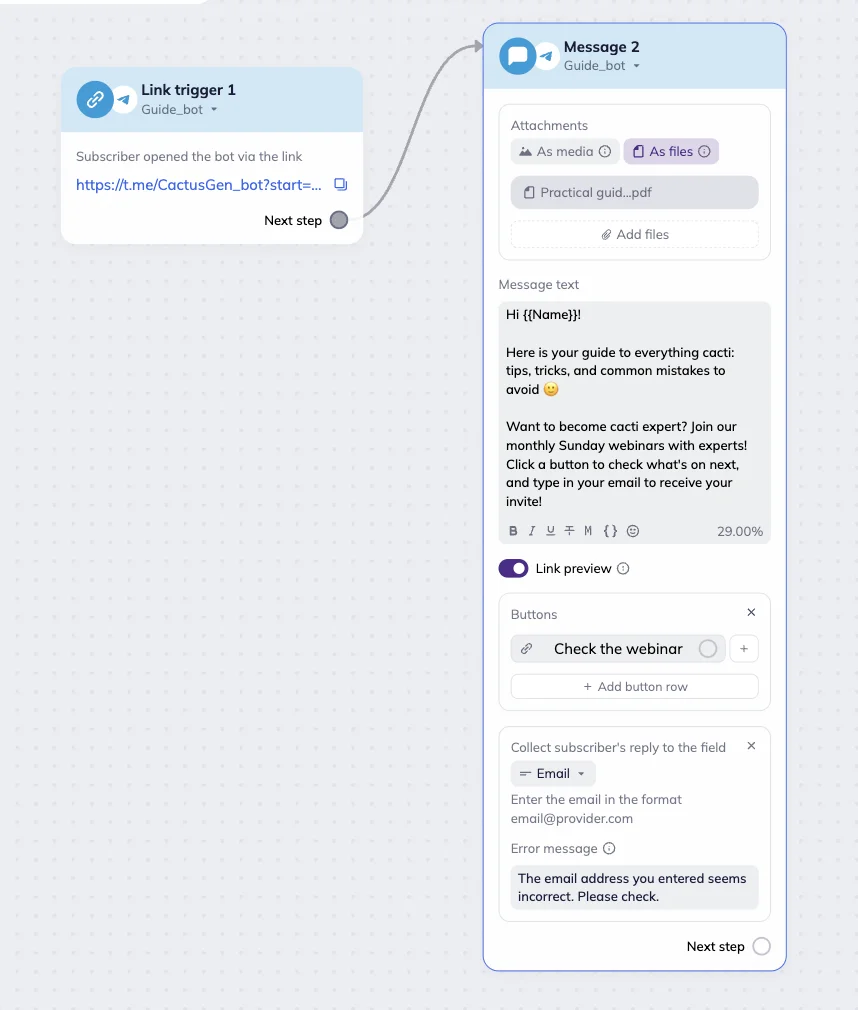
In the example below, we added a PDF file with a guide, an invitation to the webinar with a button linked to the webinar page, as well as a data collection field. If a subscriber types their email address into the chat, they will receive an invitation to the webinar with a link.
Voice message
With the “Voice message” block, you can send voice messages to your subscribers.
Voice message requirements:
- Maximum number of attachments: 1
- Maximum file size: 10 MB
- Supported format: OGG
- Text message length: up to 1,024 characters
After placing your block in the scenario and connecting your Telegram chatbot, drag and drop your file into the upload window or click it to select a file from your device.
You can create a voice message in the correct format directly in the desktop or web version of Telegram. To do that, open any chat in Telegram.
Then, press and hold the microphone icon to record. Make sure you’re recording a voice message. Release the icon to finish recording, the message will be sent automatically.
Right-click the voice message and select “Save as…” to download it to your device. After that, you can upload it into your scenario.
When the audio file is added, you can open it in a new browser tab to listen to it, or delete it.
You can also add text, buttons, or enable data collection if needed.
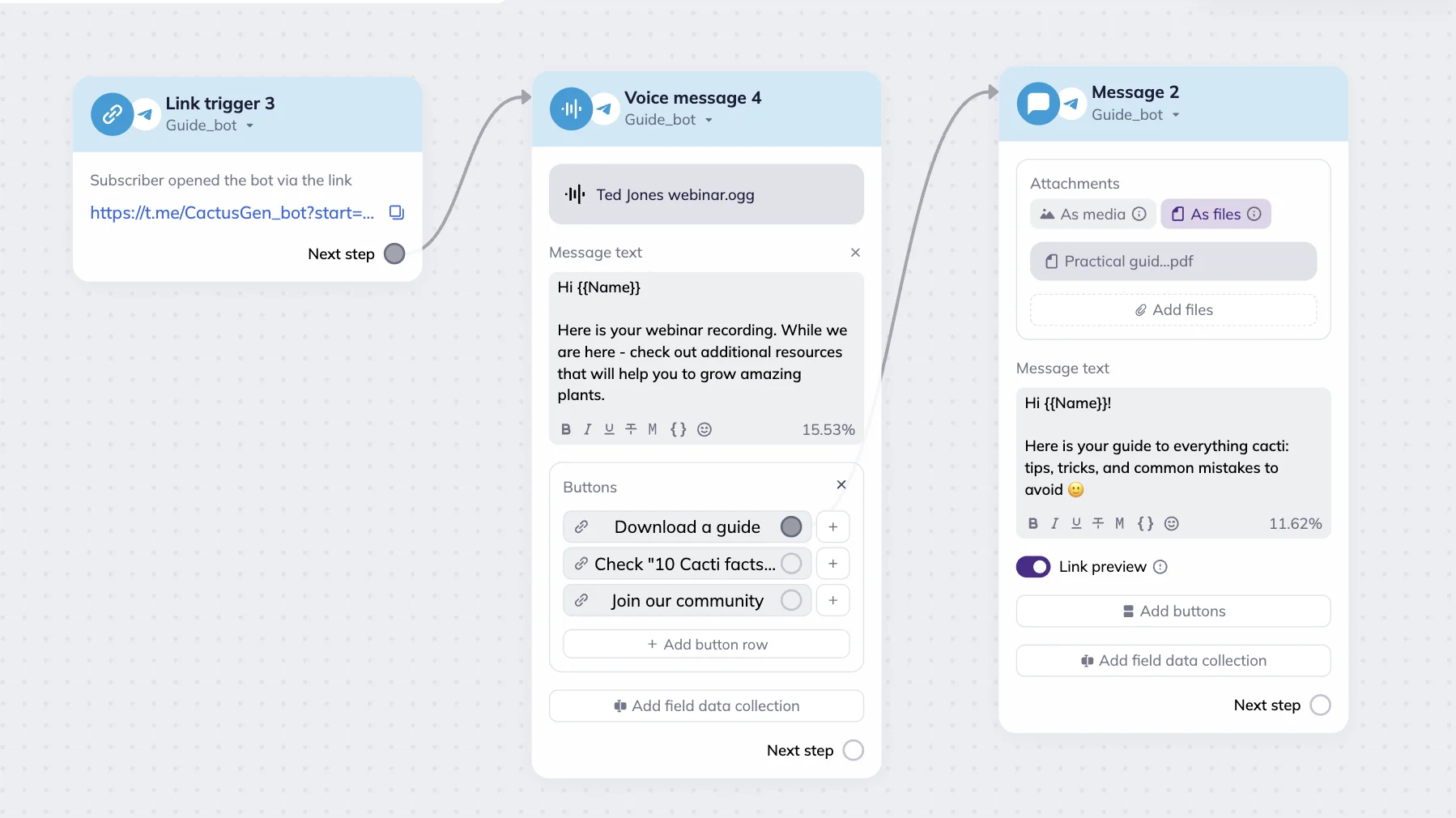
In the example below, when a subscriber clicks the link in the email, they receive a voice message with the webinar recording and links to additional resources. If they click the “Download a guide” button in the message, they will receive another message with a PDF file attached.
Video note
With the “Video note” block, you can send video messages to your subscribers.
Video message requirements:
- Maximum number of attachments: 1
- Maximum file size: 10 MB
- Supported format: MP4
- Only square videos are supported (equal width and height)
- Maximum resolution: 639x639 px
- You cannot add text to this block. Telegram doesn’t support sending text and video messages together in this format.
We recommend recording your video directly in Telegram and saving it to get a properly formatted file. To do that, open any chat where you can send messages. Press and hold the camera icon to record. Make sure you’re recording a video message.
Release the icon to finish, the message will be sent automatically. Then, right-click the video message and select “Save as…” to download it. Once saved, you can add it to your scenarios.
After placing your block in the scenario and connecting your Telegram chatbot, upload your file by dragging it into the upload area or selecting it from your device. You can preview or delete the uploaded video using the icons in the block settings.
You can also add buttons or enable data collection.
Telegram notification block
The “Telegram notification” block allows you to track subscriber actions and receive notifications about their activity without logging into your account. If a subscriber submits their data or takes a specific step in the scenario, you’ll immediately receive a notification via Telegram.
To receive notifications in Telegram, first create a group where messages will be sent to. This can be a private group accessible only to your team.
Note that Telegram username in the email notification is a link that opens a chat with the user.
In the block settings, first select the Telegram bot used in the scenario, then add it to the notification group. To do this, click Select notification group → Add the bot to a new group. You will be automatically redirected to Telegram. In the pop-up window, select the group you created earlier. Grant the bot administrator rights so it can send messages. Return to the block settings in your scenario. Select the required group that will appear in the dropdown list.
Next, set the notification text. For example: “New webinar registration” or “A subscriber has submitted their contact details.” You can also insert subscriber data collected earlier in the scenario. To do this, click the curly braces and select the merge tag, such as a phone number, email, or Telegram username.
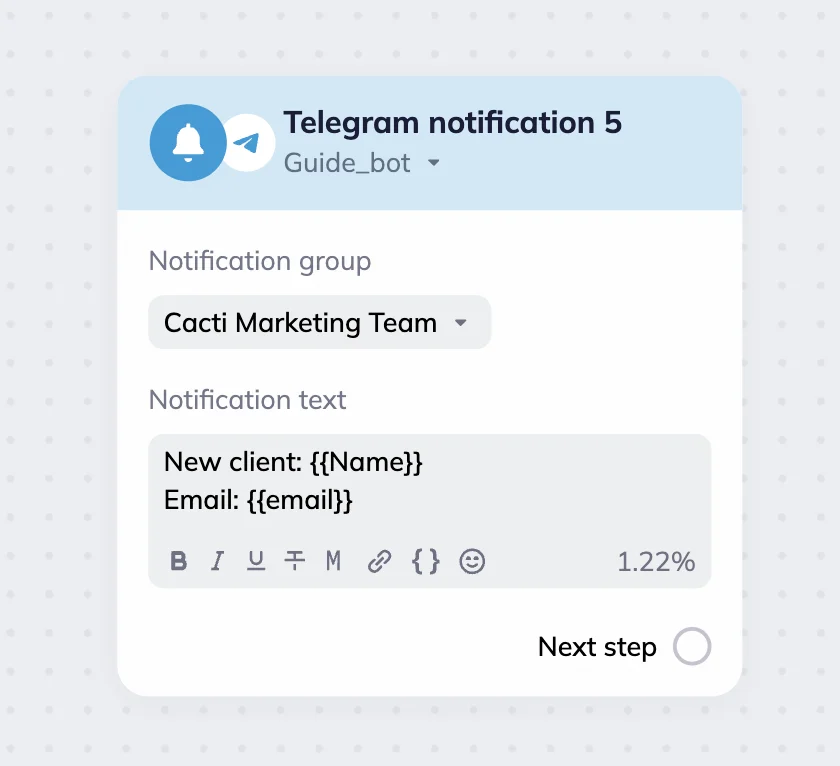
Once a subscriber reaches this step in the scenario, the bot will automatically send a notification to the selected Telegram group.
Telegram activity check via the Condition block
The “Condition” block can check how a subscriber interacts with a Telegram bot, channels, and groups. It determines which branch of the scenario the subscriber will follow next. Two rules apply:
- Yes — if the condition is met.
- No — if the condition is not met.
Available conditions:
- Channel joined
- Group joined
- Channel not joined
- Group not joined
- Bot started
- Bot not started
To set up a Telegram activity check, select a condition in the Condition block settings, for example, “Channel joined” or “Bot started”. Next, select a Telegram bot and choose a channel or group. Read a full instruction here.
Learn more about Telegram bots and best practices: