Tag trigger belongs to Trigger blocks and is available only for Triggered scenarios.
The Tag trigger block runs a scenario when a tag is assigned to contacts manually, via API, integration, or an automatic tag assignment within another scenario, or when you import new contacts with tags.
Use this block to:
- Launch a scenario based on segmentation
- React to customer behavior in real time (e.g., purchase, signup, engagement)
- Send personalized content
Tags must be assigned after the scenario is launched. Contacts with tags assigned before automation started will not enter the scenario.
To create the Tag trigger, go to Triggered scenarios — either click on the arrow icon in the Scenarios section of the main menu or on the Trigger tab on the Omnichannel automation scenarios page → “New campaign” button → The scenario builder will open.
Add the Tag trigger block to the workspace from the toolbar menu below or by right-clicking the workspace.
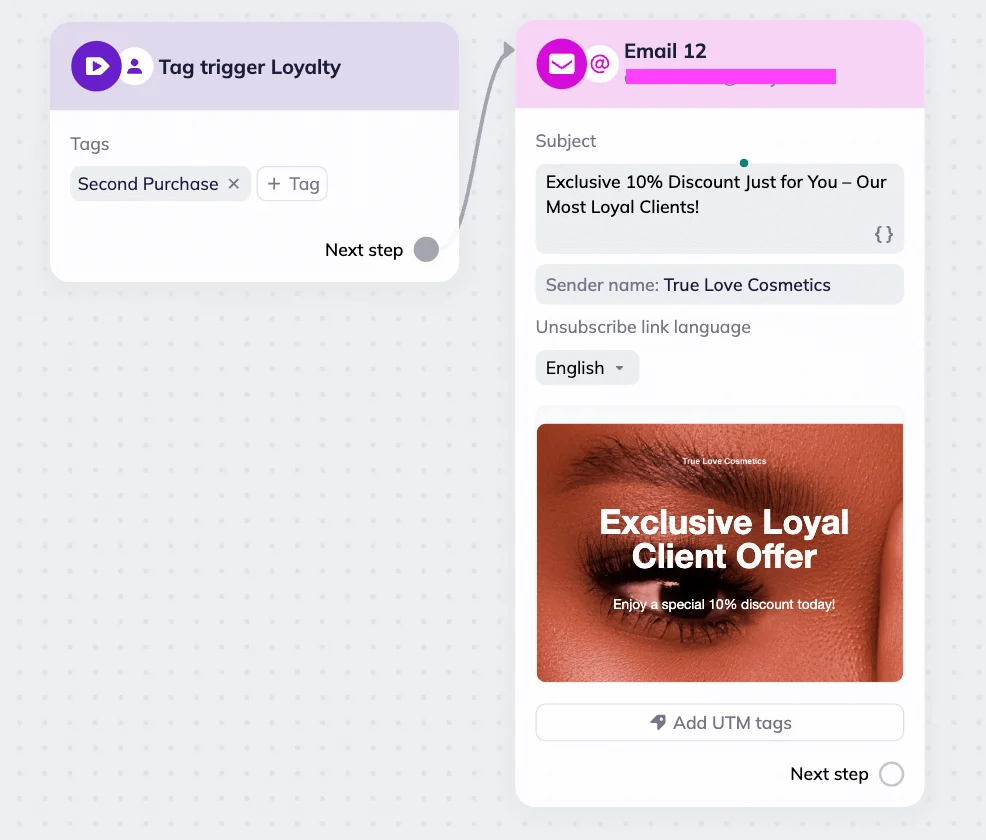
Next, select the tag from the dropdown menu list.
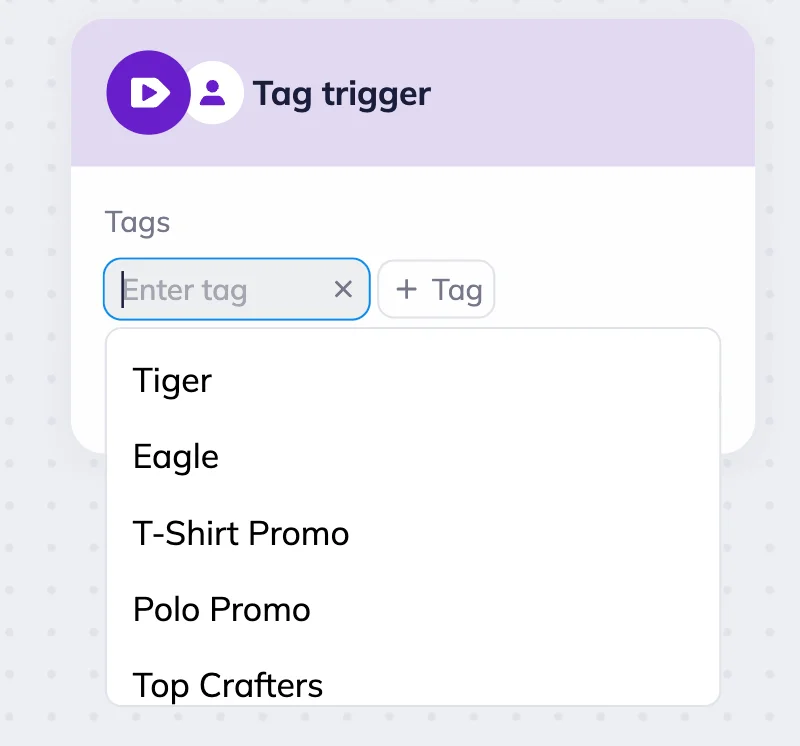
To add a new tag, type its name in the “Enter tag” field and click on the “Create a new tag” command that will appear immediately.
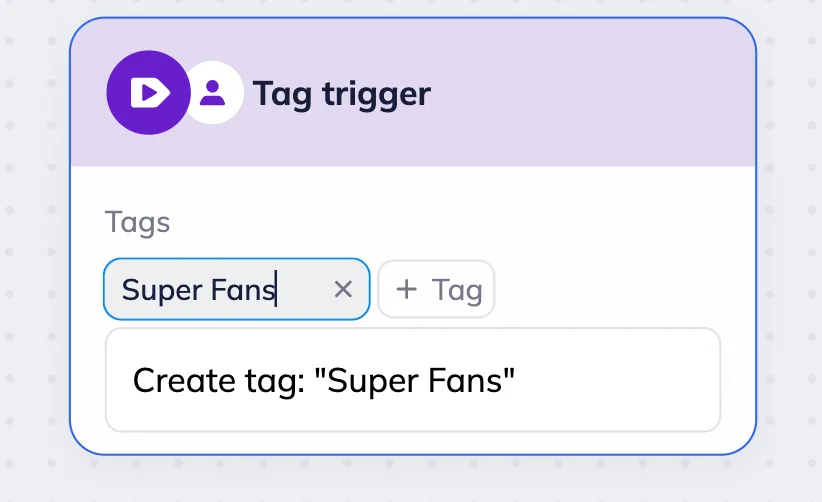
You can select multiple tags in one Tag trigger block. To add a new tag, use the “+Tag” button. If the contact is assigned multiple tags you set up in the scenario, the scenario will be activated only once. For example, if you set up a trigger for “Super Fans” and “New Fans” tags, and your contact has both — they receive only one email.
You can also use multiple Tag trigger blocks in a single scenario — just make sure each block has a unique tag to avoid overlap.
To use multiple triggers, add Tag trigger block to the workspace from the toolbar menu below or by right-clicking the workspace → Choose the next step of the scenario → Add new Tag trigger block to the workspace → Click on the “Next step” and drag the arrow to the next step of the scenario.

Example
For example, suppose you run an online store and use tags to track customer activity. When a subscriber receives the “Second purchase” tag, the thank-you scenario is triggered — they automatically get an email with a 10% discount and an invitation to join your VIP customers list.