With Selzy, you can share your omnichannel automation scenarios as templates without compromising your data.
Use scenario templates to:
- Reuse scenarios with proven performance across your agency or team.
- Showcase your expertise beyond your Selzy account — share scenarios in presentations, proposals, and demos for potential clients, or use them as educational materials.
- Customize shared templates to fit your specific goals and workflows — adapt timing, channels, content, or logic to match your needs.
Share scenario
You can share both active scenarios and drafts.
💡 Your private data, such as email addresses and IDs, won’t be shared as part of the template and is automatically cleared.
If the template uses segments, tags, or custom fields, they will also be automatically cleared, unless they are a 100% match with those already existing in your account.
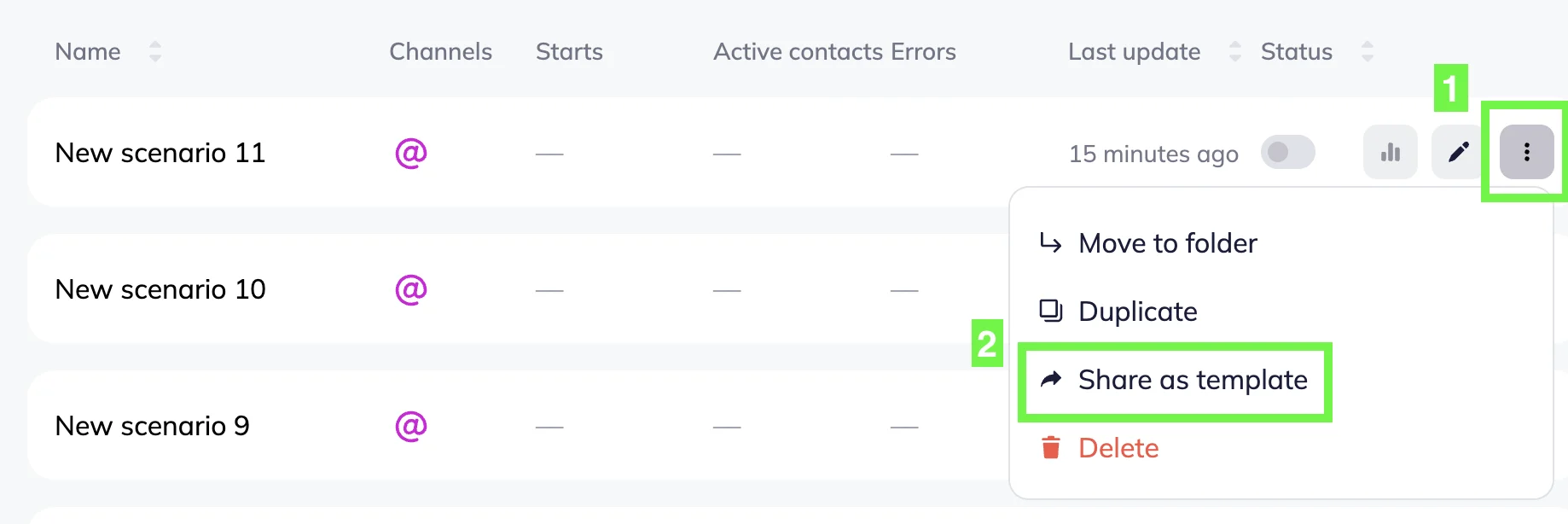
To share a scenario, go to the Omnichannel automation scenarios page → Choose the scenario you want to share → Click on the three dots next to it → Click “Share as a template”.
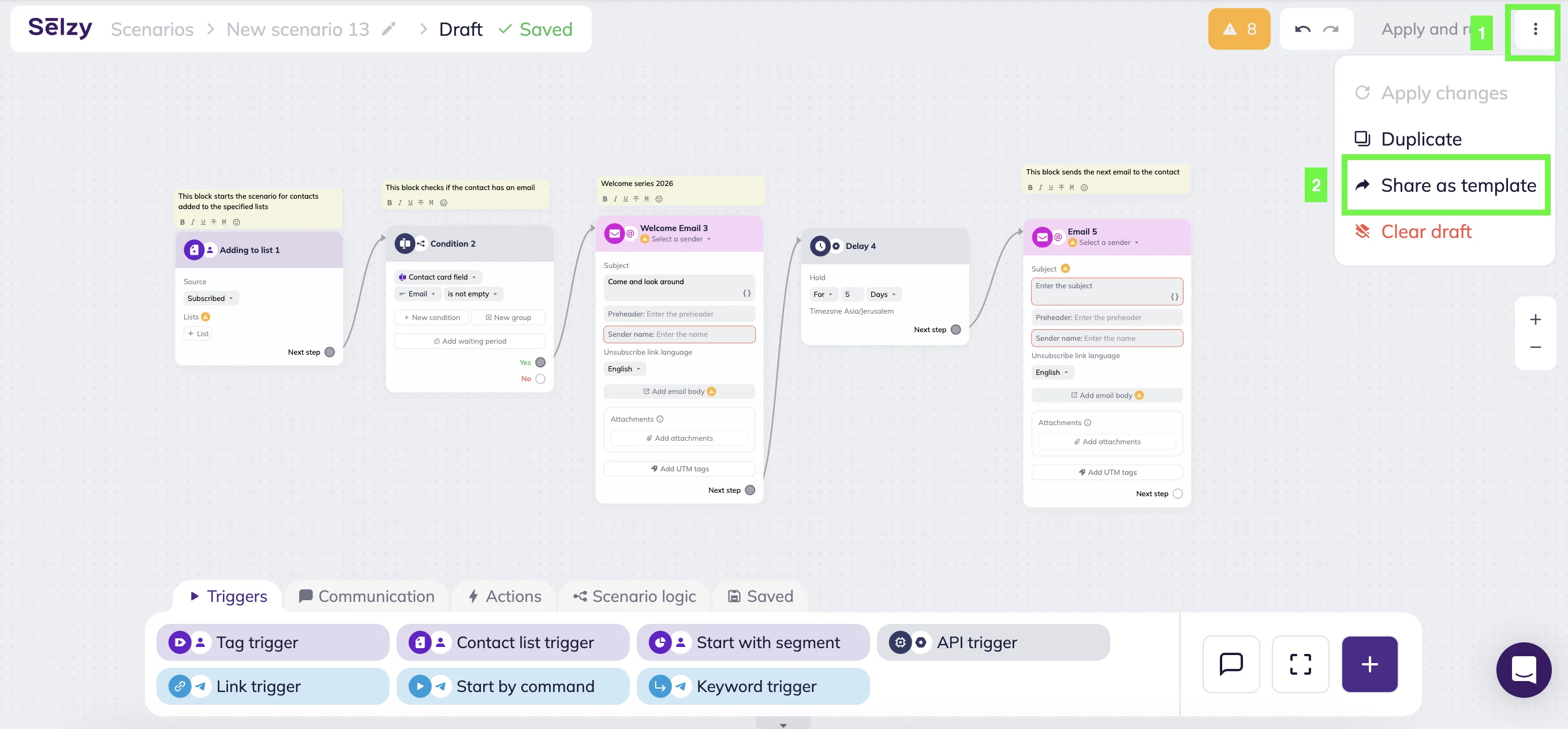
Alternatively, you can share a scenario directly from the scenario editor. In the opened scenario, click the three dots on the upper-right corner of the screen → Click “Share as a template”.
A pop-up window will open with the scenario template name and a sharable link.
To rename the template, enter a new name in the “Template name” field and click “Rename.” The button becomes active only after you make changes to the template name.
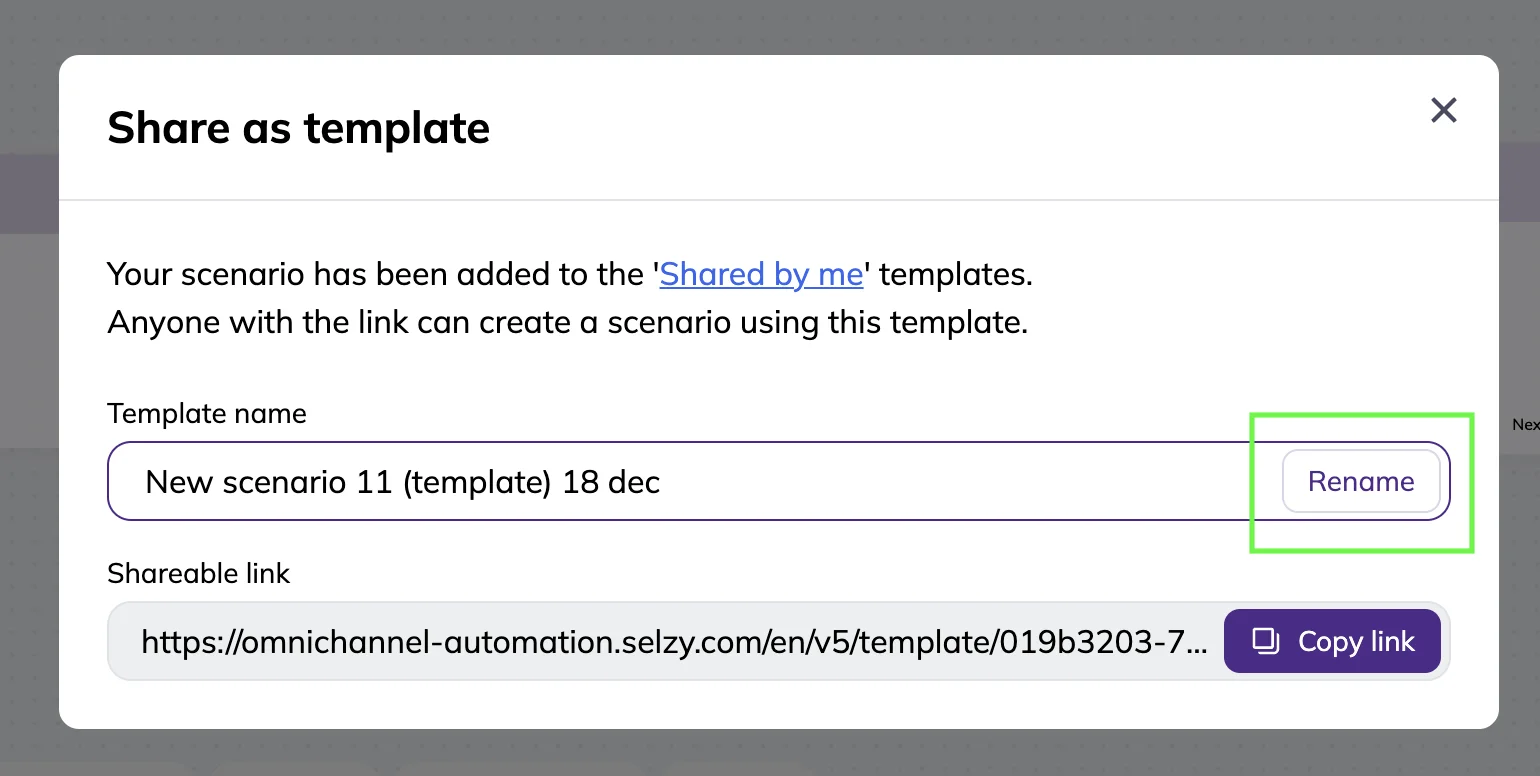
To copy the shareable link, click the “Copy link” button.
Manage shared templates
When you click “Share as a template,” the system automatically saves the template in the “Shared by me” section.
💡 Note that Bulk and Triggered scenario templates are stored separately.
You can access it:
- By clicking the link in the “Share as template” pop-up window
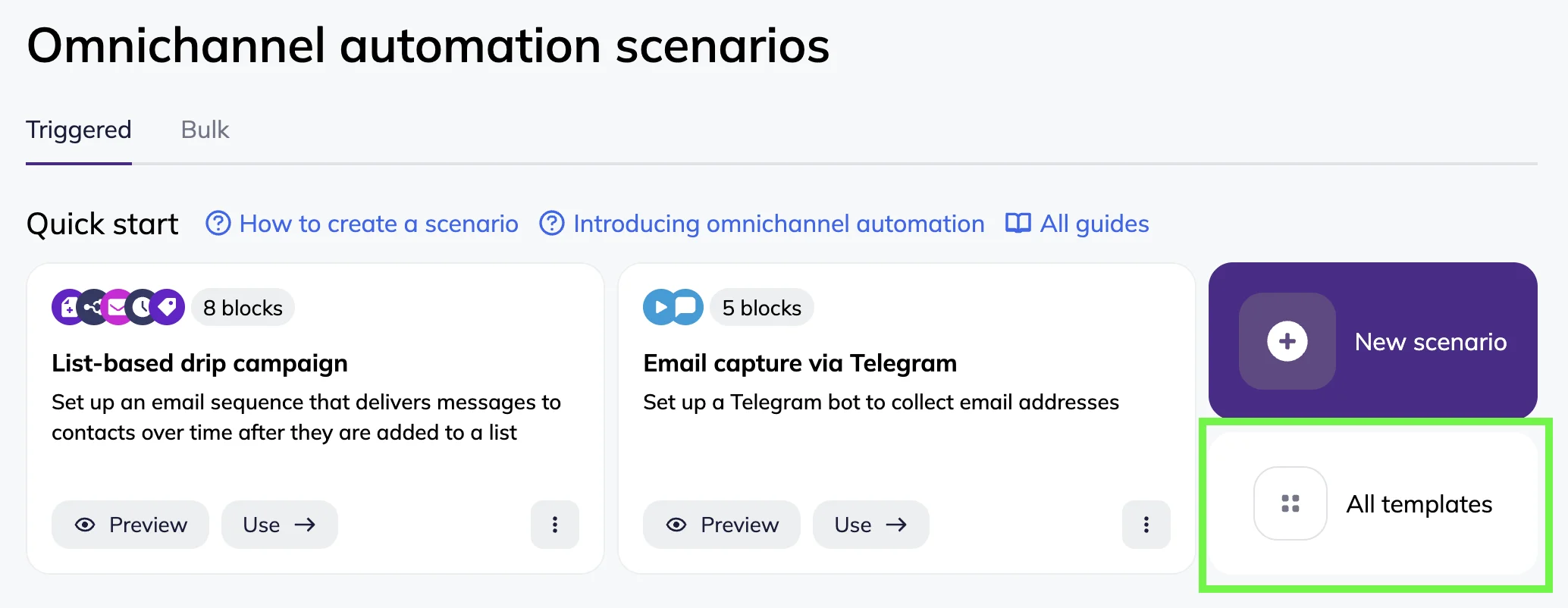
- By opening the Omnichannel automation scenarios page → Clicking the “All templates” button in either Triggered or Bulk scenario section → Selecting “Shared by me” in the Templates menu.
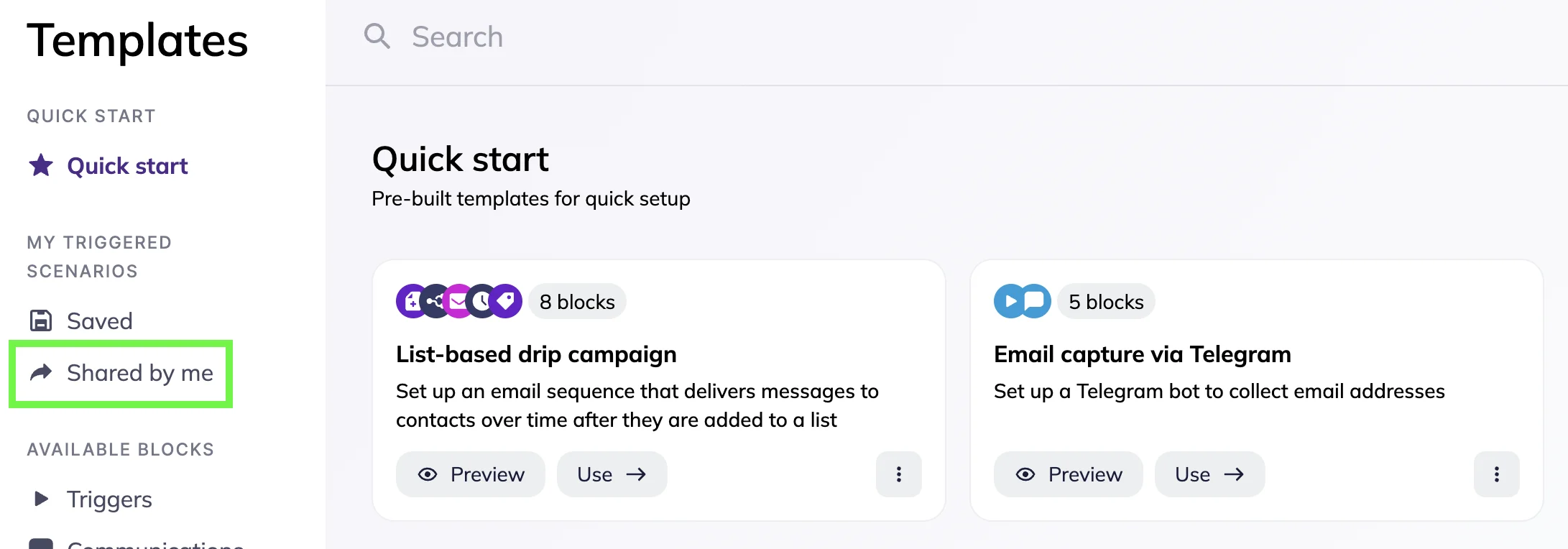
In the “Shared by me” tab, you can perform the following actions with your scenario templates:
- Preview — shows the scenario template without allowing any edits
- Use — opens the template in the scenario builder and allows editing
- Duplicate to the “Saved” section — creates a copy and places it in the “Saved” folder
- Rename — allows you to rename the template
- Copy the shareable link — copy a link to the scenario template to a clipboard
- Delete — removes the template (the original scenario remains unchanged)
Edit or customize shared template
A shared template opens in preview mode by default:
- Sensitive user data (email addresses, Telegram chatbot IDs, list IDs) is removed
- All editing actions are disabled (buttons, dropdowns, toggles, fields, connections, blocks)
- Fields and tags remain visible but are displayed in a read-only mode
To edit a template, click the “Use template” in the upper-right corner of the page.
If you’re not logged in, the login window will open automatically. Log in to continue automatically.
If you don’t have a Selzy account, you’ll need to create one first.
The scenario template will be open in the scenario editor.
Note that if the template uses Telegram channels, tags or custom fields, they will be automatically cleared unless it is a 100% match with those in your account.
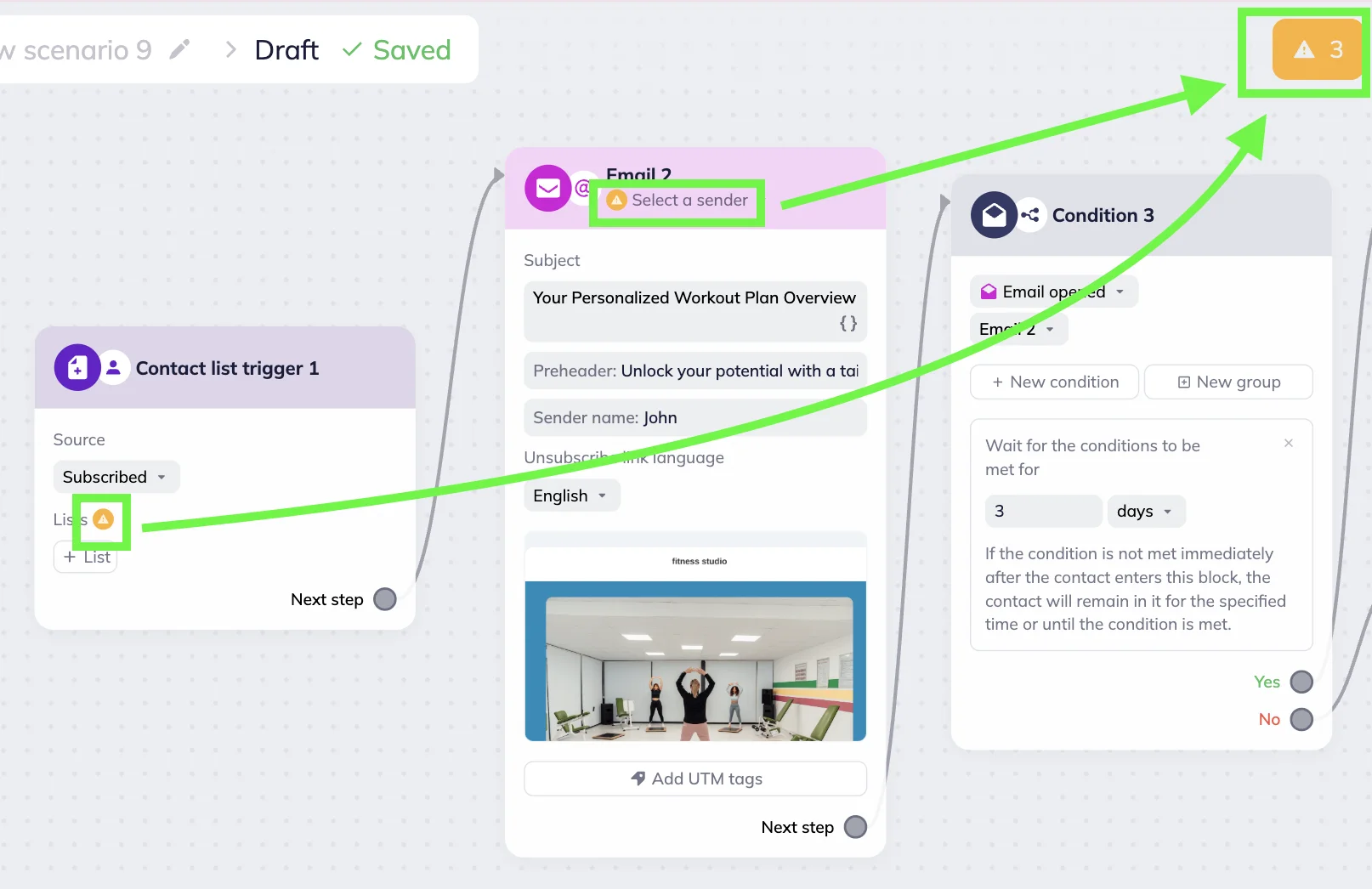
Fill in any information missing (e.g. segments, tags or custom fields) to complete and run the scenario. If an error occurs, the system will flag it with a triangle icon containing an exclamation mark.