Instagram keyword trigger belongs to Trigger blocks. The block is available for Triggered scenarios only.
The Instagram keyword trigger block runs a scenario when an Instagram user sends a keyword via direct message to your Instagram account.
When a contact writes the set keyword in a DM, they automatically receive a direct message on Instagram in return.
Use this block to:
- Automate communication on Instagram. Send automatic messages with text, and buttons.
- Attract new followers. Run giveaways or send lead magnets — ask followers to DM a keyword to receive a free checklist, discount code, or ebook.
- Engage followers. Start interactive conversations — ask followers to send a keyword so they can receive a short quiz, explore product options, or get personalized recommendations via DM. This keeps the conversation going beyond the post itself.
- Introduce followers to your other marketing channels. Use the triggered scenario to guide contacts beyond Instagram — invite users to share their email or follow a link to your Telegram bot, continuing the conversation.
💡 Instagram blocks — Keyword and Message — are available exclusively for Instagram business accounts. You can switch to a business account, using Instagram official guidelines.
Set up Instagram trigger block
Contacts created through Instagram messages are identified by the user’s Instagram handle and are not added to any contact list by default.
If the same person previously subscribed using their email address and you want to map their Instagram account with that existing contact, collect their email in the Instagram conversation using the Add field data collection feature in the Instagram message block. Once the email is collected, Selzy automatically merges the Instagram contact with the existing contact.
To create a Triggered scenario with the Instagram keyword trigger block, go to Triggered scenarios on the Omnichannel automation scenarios page → “New scenario” button → The scenario builder will open.
Add the Instagram keyword trigger block to the workspace from the toolbar menu below or by right-clicking the workspace.
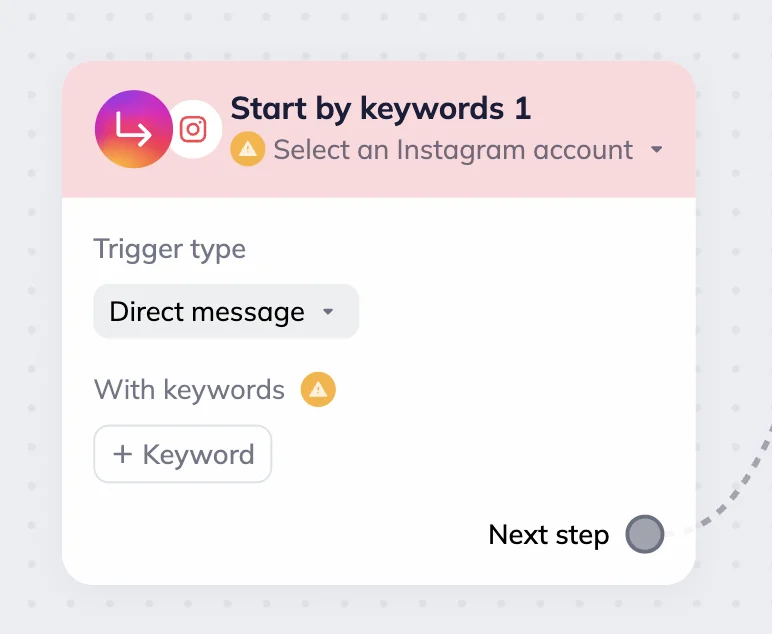
Next, connect your Instagram account or select a connected account by clicking the “Select an Instagram account” button.
To connect a new Instagram account, click on the “Connect new Instagram account” link in the “Select an Instagram account” dropdown menu. In the Instagram authorization pop-up window, enter your Instagram login and password. You’ll be then redirected back to your Selzy account, and will see your account handle in the “Select an Instagram account” dropdown menu.
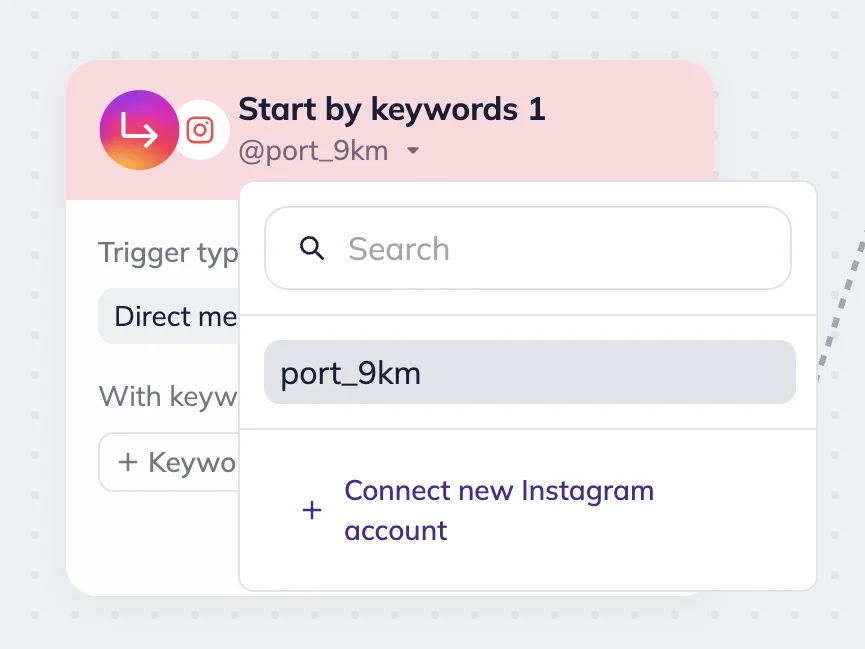
If the connection is successful, you’ll see a notification message “Instagram account [your account name] has been connected”.
To disconnect an account, hover over the account name in the “Select an Instagram account” dropdown menu and click on the trash icon next to it. Once the account is removed, you’ll see a notification message confirming successful deletion.
‼️ Note that the scenario will stop working after you disconnect your account, and subscribers won’t be able to progress through the scenario.
Choose a trigger type — direct message. The scenario will launch when a user sends a direct message with the set keyword or keywords.
Next, you must enter keywords that the system will scan to start the scenario. Without the keyword the scenario won’t run and the system will flag it as an error.
To add a keyword, click the “+Keyword” button and enter the word of your choosing (e.g. “Hey”, “Sale”, “Present”, etc.).
Your keyword must follow certain rules:
- One word per keyword (Upper case characters will be automatically replaced with lower case characters)
- No personal data (e.g. name, date of birth)
- No special symbols or emoji
You can add multiple keywords, all of them will appear in the block. This will help you cover common variations, such as typos, different spellings, or similar phrases your audience might use.
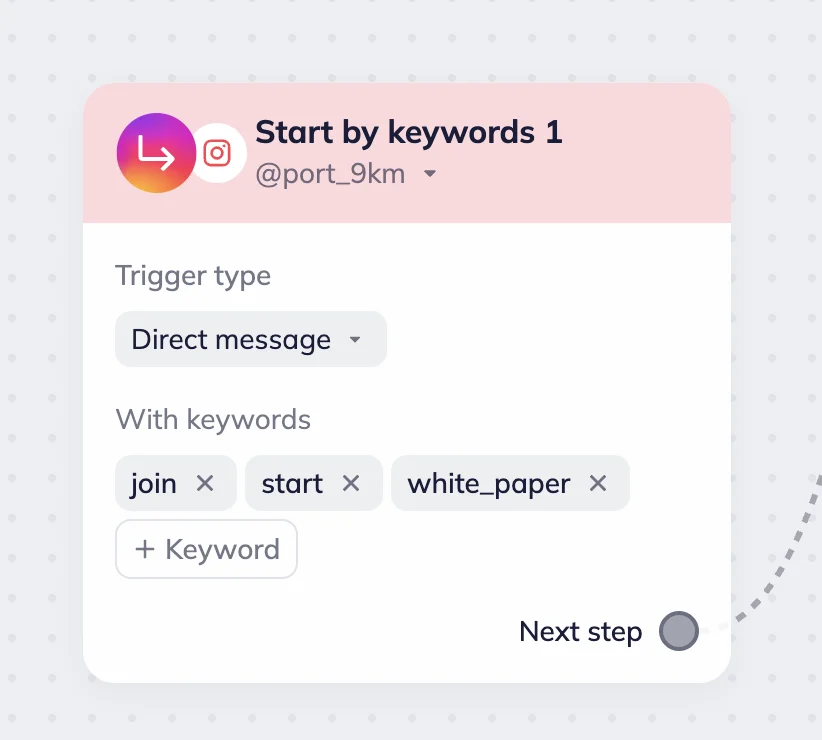
To remove the keyword, click x next to it.
Example: Webinar registration and email collection
Let’s say we want to promote our upcoming webinar on Instagram and automatically collect registrations from people who send us a keyword via DM.
At this time, the system can’t check if any Instagram user is subscribed to your Instagram account.
To do this, we create a new Triggered scenario and add the Instagram keyword trigger block.
In the block settings, we connect our business Instagram account, set up a trigger, and add a keyword. In this case, we want people to comment “Join” to sign up. We click “+Keyword” and enter a few variations for “Join,” accounting for likely typos.
Once the trigger is set up, we add the Instagram message block. It sends an automatic DM to every user who sent us “Join”. The user is asked to enter their email, so the confirmation and the Zoom link can be sent to them.
Under Data collection, we select Email so that the subscriber’s reply is saved directly into their contact card.
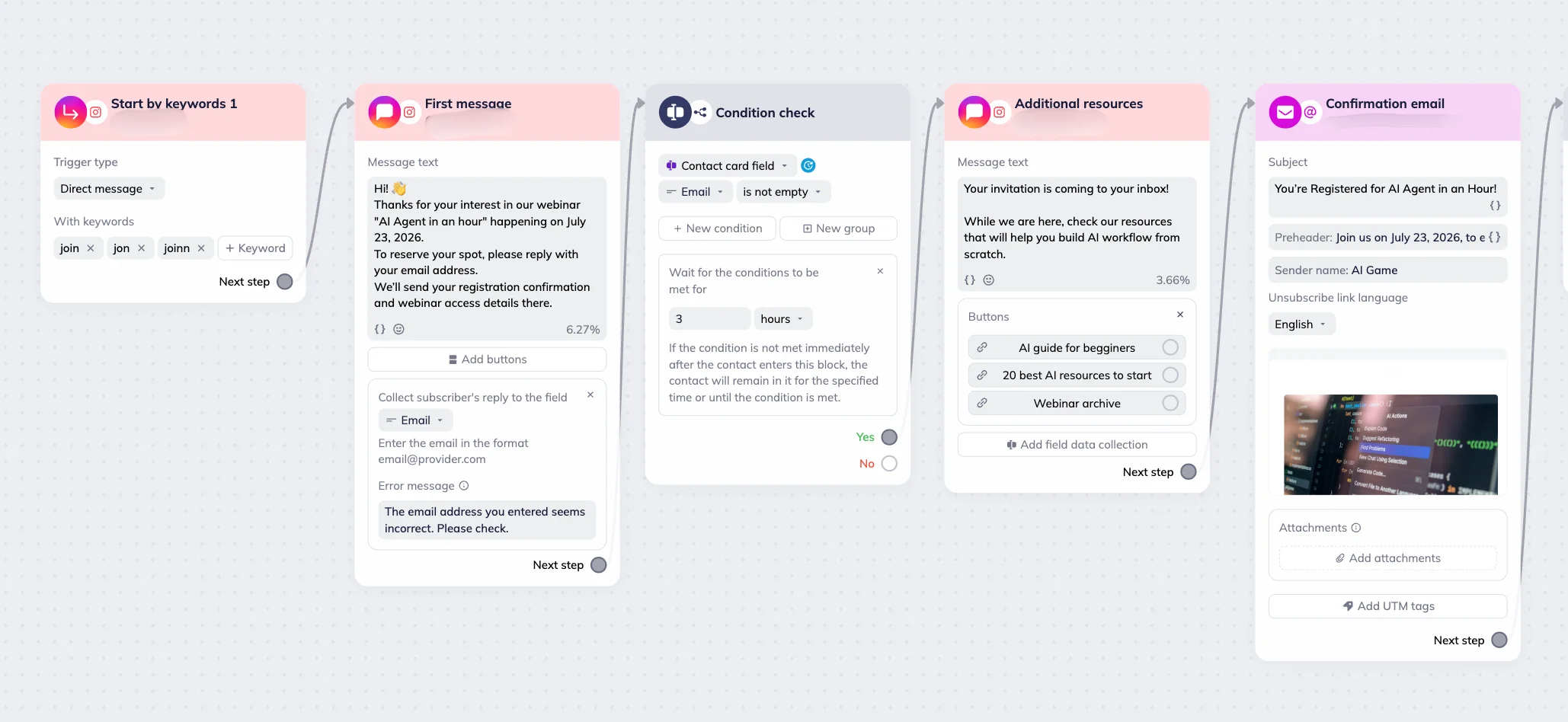
The message block is followed by the Condition block with Contact card field – Email – Not empty as a condition to check whether the contact submitted their email.
Contacts who enter a scenario through the Instagram keyword trigger are created using their Instagram username. If you plan to send them emails later in the scenario, make sure you’ve successfully collected their email address first. To give yourself some buffer time for email collection, set a waiting period in the Condition block.
Next, we add the Instagram message with additional resources. If users click on the button, they’ll be redirected to a specific page on our website. This block is followed by the Email block with the webinar confirmation message that will be sent automatically once the system receives the user’s email.
We also set Delay and Email blocks to send reminder communications to webinar participants.
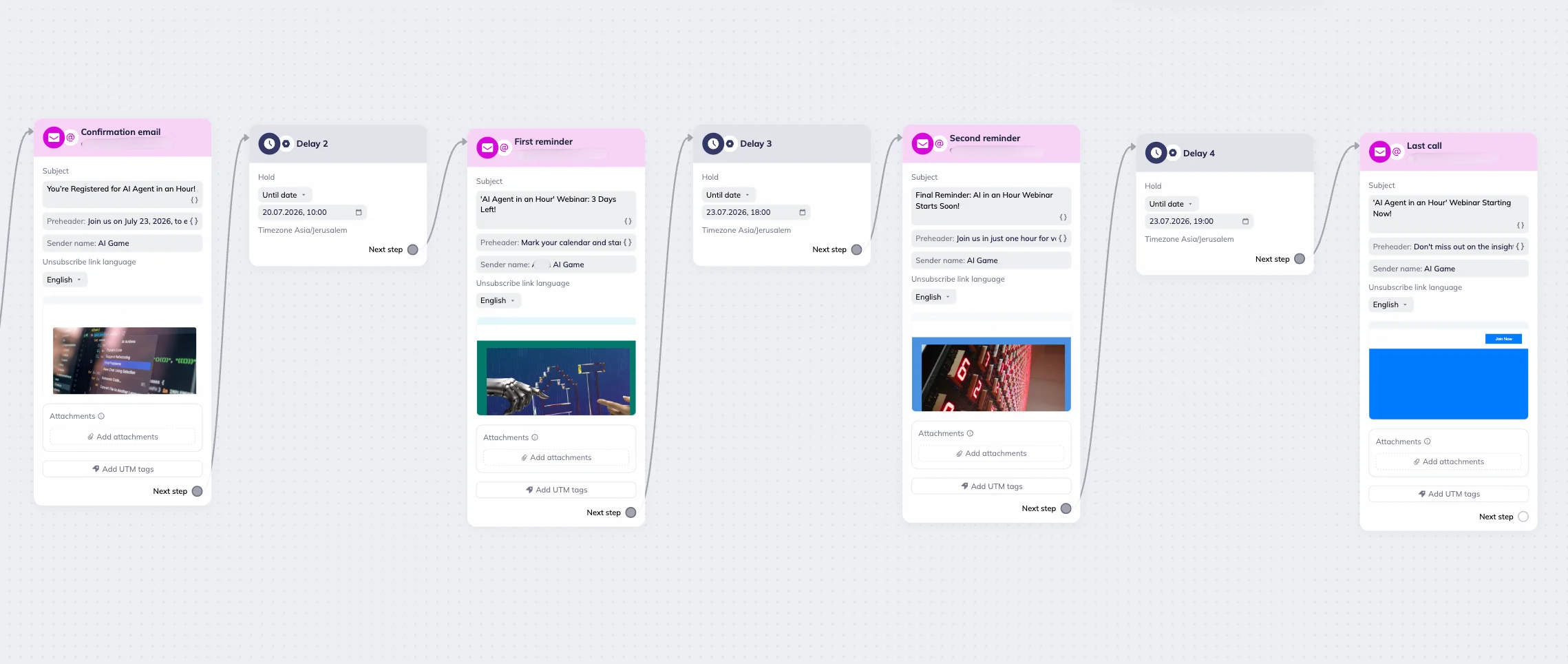
Need more Instagram scenario ideas? Use our Instagram lead-magnet scenario template or Instagram discount scenario template 🙂