If you use multiple omnichannel automation scenarios with different Telegram command triggers, you can create a command menu for your Telegram bot. This makes it easier for subscribers to discover your bot's features and start the scenario without typing commands manually.
For example, an online store chatbot can let customers:
- Browse the product catalog
- Learn about the loyalty program
- Leave a review
- View pricing
If a subscriber is currently in a scenario with one command and selects another command from the menu, the bot will immediately start the scenario associated with that command.
Set up the command menu
To create a command menu, open Telegram and start @BotFather. Select your bot, then go to Settings → Commands → Add a command.
Next, fill the command form:
- Command name — the command displayed in the Telegram menu. It must be a single word in English, without spaces.
- Command description — appears next to the command in the Telegram menu. Keep it short and informative.
- Scope (available for groups and channels) — select who sees the command.
- Ephemeral command (available for groups and channels) — select whether this command will be visible for all chat participants or only those who used the command.
Alternatively, you can enter /setcommands in BotFather, choose one of your bots and enter your commands using the following format:
command1 - Description of command 1
commandN - Description of command N
When you finish, BotFather will create the command menu, and it will become available to all subscribers.
Command name, descriptions and requirements
The command name must exactly match the command used in your scenario trigger.
Commands must:
- be written in English;
- contain no spaces;
- consist of a single word.
Do not include the leading /. BotFather adds it automatically.
The command description appears next to the command in the Telegram menu, so keep it short and informative.
- Up to 256 characters
- Can be written in any language
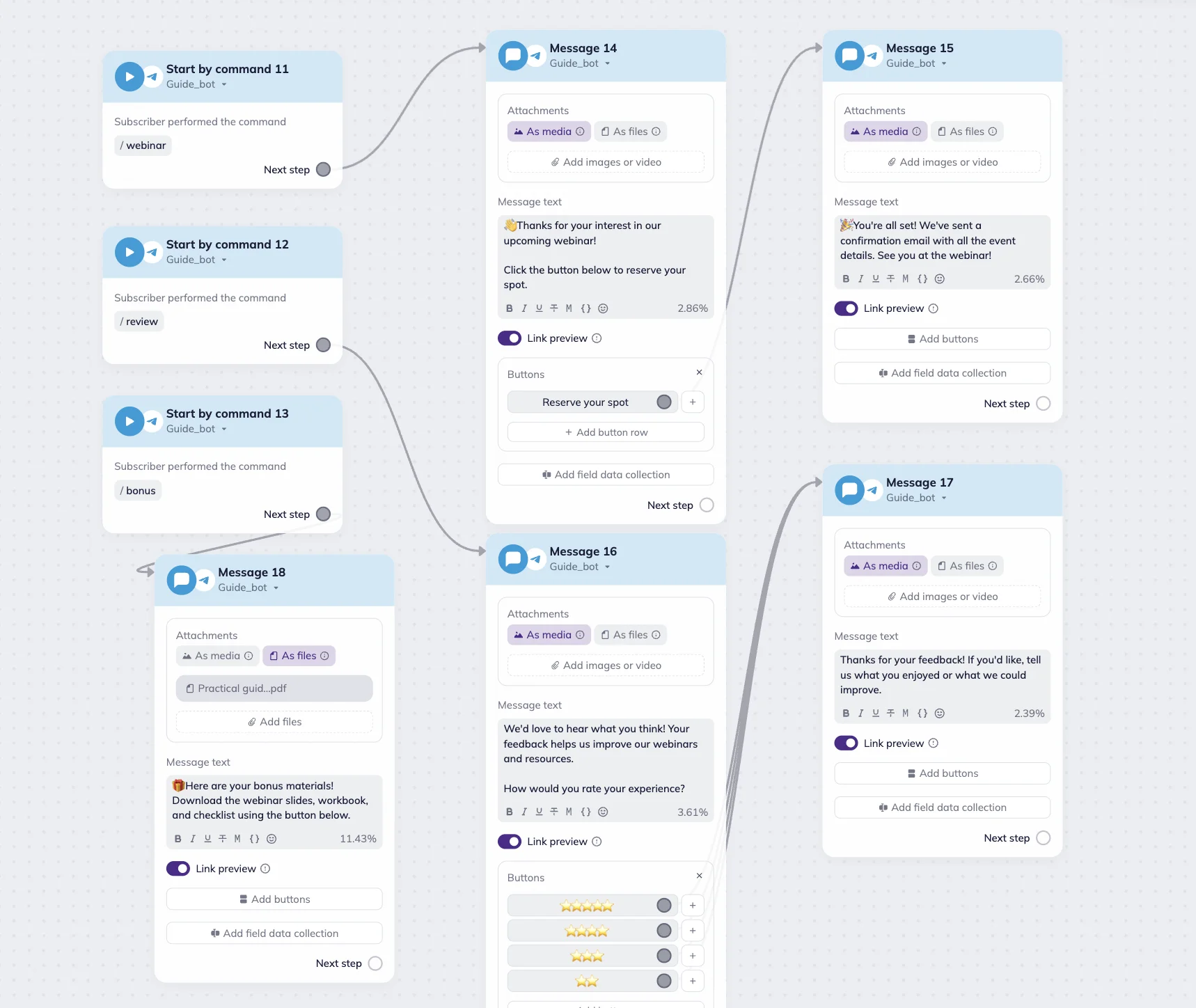
For example, if your bot covers the scenarios for webinar registration, collecting feedback, and providing bonus materials, your command menu might look like this:
webinar - Register for the webinar
review - Leave feedback
bonus - Get bonus materials
The scenario will look like this:
Edit or delete the command menu
To update or delete an existing menu, open @BotFather in Telegram, select your bot, then go to Bot Settings → Commands.
To update a command, select it and update its name, description, or other settings.
‼️ If you rename a command, make sure to update the corresponding trigger in your automation scenario as well. Otherwise, the bot will no longer recognize the command, and the corresponding scenario won't run.
To delete a command menu, click Edit in the Command menu → Delete icon (red circle) next to commands you want to delete.
Deleted commands are removed from the menu. If you delete all commands, the command menu will no longer appear for subscribers.