



Writing an email with AI is easy. The extra work usually starts when the AI needs information from your email marketing platform.
You can ask it to compare your recent campaigns, but first you have to export the numbers. You can ask it to improve last month’s newsletter, but you still need to find the email, copy it into the chat, make the changes, and move everything back into your email tool.
Model Context Protocol, or MCP, changes that workflow.
An email marketing MCP server connects an AI assistant to approved tools and data inside an email platform. Instead of working only with information you paste into a conversation, the assistant can retrieve campaign results, inspect audiences, build segments, work with existing emails, run pre-send checks, and, where supported, send campaigns.
Selzy supports this through its own MCP server. It gives AI assistants access to tools for campaign analysis, contacts and lists, segmentation, templates, email content, pre-send checks, and campaign sending.
In this guide, we’ll look at how MCP works for email marketing, what you can automate with it, how to connect Selzy MCP, and when the dashboard or REST API is still a better fit.
What Is MCP for Email Marketing?
MCP stands for Model Context Protocol. It is an open standard that gives AI applications a structured way to connect to external tools and data. MCP was introduced by Anthropic in November 2024 as an open standard and is now supported by a growing number of AI applications.
Without MCP, an AI assistant knows only what you provide in the conversation.
For example, if you ask:
Which of my last ten newsletters had the highest click rate?
A normal AI chat cannot answer that from your email platform unless you export the campaign data and give it to the assistant.
With an email marketing MCP connection, the assistant can retrieve the relevant campaign history, inspect the metrics, and answer using data from the connected account.
The same applies to actions.
Depending on what an email platform exposes through its MCP server, an AI assistant may be able to:
- Analyze campaign performance
- Search contacts and lists
- Create audience segments
- Import contacts
- Create or edit emails
- Work with saved templates
- Run spam checks
- Send test emails
- Check recipient counts
- Prepare campaigns
- Send or schedule campaigns
So MCP does more than give AI additional context. It can also give the assistant access to specific actions inside the email marketing platform.
How an Email Marketing MCP Server Works
A typical setup has three parts: the AI application where you have the conversation, the MCP server that exposes the available tools, and the email marketing platform where your campaigns and subscriber data live.
You → AI assistant → MCP server → Email marketing platform
The AI assistant is where you give instructions.
The MCP server sits between the assistant and the email platform. It tells the AI which tools are available and what each one can do.
The email platform remains the system where your campaigns, contacts, templates, and account data live.
For example, instead of exporting a report and uploading it into a chat, you can ask:
Prompt:
Compare my last five campaigns and tell me which one had the strongest click rate.
The assistant can use the MCP connection to retrieve those campaigns and analyze the results directly.
Or you might ask it to create a new segment. If segmentation tools are available, the assistant can check the filters supported by the platform and build the audience for you.
MCP does not automatically give AI access to everything
The platform decides which tools its MCP server exposes.
Some tools only retrieve information. Others can create or update data. More sensitive actions may have extra checks or require confirmation before they run.
That means two email marketing platforms can both support MCP but offer very different workflows.
The more useful question is not simply, “Does this platform support MCP?” It is: What can I actually do through its MCP server?
What Can You Automate With MCP for Email Marketing?
Email marketing MCP is especially useful for tasks where marketers normally move information between an email dashboard, spreadsheets, and an AI chat.
Analyze campaign performance
Instead of exporting reports, you can ask questions about campaign results directly.
Compare my last ten campaigns. Which three had the strongest click rates, and what do they have in common?
The assistant can retrieve the relevant data and help identify patterns across subject lines, content, audience size, or other campaign characteristics.
Work with contacts and lists
If the MCP server exposes contact-management tools, the assistant can inspect lists, search subscribers, count audiences, or create new lists.
Show me the lists I already have for webinar leads and tell me how many sendable contacts are in each one.
The answer comes from the connected account rather than from an exported CSV.
Build audience segments
Segmentation is a natural fit for conversational workflows because you can describe the audience in plain language instead of manually building every filter.
Create a segment of subscribers who opened an email in the last 30 days but have not clicked in the last 60.
The assistant can translate that request into the fields and conditions supported by the platform.
Create and update email content
MCP can connect AI writing directly to the emails already stored in your account.
Instead of copying an old newsletter into a chat, you can ask the assistant to find it, duplicate it, rewrite part of the content, and prepare the updated version.
Run pre-send checks
Some MCP servers expose tools for checks that normally happen shortly before launch.
- Spam checks
- Test sends
- Recipient counts
This lets AI help with more of the preparation around a campaign without skipping the checks that matter before delivery.
Send campaigns
Some email marketing MCP servers can go beyond preparation and send or schedule campaigns.
This is where the details matter most. Before using direct sending, check whether the platform requires validation, confirmation, moderation, or other safeguards before a campaign goes out.
What You Can Do With Selzy MCP
As of October 2026, Selzy MCP exposes 56 tools covering the main parts of an email marketing workflow.
| Area | What you can work with | Typical use |
| Account and senders | Plan, limits, usage, verified senders, registering a new sender address | Check account context before starting |
| Contacts | Lists, contact counts, search, individual contact records, list creation, CSV import, custom fields, enabling or disabling contacts | Build and inspect audiences |
| Tags | Create, rename and delete tags, attach or detach them across selected contacts | Organize contacts without creating new lists |
| Segments | Available filters, existing segments, create, update, delete | Turn an audience description into a real segment |
| Email content | Create, read, update, list, and copy emails | Draft new emails or reuse previous ones |
| Templates | System template catalogue by industry and tag, your saved templates, create and update | Start from an existing design |
| Pre-send checks | Spam audit, test send, recipient count | Review the campaign before launch |
| Campaign analysis | History, statistics, contact-level engagement | Analyze performance |
| Sending | Prepare, send, schedule, cancel, editor link | Move from draft to delivery |
What stays in the Selzy interface: building automations, uploading files directly, creating forms and landing pages, and setting up A/B tests. For those, Selzy MCP can prepare the work and hand it back to the editor.
Check Your Account Before Planning a Campaign
Before creating a campaign, you can ask Selzy MCP to collect the account information you need first: available lists, sendable contacts, verified senders, plan limits, and current usage.
Example prompt
I’m preparing a webinar campaign. Check my account first: which relevant lists are available, how many sendable contacts are in each one, which sender addresses are verified, and whether my current plan has enough sending capacity.
Example result
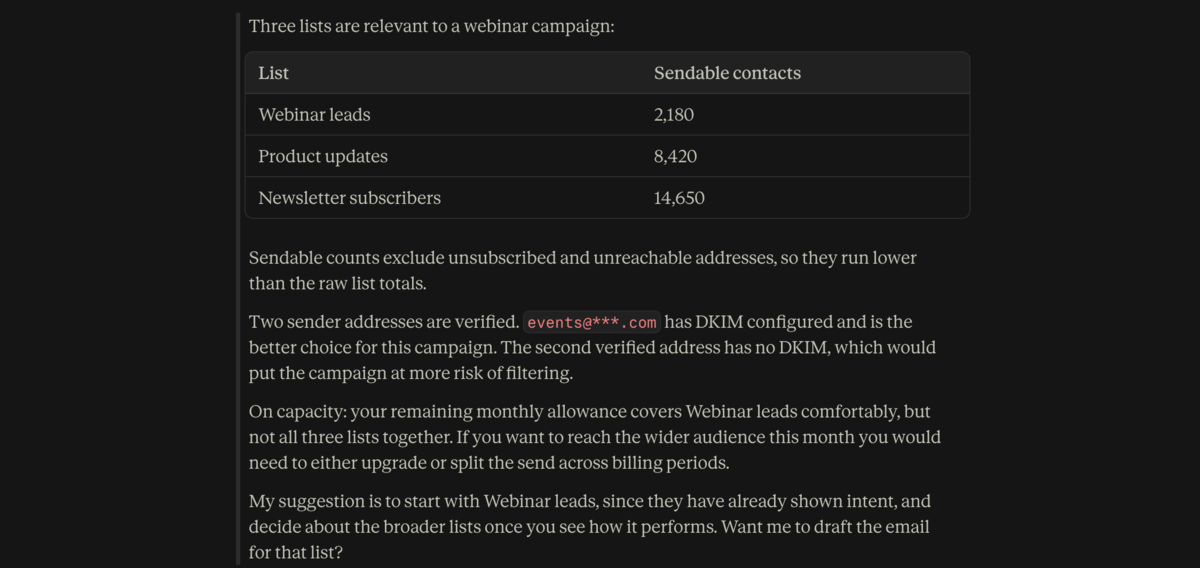
This is useful when you want to make a campaign decision without opening several parts of the dashboard first.
You can also ask narrower questions such as:
- How many sendable contacts are in my Black Friday list?
- Which verified sender should I use for this campaign?
- Do I already have a list for product-launch leads?
- Do I have enough remaining sends for a campaign to 20,000 contacts?
Create a List and Import Contacts
Selzy MCP can create a list and import contacts from CSV data pasted into the conversation.
The import follows several steps:
Create list → Upload data → Preview import → Confirm → Import
The preview step gives you a chance to check the column mapping before contacts are added.
Example prompt
Create a list called Webinar October and import these contacts.
Example result
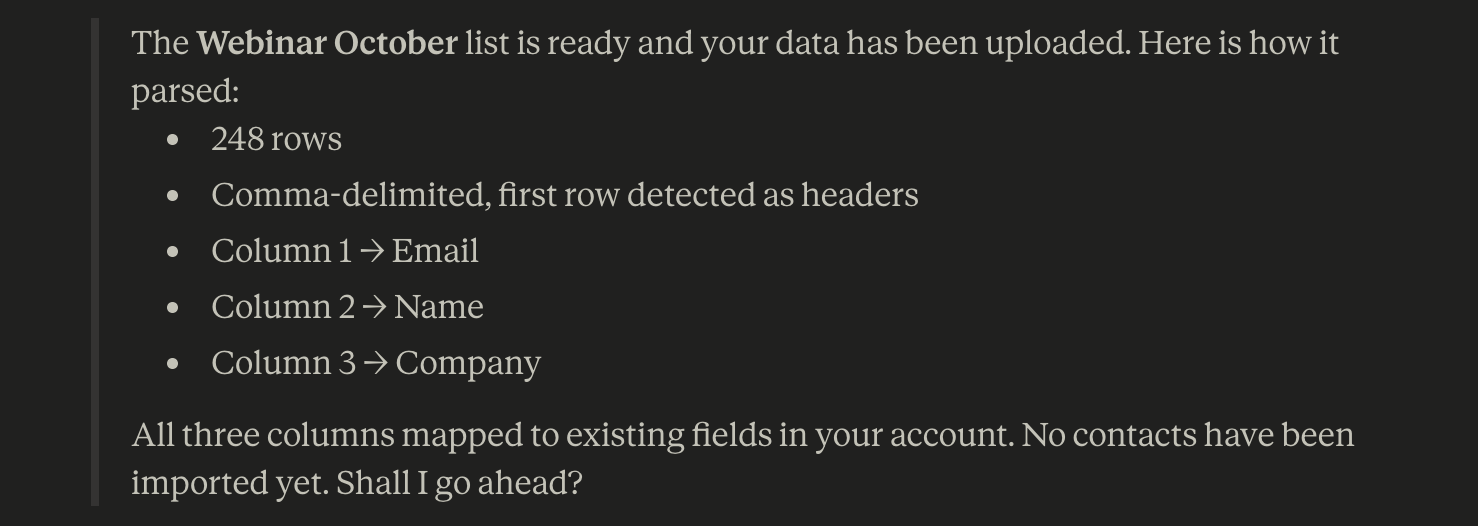
Selzy MCP currently accepts pasted CSV text for this workflow. If you need to upload a file directly, use the Selzy interface.
Create Segments With Natural-Language Instructions
Instead of manually translating an audience idea into filters, you can describe the group you want in plain language.
Selzy MCP can first check which segmentation fields and operators are available in the connected account, then build the segment using supported conditions.
Example prompt
Create a re-engagement segment of subscribers who opened an email in the last 30 days but have not clicked in the last 60.
Example result
Both conditions are available in the account.
- Opened an email within the last 30 days
- Has not clicked within the last 60 days
- ALL conditions must be met
Segment name: Opened, not clicked. The segment is ready to create once you confirm.
This is especially useful for more complex targeting where you know the audience you want but do not want to build every condition manually.
Reuse and Edit Existing Emails
Selzy MCP can create, read, list, update, and copy emails.
That means you can work from campaigns you already have instead of starting every email from a blank prompt.
Example prompt
Find the newsletter we used for the August product update, copy it, and rewrite the opening and CTA for the new feature launch. Keep the rest of the structure.
Example result
The August product update has been copied so the original campaign stays unchanged.
I updated the opening and CTA around the new feature while keeping the existing structure and layout.
New CTA: Explore the new feature and see how it works.
This removes the usual copy-paste loop between the email platform and the AI assistant.
Work With Selzy Templates
You do not have to ask AI to invent a new email layout every time.
Selzy MCP can work with Selzy system templates and templates already saved in your account.
Example prompt
Find e-commerce templates I can use for my campaigns.
Example result
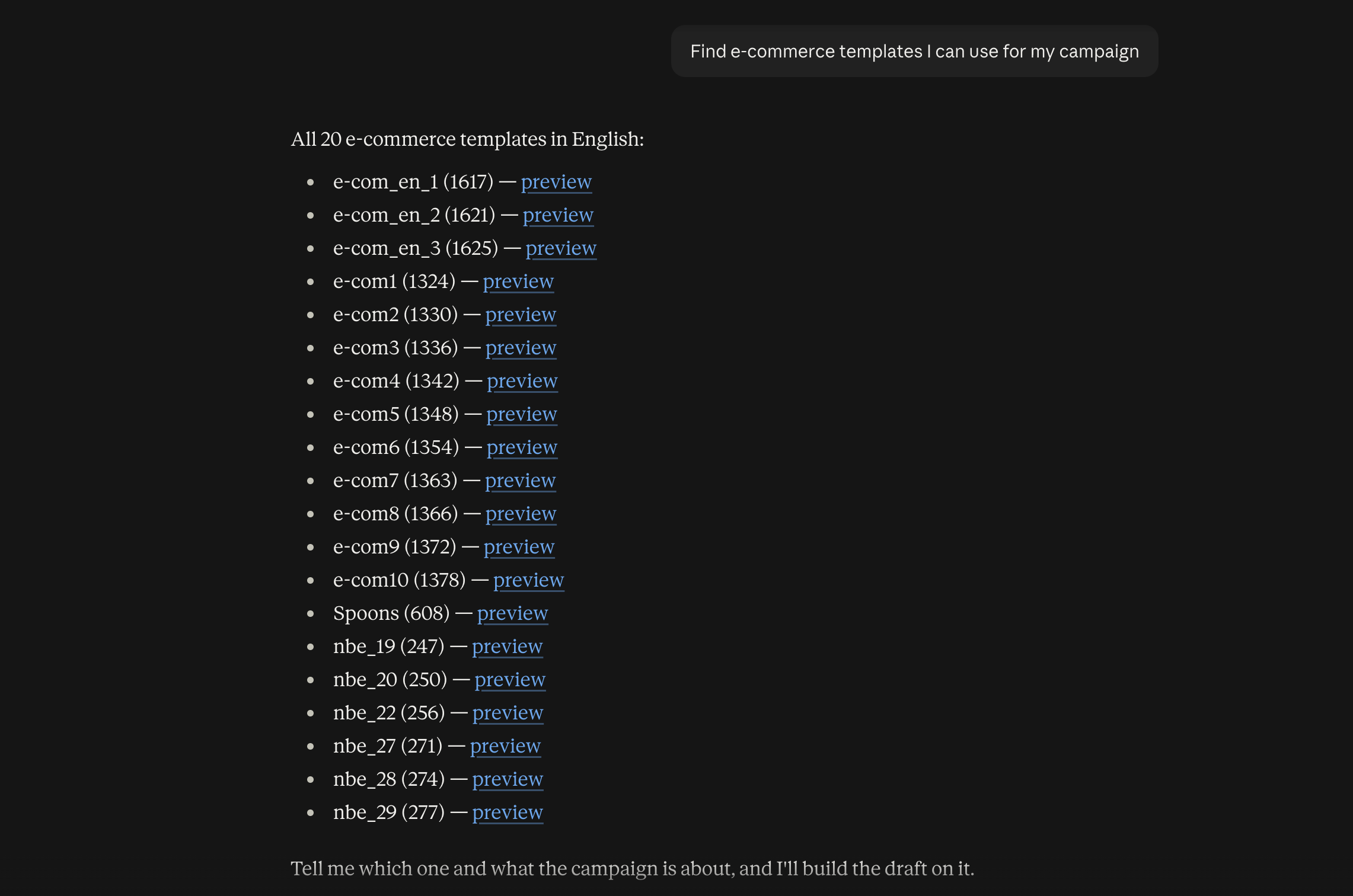
Once you choose a starting point, you can continue working on the content with AI and move into the Selzy editor when you need visual control over the design.
Run Pre-Send Checks
One of the more practical parts of Selzy MCP is that the workflow does not have to stop once the copy is ready.
The assistant can run a spam audit, calculate how many contacts the campaign would reach, and send a test email to an address you specify.
Example prompt
Run a spam check on this campaign, tell me how many subscribers it will reach, and send a test to ***@selzy.com.
Example result
Spam check: Score 2.1, below the usual 5.0 threshold. Two flags worth fixing: the image-to-text ratio is high, and the subject line uses capitals that some filters weight heavily.
Recipients: 2,180 sendable contacts currently match the campaign targeting.
Test send: Sent to ***@selzy.com.
Pre-send checks are not standard across MCP servers, so it is worth confirming what a platform offers before relying on them.
Analyze Campaign Performance Without Exporting Reports
Selzy MCP can retrieve campaign history, statistics, and contact-level engagement data.
Instead of exporting a spreadsheet every time you want to compare results, you can ask the assistant directly.
Example prompt
Compare my last ten newsletters. Which three had the strongest open rates, and what patterns do you see?
Example result
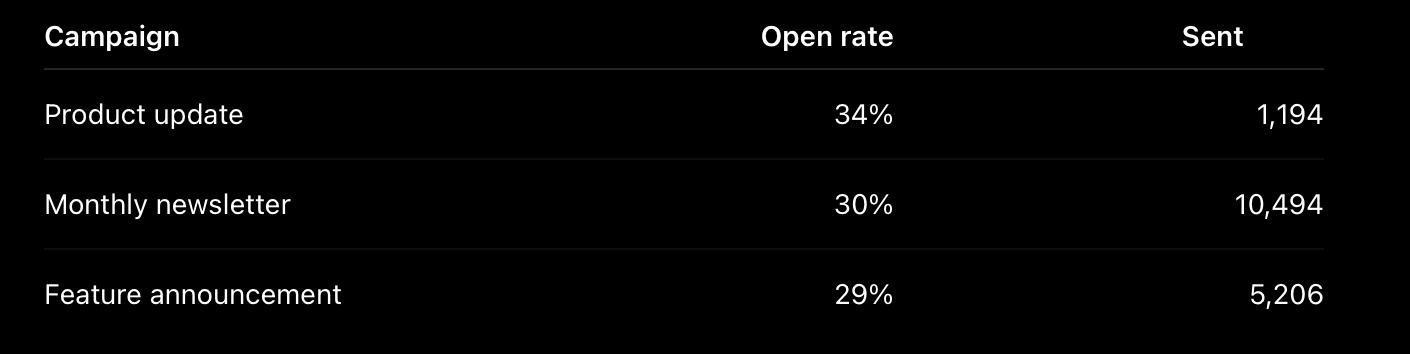
The three strongest campaigns all led with product or customer news rather than a promotion. However, the difference is not large enough on its own to conclude that the subject-line approach caused the higher open rate.
You can also ask the assistant to compare clicks, unsubscribes, complaints, or bounces.
Selzy MCP can return contact-level campaign activity too. Because that data may contain individual email addresses, avoid displaying raw subscriber details while screen-sharing or recording a demo.
Prepare and Send Campaigns With Selzy MCP
Selzy MCP supports two useful paths from campaign preparation to delivery.
Prepare the campaign and review it in Selzy
The assistant can prepare the campaign without sending it.
You can then open it in the Selzy editor to check the design, audience, and campaign settings before launch.
This is useful when you want AI to handle most of the preparation but still want the final visual review inside the email platform.
Send directly through Selzy MCP
Validation happens as part of the send itself. The API checks the letter and refuses with a specific reason if something is wrong: an unverified sender address, an empty audience, or a tariff limit. There is no separate rehearsal step, which is why the assistant should check your recipient count and verified senders before sending.
Two things still stand between a prompt and your subscribers. The send requires your explicit confirmation in the chat, and the campaign then waits for Selzy’s moderation before it goes out. A scheduled campaign can be cancelled at any time before it starts.
Example prompt
Prepare the October webinar campaign for the Webinar leads list, run the checks, and send it if everything is ready.
Example result
The campaign is prepared for 2,180 recipients, using your verified sender address.
Before I send, confirm you want this to go out now. Once sent, it cannot be recalled, though a scheduled send can be cancelled.
The important part is that sending is available, but it is not treated like an ordinary read action.
How to Connect Selzy MCP
You can connect Selzy MCP to an AI application that supports custom MCP connections.
Selzy has tested the integration with Claude and Claude Code. Compatibility, setup options, and plan requirements can vary between AI applications.
1. Open Claude
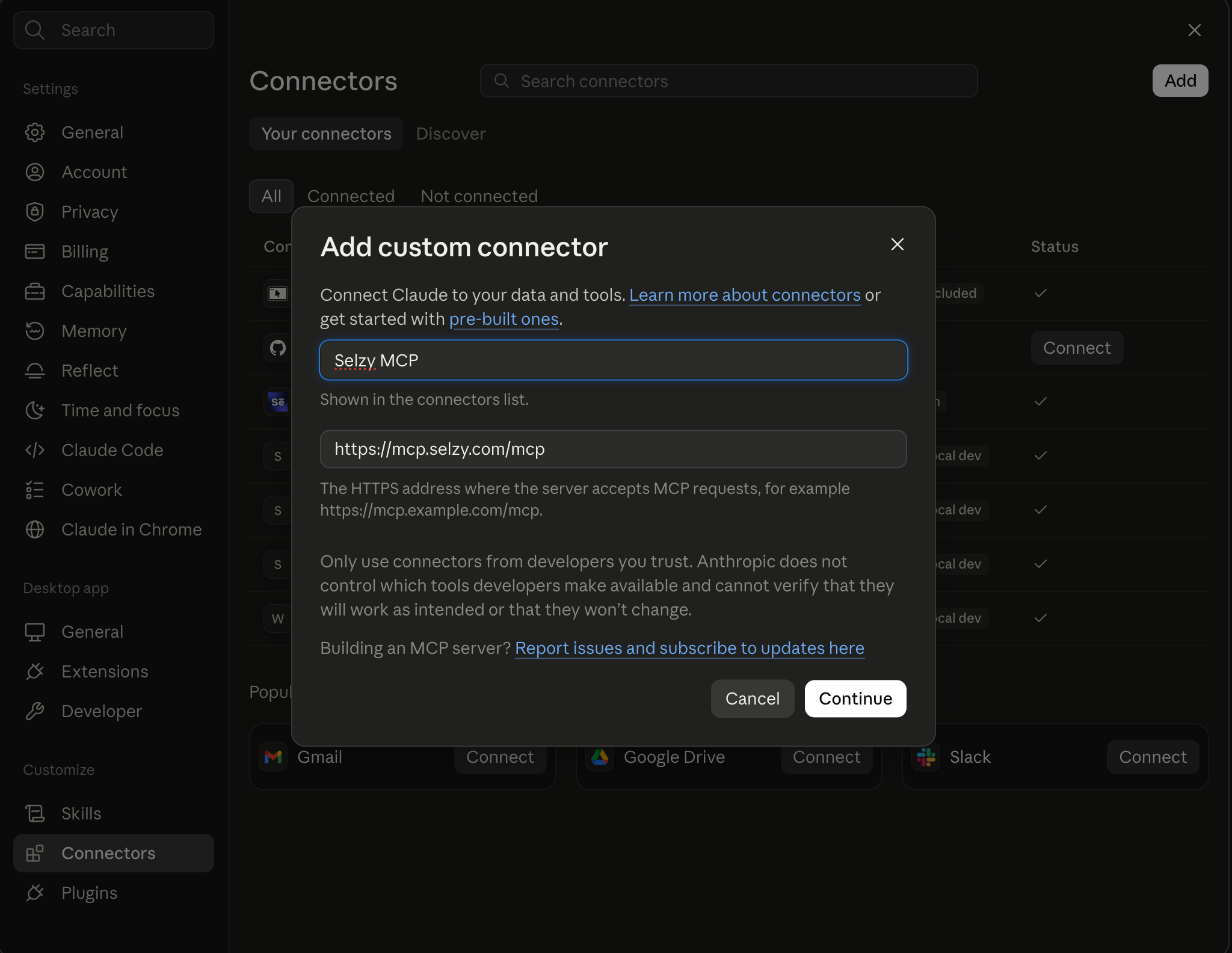
Open Claude and go to Settings → Connectors.
2. Add the Selzy MCP server
Click Add custom connector and paste:
https://mcp.selzy.com/mcp
3. Authorize your Selzy account
Complete the authorization process and choose the Selzy project you want the AI assistant to work with. In Claude Code, type /mcp to start the authorization.
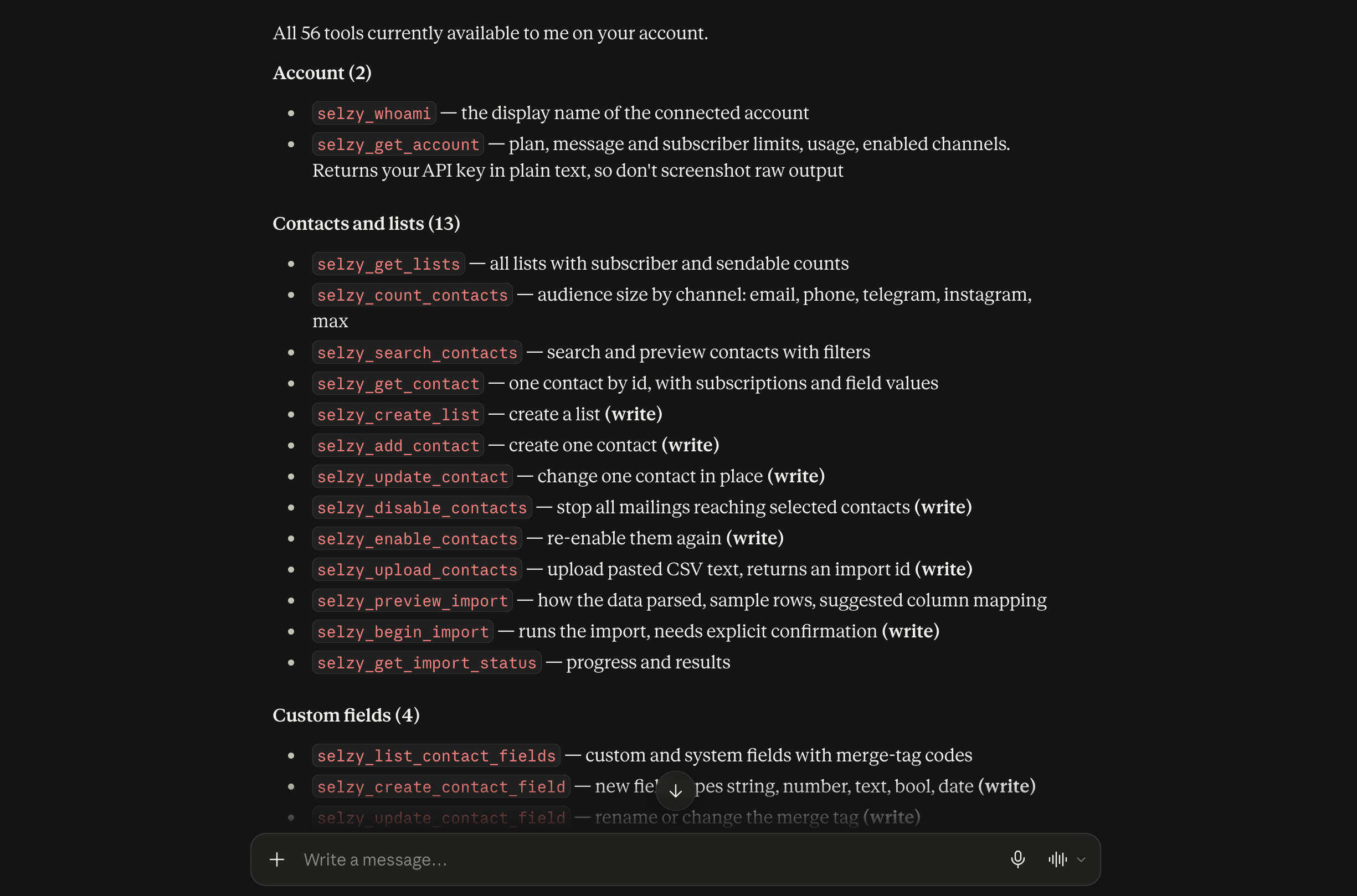
4. Review the available tools
Check which Selzy actions are available to the assistant.
If your AI application provides approval controls for actions that change account data, keep them enabled.
5. Test the connection
Start with a simple read-only request:
Which Selzy account am I connected to, and what contact lists are available?
Once the connection is working, you can move to a more complete workflow:
- Review your lists and audience size.
- Analyze recent campaigns.
- Find or create an email.
- Build the audience segment.
- Run pre-send checks.
- Prepare the campaign.
- Review it in Selzy or continue to the send step.
MCP access is not limited to a specific plan tier. Check your plan details for current limits.
Working with multiple Selzy projects
One MCP connection can work with one Selzy project at a time.
To work with another project, disconnect the current project and connect the one you want to use next.
If you regularly manage several projects, keeping separate chats for them can also make it easier to avoid mixing account context.
Selzy MCP vs. Dashboard vs. REST API
MCP does not replace the Selzy dashboard or REST API. Each is useful for a different type of work.
| Use Selzy MCP when | Use the Selzy dashboard when | Use the REST API when |
| You want to work through natural-language instructions | You want visual control over email design | You are building your own software or integration |
| You want AI to analyze campaign results | You want a final visual review before sending | You need deterministic, repeatable logic |
| You want to create or rewrite email content | You are configuring settings MCP does not expose | You need operations outside the MCP toolset |
| You want to build a segment conversationally | You want to inspect audience filters directly | You need high-volume automated calls |
| You want to combine several steps in one conversation | You are building an automation or uploading a file | A system rather than a person drives the workflow |
If the same operation needs to run automatically on a fixed schedule, a REST API integration is usually still the better fit.
Security, Permissions, and Privacy
Connecting an AI assistant to an email marketing platform should be treated like any other third-party integration.
MCP standardizes the connection, but security still depends on which tools are exposed, what information they return, and how sensitive actions are controlled.
Connect only MCP servers you trust
The MCP server sits between your AI application and the email marketing platform. Use trusted servers and understand what information and actions they expose.
Review write actions
Pay particular attention to actions that create, update, delete, import, schedule, or send.
With Selzy MCP, campaign sending includes additional checks and confirmation before delivery.
Protect subscriber data
Contact and campaign tools may return real subscriber information.
Avoid displaying contact-level results containing email addresses or other personal information while recording your screen or sharing a conversation.
Do not paste credentials into chat
Passwords, API keys, and other credentials should not be included in prompts.
Remove connections you no longer use
Review connected applications periodically and disconnect access that is no longer needed.
Which Email Marketing Platforms Have MCP Servers?
Several email platforms now publish MCP servers, but they differ more than the label suggests. Some connect to your account, some only search the vendor’s documentation. Some send email, some are read-only by design. Before choosing one, check the endpoint, how authorization works, what the server can actually do, and which tasks still require the platform interface.
| Platform | What the server connects to | Hosted or self-run | Authorization | Sending |
| Selzy | Your account, 56 tools | Hosted, mcp.selzy.com/mcp | Sign in to Selzy, choose a project | Sends and schedules, with explicit confirmation and moderation |
| Brevo | Your account, 27 modules, plus a separate docs server | Hosted, mcp.brevo.com/v1/brevo/mcp | MCP token, full account read and write | Creates and manages email campaigns; SMS and WhatsApp modules send |
| Klaviyo | Your account, 260+ tools | Hosted, mcp.klaviyo.com/mcp, plus a local option | OAuth; Owner, Admin or Manager role required | Sends campaigns, and can cancel a send |
| Mailchimp | Documentation only, not your account | Hosted | None required | No. Account actions use Agent Skills or the API directly |
| MailerLite | Your account, 40+ tools | Hosted, mcp.mailerlite.com/mcp | OAuth | Schedules and cancels campaigns |
| Mailgun | Your account, 50+ operations, sending infrastructure rather than campaigns | Self-run, no hosted version | API key | Sends email; exposes no delete operations |
| Mailjet | Your account, read-only | Self-run, no hosted version | API key | No. Read-only by default; developers can extend it |
| Resend | Your account, full platform including automations and API keys | Hosted, mcp.resend.com/mcp, or self-run | OAuth, or API key for headless use | Sends emails and broadcasts, with scheduling |
Checked against vendor documentation, October 2026. MCP servers change quickly, so confirm details against the provider’s own docs before relying on them.
Four things worth checking before you connect
Does the server reach your account, or only the docs? Mailchimp’s MCP server searches its developer documentation and needs no Mailchimp credential. It cannot see your campaigns. Brevo runs two servers: one for account data and a separate documentation server that touches nothing. Published roundups routinely conflate the two, so confirm which one a platform means before concluding it supports MCP.
Hosted or self-run? Most platforms now host the server themselves, so you connect with a URL and authorize through your normal login. Mailgun and Mailjet still require you to run the server locally with Node.js and supply an API key. Self-hosting keeps credentials in your infrastructure; hosted servers are easier to keep current and let permissions follow your account.
Can you limit what the assistant sees? Klaviyo exposes over 260 tools and lets you narrow them with URL parameters: read-only=true disables every write tool, toolsets= restricts the server to chosen API scopes, and core-tools-only=true loads roughly 40 instead of the full set. Klaviyo’s own documentation notes that fewer tools improves tool-selection accuracy. Brevo takes a different route, publishing 27 individual module endpoints so you can connect only contacts, or only analytics.
What can it break? This varies more than anything else. Mailgun’s server deliberately exposes no delete operations, which its documentation describes as limiting the blast radius of unintended actions. Resend’s server, by contrast, can create and remove API keys. Brevo’s documentation states that its MCP token grants full read and write access to the account. If your assistant can mint credentials or delete data, the approval settings in your client matter a great deal more.
Choosing an MCP Server for Email Marketing
If you are comparing email marketing MCP options, look beyond the simple statement that a platform “supports MCP.”
Check what the connection can actually do.
Can it take actions?
A read-only MCP server may be useful for analysis, but it cannot complete workflows that require creating or updating content.
Check whether the server can create lists, build segments, edit emails, or prepare campaigns.
Can it handle multi-step workflows?
MCP becomes much more useful when several related actions can happen in the same conversation.
Find my last product newsletter → copy it → update the content → build the audience → run a spam check → prepare the campaign.
Can you move easily back to the platform?
Not every decision belongs in a chat.
Email design, final audience review, and campaign settings are often easier to inspect in a visual interface. A useful MCP integration should make it easy to hand the work back to the platform when needed.
Are the boundaries clear?
You should be able to understand which actions only retrieve information and which ones make changes to the account.
The more sensitive the action, the more important that distinction becomes.
MCP Turns AI Into More Than an Email Writing Tool
Most marketers already use AI for email.
They ask it to rewrite subject lines, shorten copy, generate alternatives, or turn an article into a newsletter.
MCP changes what the assistant can do around the writing itself.
With Selzy MCP, the assistant can look at previous campaign results before suggesting the next one. It can work with emails already stored in the account. It can turn a plain-language audience description into a real segment, import contacts, run pre-send checks, and prepare a campaign without requiring you to move data between tools at every step.
The point is not to hand your email marketing over to AI.
It is to reduce the repetitive work between deciding what you want to do and carrying it out.
You keep the strategy and judgment calls. The AI gets more of the context and tools it needs to help with the work around them.
Frequently Asked Questions
What is an MCP server for email marketing?
An MCP server connects an AI application to an email marketing platform through a defined set of tools. Depending on the platform, those tools can let the AI retrieve campaign data, inspect contacts, create segments, work with templates, prepare emails, run checks, or perform campaign actions.
What can you automate with an email marketing MCP server?
It depends on the platform. Common use cases include campaign analysis, contact management, segmentation, email creation and editing, template selection, pre-send checks, and campaign preparation. Some platforms also support sending and scheduling.
What can Selzy MCP do?
Selzy MCP exposes 56 tools as of October 2026. The full capability map is in the table above. The practical boundaries are that it cannot upload files directly, build automations, create landing pages or forms, or set up A/B tests, so those stay in the Selzy interface.
Can Selzy MCP send campaigns?
Yes, when direct sending is enabled for the connection. Validation happens as part of the send: the API refuses and gives a reason if the sender is unverified, the audience is empty, or you are over a tariff limit. The send itself requires your explicit confirmation in the chat, and the campaign then waits for Selzy’s moderation. Scheduled campaigns can be cancelled.
Can Selzy MCP import contacts?
Yes. Selzy MCP can create a list and import contacts from CSV text pasted into the conversation.
A preview step lets you check how the data is mapped before the import begins. Direct file uploads currently go through the Selzy interface.
Can Selzy MCP create segments?
Yes. The assistant can first inspect the segmentation options available in the connected account and then create a segment using supported fields and conditions.
How do I connect to Selzy MCP?
Open an AI application that supports custom MCP connections and add:
https://mcp.selzy.com/mcp
Then authorize your Selzy account and test the connection with a simple read-only request.
Selzy has tested the integration with Claude and Claude Code. Compatibility and plan requirements can vary between AI applications.
Is MCP safer than giving an AI direct API access?
Not automatically.
MCP provides a standardized tool interface and can expose a narrower set of actions than a full API, but security still depends on how the server is implemented, what information its tools return, and which actions require approval.
When should I use MCP instead of the email marketing dashboard?
Use MCP when natural-language instructions make the task easier, such as campaign analysis, drafting, segmentation, contact import, or campaign preparation.
Use the dashboard when you need visual editing, direct control over settings, or a final visual review.
In many cases, the two work best together: MCP for analysis and preparation, followed by the email platform for visual review and final adjustments.
 New and noteworthy on our blog
