The Split block belongs to Scenario logic blocks. The block’s functionality is the same for Triggered and Bulk scenarios.
The Split block in omnichannel automation scenarios divides contacts between different variants of a scenario.
Use it to:
- A/B test different messages, offers, or scenario paths
- Send different content to different groups of contacts
- Limit the number of contacts who receive a particular offer
- Create a control group for an experiment
You can add up to 10 variants and give each variant a custom name.
Split block settings
Add the Split block from the Scenario logic tab in the toolbar, or right-click the workspace and select it.
Next, select the split type:
- Percentage to distribute contacts between variants based on the percentage you set for each
- Limited runs to set the maximum number of contacts that can enter each variant
By default, a Lock contact to variant feature is enabled. It determines what happens when the same contact enters the block again.
Percentage
Select Percentage to distribute contacts between variants based on the percentage you set for each.
For example, you can assign 50% of contacts to Variant A, 30% to Variant B, and 20% to Variant C. The percentage is calculated based on the contacts that enter the block.
The total for all variants must equal 100%. If the total is lower or higher than 100%, Selzy will flag the block as an error, and you won’t be able to run the scenario.
If the percentages you’ve set already add up to 100%, you won’t be able to enter a percentage for the remaining variants. To fix this, lower the percentage of one or more variants.
Alternatively, you can use the Split evenly feature to distribute contacts equally between all variants.
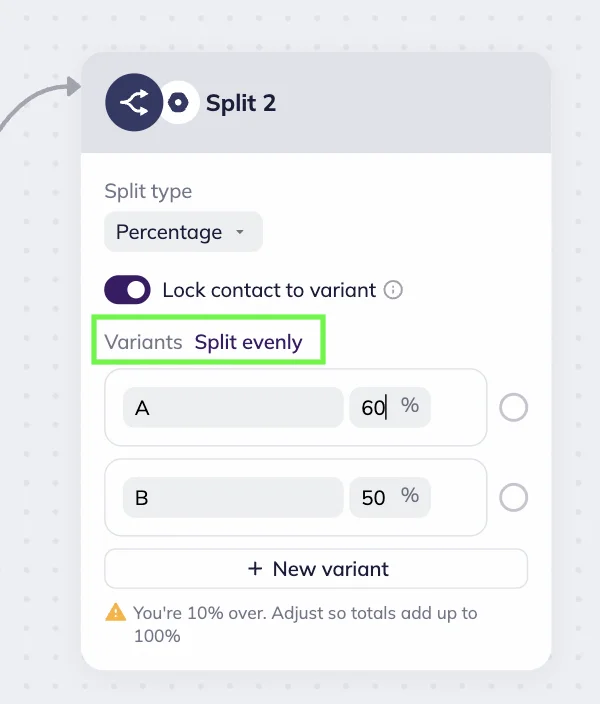
Note that a Split block must have at least two variants. You can create up to 10 variants. To do this, click +New variant.
You can use any name for the variants. For example, Discount, Free shipping, or Control group to make variants' purpose clear.
Example
You want to test three versions of an email. Create three variants and set the distribution to 50%, 25%, and 25%. Contacts entering the block will be distributed between the three scenario paths accordingly.
Limited runs
Select Limited runs to set the maximum number of contacts that can enter each variant.
For example:
- Variant A — 1,000 contacts
- Variant B — 500 contacts
- Everyone else — once limits are reached, the rest go here
Contacts are assigned one at a time, in order from top to bottom. For example, if branch A has a limit of 3 contacts and branch B has a limit of 2, contacts will be assigned like this: A, B, A, B, A. Any contacts after that will go to the Everyone else branch.
If Lock contact to variant is enabled, a contact who enters the block again will follow the same branch as before. If it’s disabled, each time the contact passes through the block is counted separately.
Note that a Split block must have at least two variants (Everyone else is included as a variant). You can create up to 10 variants. To do this, click +New variant.
You can use any name for the variants. For example, Discount, Free shipping, or Control group to make variants' purpose clear.
Example
You have 1,500 unique promo codes: 1,000 codes for Offer A and 500 for Offer B. Set Variant A to 1,000 contacts and Variant B to 500 contacts. Once both limits are reached, any additional contacts will continue through Everyone else.
Lock contact to variant
By default, the Lock contact to variant feature is enabled.
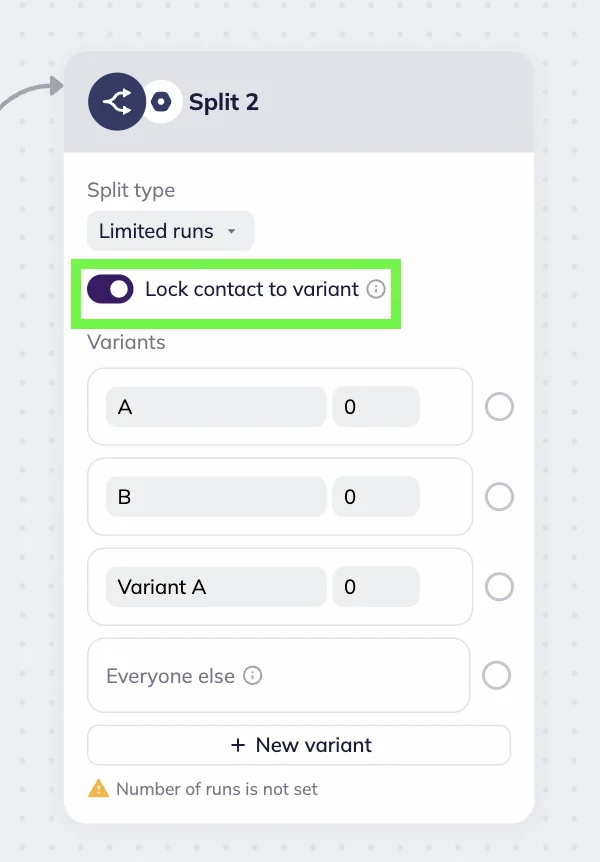
When enabled, contacts will stay on the variant they were originally assigned to. If a contact enters the Split block again, they’ll skip the distribution and continue through the same variant.
This setting is useful when different variants contain unique offers, gifts, or coupons. For example, if a contact originally assigned to Variant A enters the block again, they will skip the split and go through Variant A again instead of potentially receiving a different offer.
Disable Lock contact to variant if you want returning contacts to be redistributed.
Split block statistics
You can compare the results in Statistics mode — it shows how subscribers were distributed across the branches. Based on the variant performance, you can choose the best option for future use.