The Delay block belongs to Scenario logic blocks and controls how subscribers move through a scenario. The block’s functionality is the same for Triggered and Bulk scenarios.
The Delay block pauses an omnichannel automation scenario for the set period of time. Use it to:
- Space your communications to avoid overwhelming subscribers or hitting spam triggers.
- Align automated messages with your schedule — for example, to make sure that messages are sent only on certain days of the week or at specific times.
- Give subscribers enough time to take an action (like reading a message or completing a step) before they reach the next step.
Delay block settings
The Delay block has the following options: “For”, “Until date”, and “Until weekday”.
Make sure to set the date and/or time after adding a delay block to the scenario so it runs correctly. If you skip this step, the system will flag it as an error with a yellow triangle and prevent you from launching or updating the scenario.
For
Set a pause for a specific period: seconds, minutes, hours, or days. You can set any value for any period, but no more than 999.
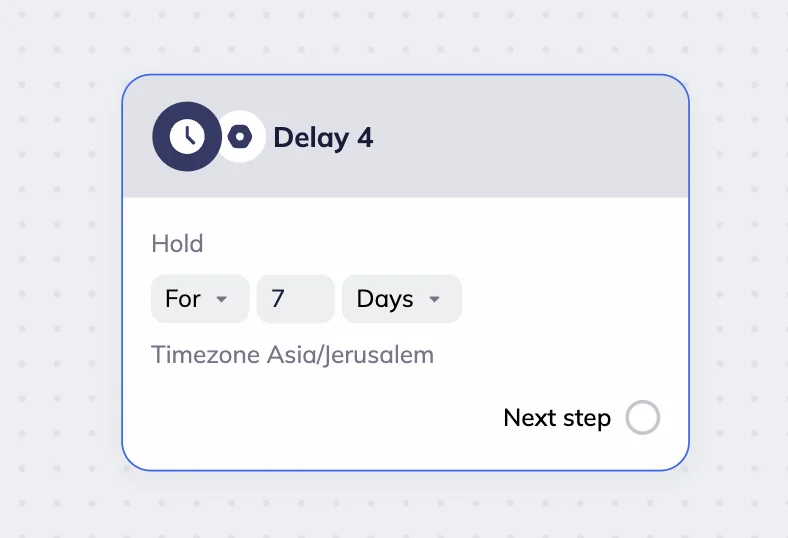
Example
For your loyalty program, you want to give subscribers time to use their discount before sending a follow-up email. Add a delay block, choose “days” in the dropdown, and set the value to 7. The system will wait seven days before sending the next message to the subscriber reminding them to redeem their discount.
Until date
This option pauses a scenario until a specific date and time.
You can select the date and time with 30-minute precision from the date picker. To save the chosen date and time, click “Done”. If the scenario is still active and the subscriber enters the scenario after this date, they will automatically skip the delay block and move to the next step.
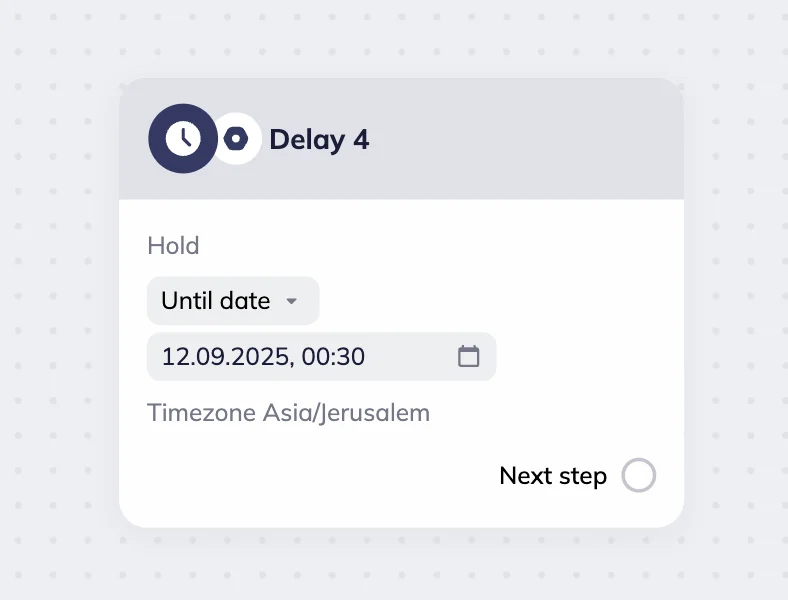
💡 Note that the block uses the time zone of the device you’re working on.
Example
You set a delay until September 15, 10:00 AM. Any subscriber entering the scenario before that time will not receive the email until that day. Those who enter after 10:00 AM on September 15 will skip the delay and receive the email right away.
Until weekday
This option pauses a scenario until a chosen day of the week and time. You can select one or multiple days from the dropdown and set the exact time with 15-minute precision. The selection is saved automatically.
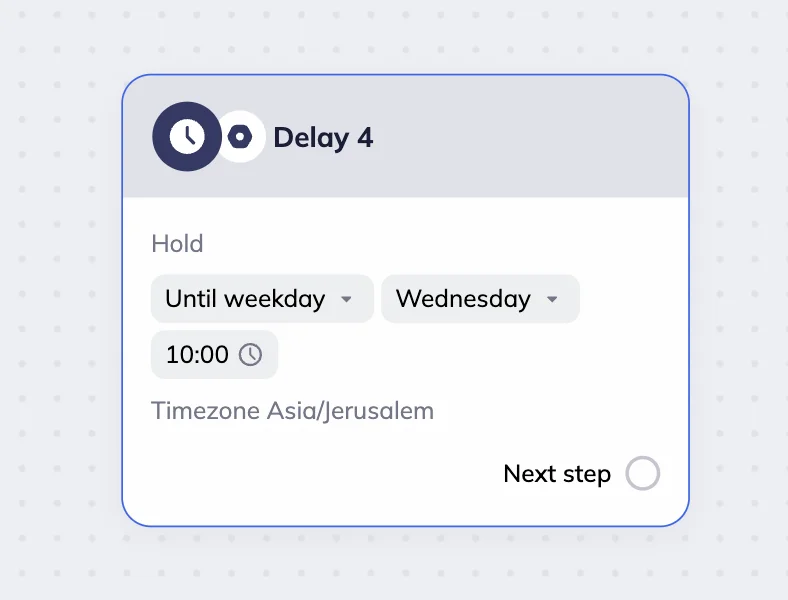
Example 1 (single weekday)
You run webinars every Wednesday at 6:00 PM. In your scenario, you add a delay until Wednesday, 10:00 AM. If a subscriber registers on Monday, they’ll not receive a reminder email until Wednesday morning. If they register on Thursday, they’ll be held until the next Wednesday reminder.
Example 2 (multiple weekdays)
You run live product demonstrations every Tuesday and Thursday at 5:00 PM. In the Delay block, you set both days. Subscribers who sign up on Wednesday will receive their reminder on Thursday, while those signing up on Friday will be held until next Tuesday.