Event trigger belongs to Trigger blocks. The block is available for Triggered scenarios only.
The Event trigger block launches a scenario when a selected event from Event Manager occurs in an app or on a website connected to Selzy.
Use this block to:
- send the right communication to the right contacts at the right moment,
- automate customer journeys based on customer’s activity,
- launch onboarding, transactional, retention, or reminder scenarios,
- send purchase, registration, subscription renewal and cancellation confirmations, and other communications.
💡 If you want to create a bulk scenario based on event data, use Segment trigger or List trigger paired with segments created from Event Manager data.
Learn how to set up Event Manager
Set up the Event trigger block
To create a Triggered scenario with the Event trigger block, go to Triggered scenarios on the Omnichannel automation scenarios page → click the New scenario button → the scenario builder will open. Add the Event trigger block to the workspace from the toolbar menu below or by right-clicking the workspace.
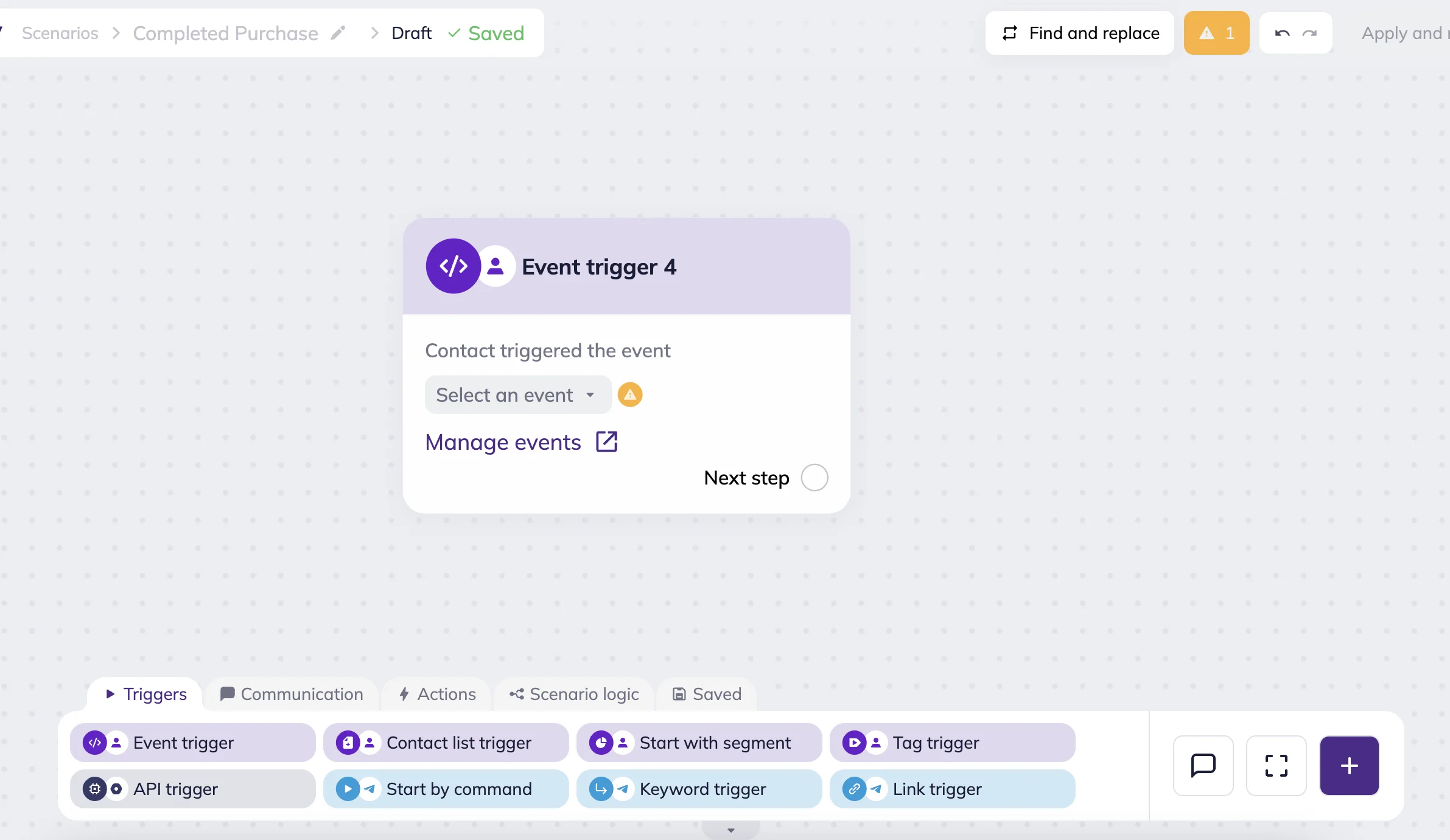
Next, click Select event and choose an event from Event Manager. The dropdown selection menu includes:
- Enabled events (green-colored icon)
- Disabled events (grey-color icon)
- Deleted events (trash bin icon)
If you select a disabled or deleted event, the system displays an error.
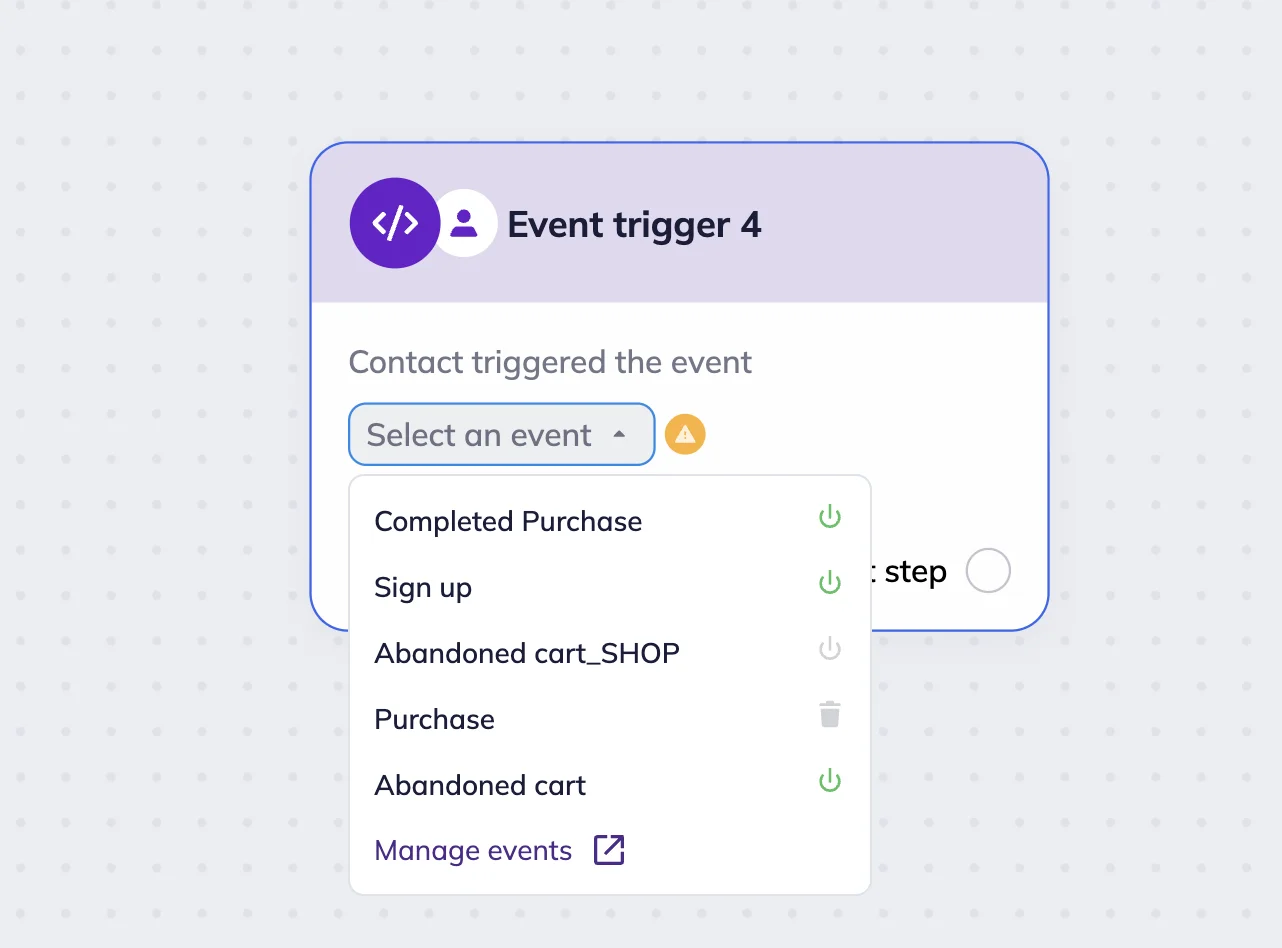
To enable the event, click on the “Manage events” link and use a switch next to the event.
To create a new event, click the “Manage events” link and follow Event Manager instructions.
Scenario examples with Event trigger
Here are examples of scenarios with the Event trigger block.
Post-purchase onboarding
An online home plants store wants to automatically guide customers after a purchase. For example, send tips and offers for care products and decor.
To do this, they create a new Triggered scenario and add the Event trigger block. In the block settings, they select the Completed purchase event configured in Event Manager.
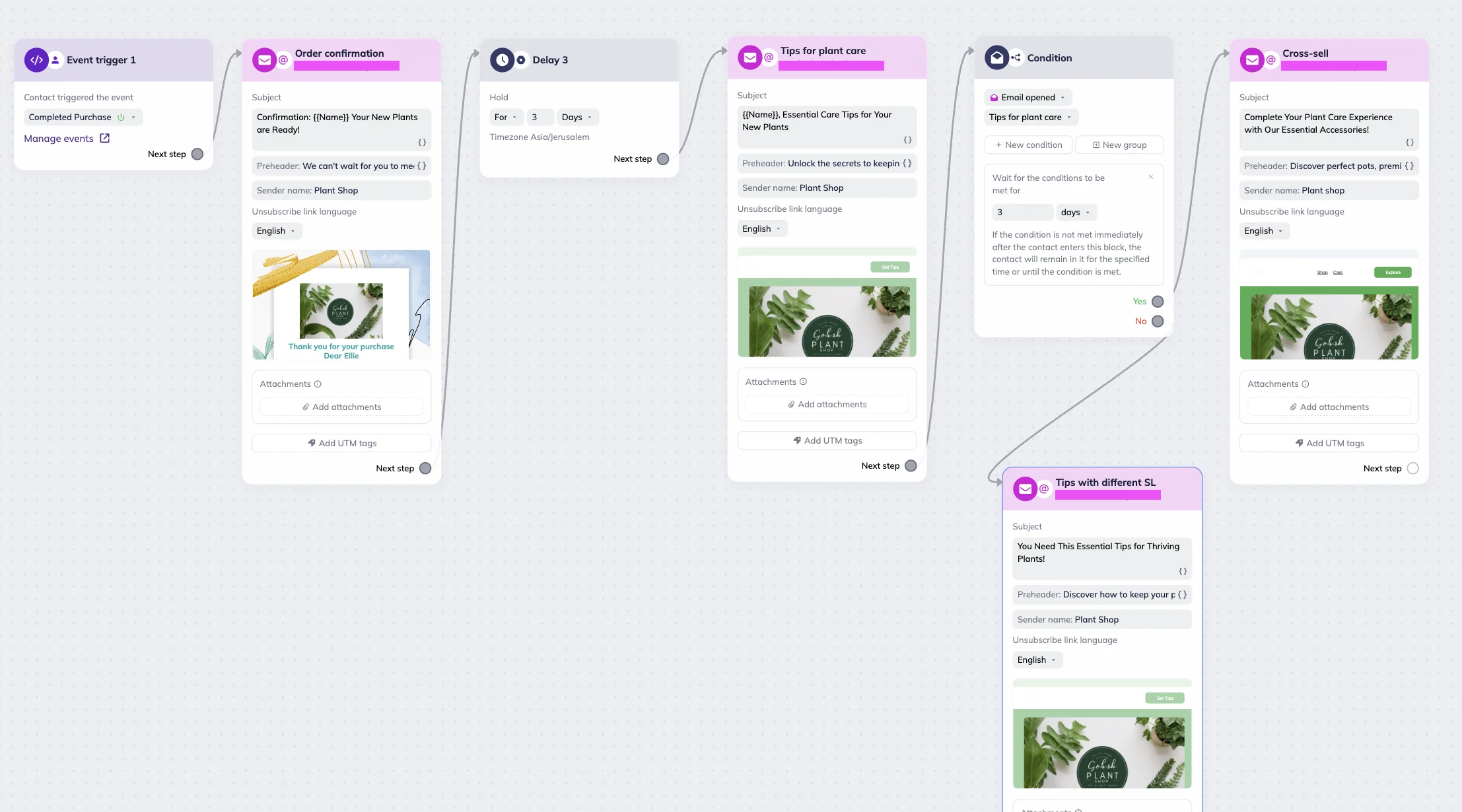
Next, they add:
- An Email block with an order confirmation message. To make communication more personalized, they use merge tags for customer’s name.
- A Delay block for 3 days to send another email with product usage tips and recommendations.
- A Condition block to check whether the customer opened the previous email. If the customer reads the email, a personalized cross-sell offer is sent. If the customer skipped it, a reminder email with a different subject line is sent.
Once the customer completes a purchase, the external system sends data to Selzy and the scenario starts automatically.
Webinar registration reminder
An online school wants to automatically remind users about an upcoming webinar after they register on a website.
To do this, they create a new Triggered scenario and add the Event trigger block. In the block settings, they select the Webinar Registered event from Event Manager.
Next, they add:
- An Email block with the registration confirmation and webinar link.
- A Delay block configured for 1 day before the webinar starts
- A reminder email encouraging users to join the session.
Don’t want to create a scenario from scratch? Use our ready-made scenario template for pre-webinar email warm up 🙂
In another case, the school can provide an option for users to communicate via email or Telegram messages. Then, they add additional branches with Telegram blocks connected to the school’s Telegram bot.
When a user submits the registration form on the website, the external system sends the event to Selzy and the scenario starts automatically. This scenario helps send reminders exactly when they are needed without manually managing the campaign each time.
Potential errors and troubleshooting
There are three potential problems you may encounter:
- No event selected — if no event is selected in the block, scenarios cannot be launched.
- Event deleted — if an event used in the block is later deleted from Event Manager, the error is displayed in the editor for the active scenario, and contacts stop progressing through the scenario.
- No connected events — if the account does not contain any connected events, the Select event menu remains empty.
Event Manager trigger vs API trigger
Both Event trigger block and API trigger block can start automation scenarios from external systems, but they are designed for different tasks.
Event trigger
The Event trigger is better for reusable event-based automation. Developers configure events once, so you can later create multiple scenarios independently using the same events.
This approach works best when you want to quickly launch and manage multiple customer journeys without repeatedly involving developers. At the moment, event data passed together with the event cannot yet be used directly for personalization inside automation scenarios.
API trigger
The API trigger is better for more complex or highly customized integrations. Each automation scenario usually requires separate setup together with a developer. At the same time, the data received through the API trigger can be processed and used for personalization inside emails and scenarios.
API triggers may also be more suitable when you need complex combinations of multiple events, or additional scripting logic before contacts enter the scenario. For more information about working with API trigger data and Liquid variables, see the API trigger article.
Here is a full comparison table to make the decision making process easier for each case.
| Feature | Event Manager trigger | API trigger |
| Main purpose | Reusable event-based automation | Advanced and customized integrations |
| Setup process | Events are configured in Event Manager, while developers only need to set up event delivery from the external system to Event Manager once | Usually requires developer setup for each scenario |
| Best for | Quickly launching multiple scenarios based on predefined events | Complex automation logic and custom integrations |
| Flexibility | You can independently create and manage scenarios using existing events | You are more dependent on developer involvement |
| Event reuse | The same event can be used across multiple scenarios | Typically configured individually for each scenario |
| Personalization with event data | Event data cannot yet be directly used for personalization in automation scenarios | API data can be processed and used for personalization with Liquid variables |
| Complex event combinations | Limited | Better suited for combining multiple events and custom processing |