Selzy introduces Event manager allowing you to send customer activity from your website or app to Selzy and use it in segmentation and automation.
For example, you can track when a customer:
- completes registration,
- places an order,
- abandons cart,
- uses a coupon,
- subscribes to a paid plan,
- changes their account details or settings.
Once the event data is sent to Selzy, you can:
- build segments,
- launch automation scenarios,
- personalize campaigns,
- and analyze customer behavior.
Selzy’s human support team is available 24/7 to answer any questions you might have. Reach out in the chat or via support@selzy.com 🙂
What is an event
An event is an action performed by a contact on your website or in your system (sign ups, adding a product to cart, purchase, activating a discount code). Your website or service can send information about events to Selzy via API to Event manager.
Before setting up Event Manager, decide which customer actions you want to track. Common examples include:
- Abandoned cart — a customer adds products to the cart but does not complete the purchase. Use it to send reminder emails and recover lost sales.
- Product viewed — a customer opens a product page but does not buy the product. Use it to recommend the viewed product or suggest similar items.
- Website registration — a new customer creates an account and confirms their email. Use it to launch email welcome series and onboarding scenarios.
- Order completed — a customer successfully completes an order. Use it to send order confirmations, delivery updates, review requests, or repeat purchase recommendations.
- Product back in stock — a product that a customer subscribed to becomes available again. Use it to notify interested customers immediately and encourage purchases.
‼️ The most important requirement is that the event must include event’s name and the contact’s email address. Selzy uses email addresses to identify contacts.
- A visitor registered with an email address → can be tracked.
- A registered customer performed an action on the website → can be tracked.
- A visitor browsed your website anonymously → cannot be tracked.
Event manager set up
Event manager consists of two tabs:
- Event list. This tab lists event configurations — the setup you create in Selzy for each event. It defines which event data will be received, where contacts will be stored, and how the event will appear in your account. You can create, edit, pause, or delete event configurations in Selzy.
- Logs. This tab lists logs — any record added to a contact card after the event data reaches Selzy successfully. Even if you later disable or delete the event configuration, previous event logs stay in contact cards and can still be used for segmentation and automation.
To set up an event, go to the Contacts → Growth center → Select Event manager → Add event.
In the pop-up window, fill out the following fields:
- Title. The event title is the display name shown in the list of configurations. For it, you can use any human language and up to 150 characters. You can change the title later if needed.
- Name. The event name is used in the API request. Only Latin letters, numbers and underscores are allowed. The maximum length is 40 characters.
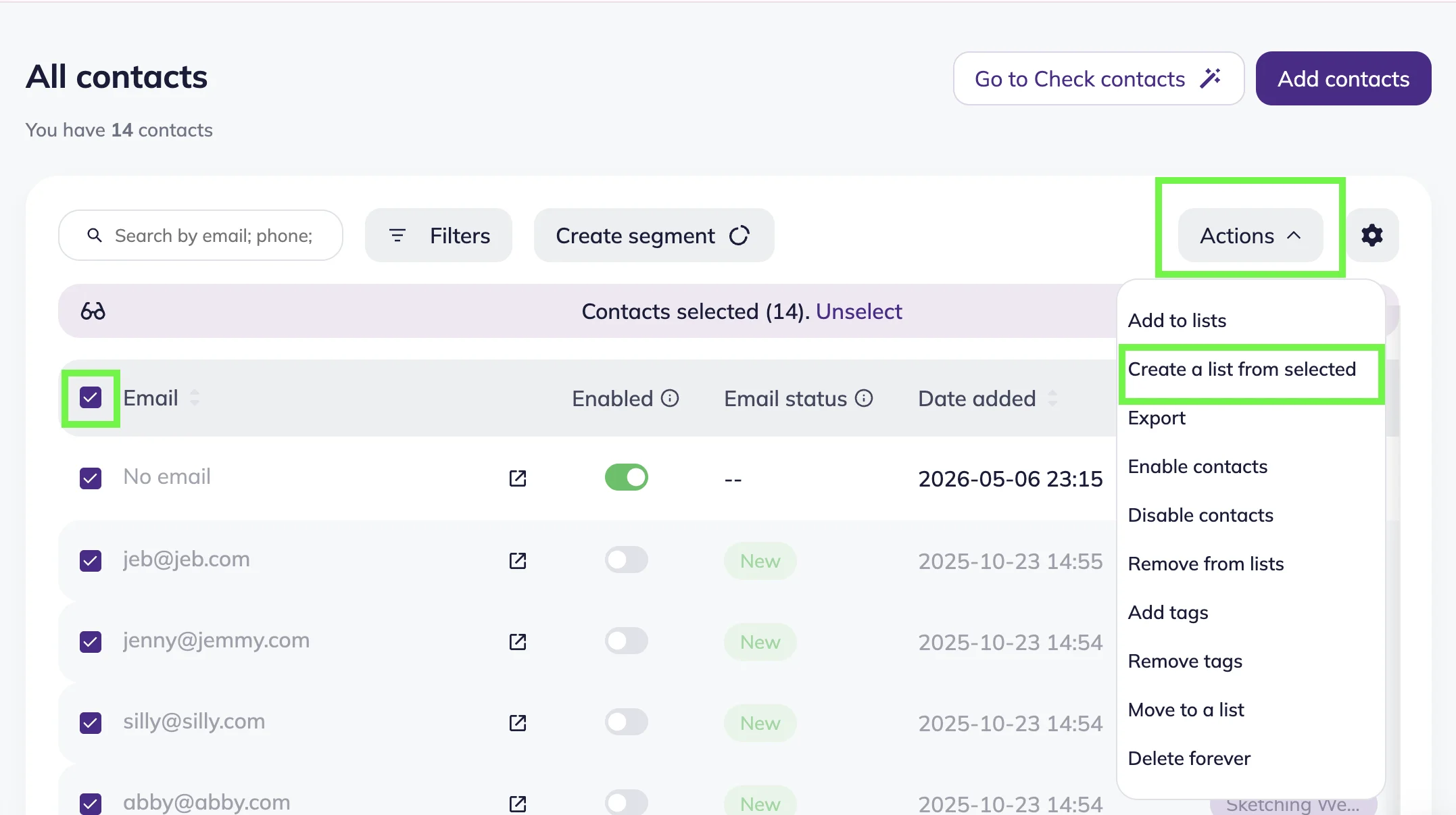
Note that contacts are automatically added outside of your lists. At the same time, all the events are logged in contact cards. To find new contacts, go to the Contacts section — All Contacts. Click the “Create segment” button, and select Contacts — Not in any lists as a condition. Then, you can click on the “Select all” checkbox → Actions → Create a list from selected.
API URL and test requests
After creating the configuration, Selzy generates a URL for API POST request.
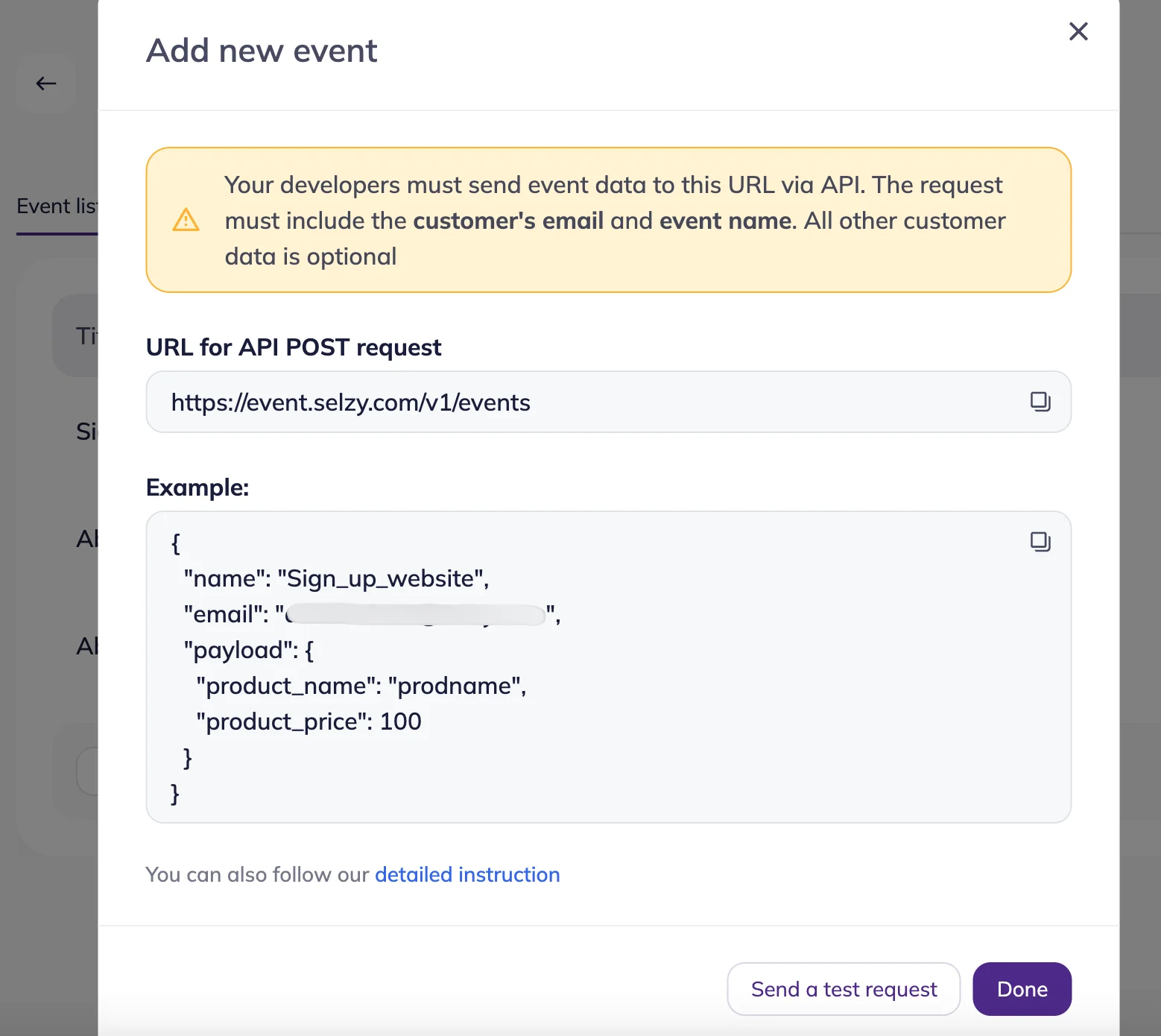
Your developer should use this URL to send event data from your website or app to Selzy. The data sent in requests must be in JSON format.
At a minimum, each request must include a customer email address, as Selzy uses this information to identify recipients. You can also include other relevant data, such as: customer name, promo code, etc. Please note, that if the data is sent in a different format than expected, the event may not reach Selzy correctly.
Find more information for developers in a dedicated article in our API documentation.
You can send a test request directly from Selzy. It will use the email associated with your Selzy account. If the data is sent in a different format than expected, the event may not reach Selzy correctly.
Alternatively, you can send test requests manually using tools like Postman.
Click here for a short instruction.
To start testing, create a new POST request in Postman. Copy the API POST URL from the Event list tab and paste it into the request field. Make sure to set the request format to JSON. Add a JSON body with the required variables. For the email address, use one you have access to so you can view the campaign.
If the event functions correctly, an event log will be added to the contact card associated with the email address included in the request . If the email address has not been used in Selzy before, a new contact card will be created automatically and the event log will appear there.
Manage event configurations
When an event configuration is set up, you can see it on the “Event list” tab with:
- A title you added when setting up event configuration.
- On/Off status. It indicates whether event configuration is active. By default, all newly created event configurations are active and can start receiving data immediately after the set up. Inactive event configurations stop receiving new event data, but the configuration itself and past event logs remain in your account.
- Event name.
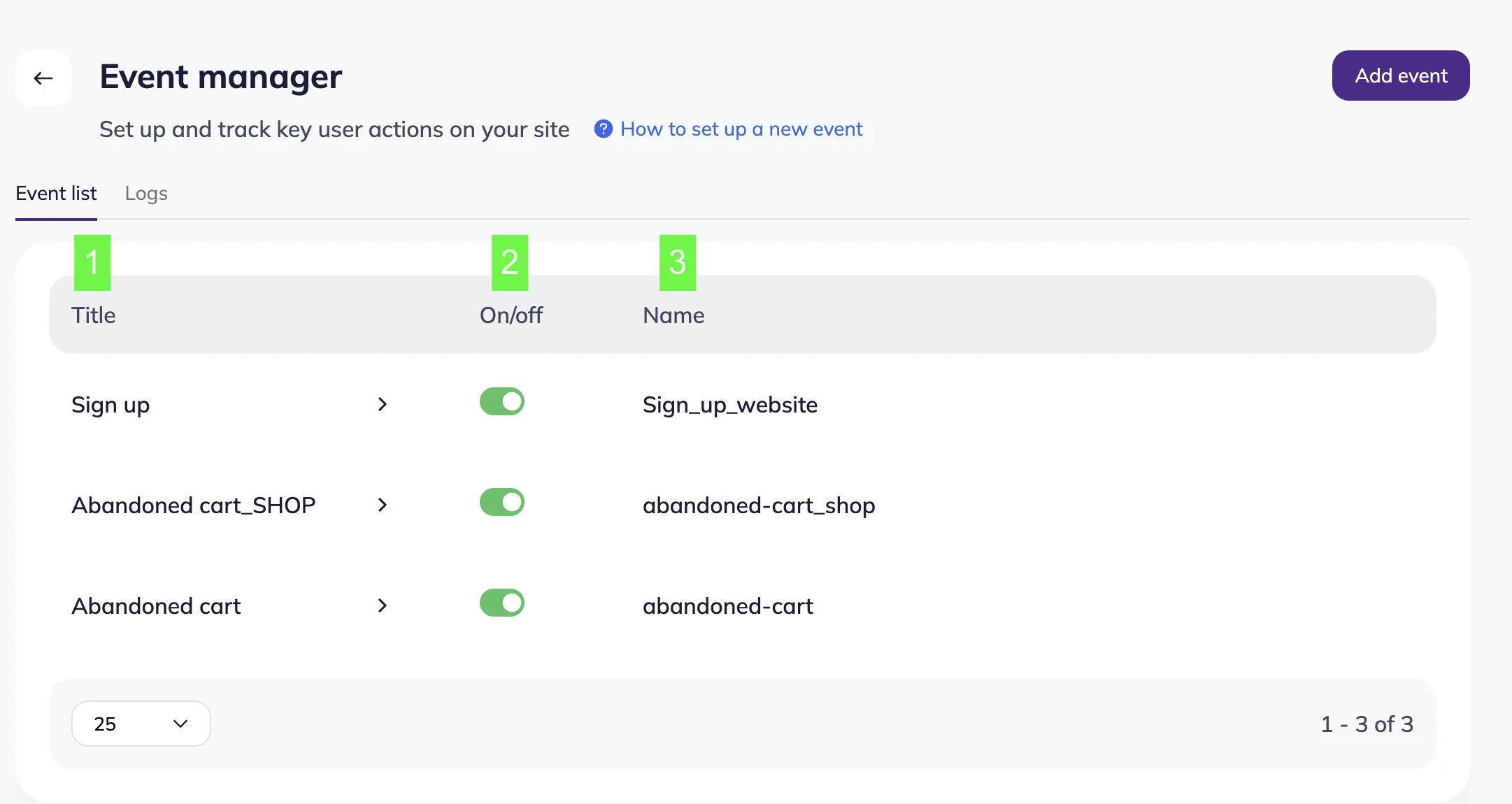
To delete the event, hover over the event configuration row and click on the trash bin icon. Note that if you delete the event configuration, this won’t affect the data that is already in the logs. Deleted event configurations are marked with the “Deleted” tag in the Logs tab. The deletion is permanent, and you won’t be able to recover the deleted configuration.
Please note, that when you delete an event configuration, it may result in the “400 Bad Request” error in API.
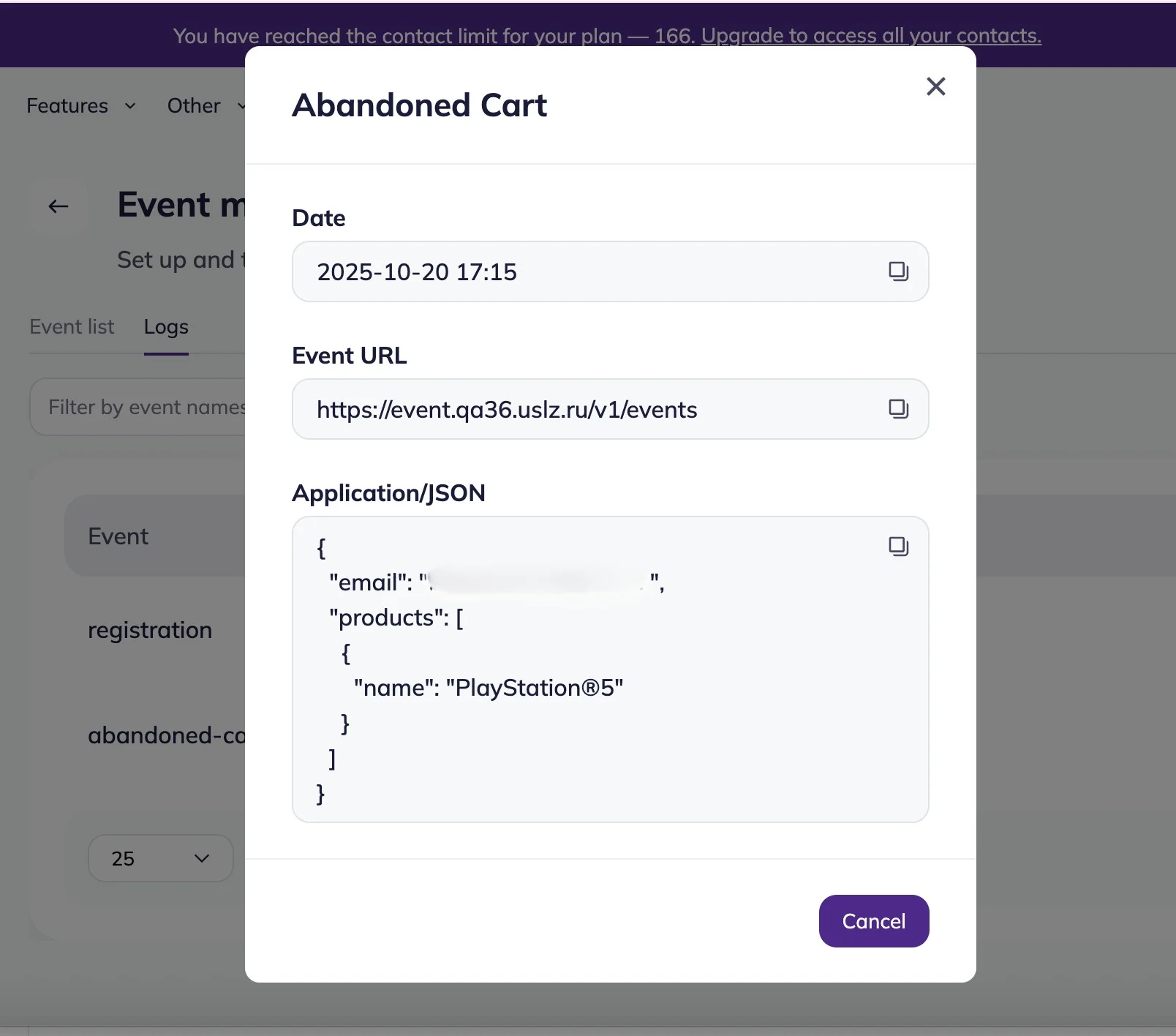
On the Log tab, you can see a list of all contact activity records associated with set event configurations. You can filter them by the event title. All the data is additionally stored in contact cards.
Here is an example of event log data:
How to use the event data
Once your website or app starts sending event data to Selzy, you can use it to build more targeted communication and better understand customer behavior.
Event data in segments
Event configurations collect and store customer activity data, while segments help you filter and analyze contacts based on that data.
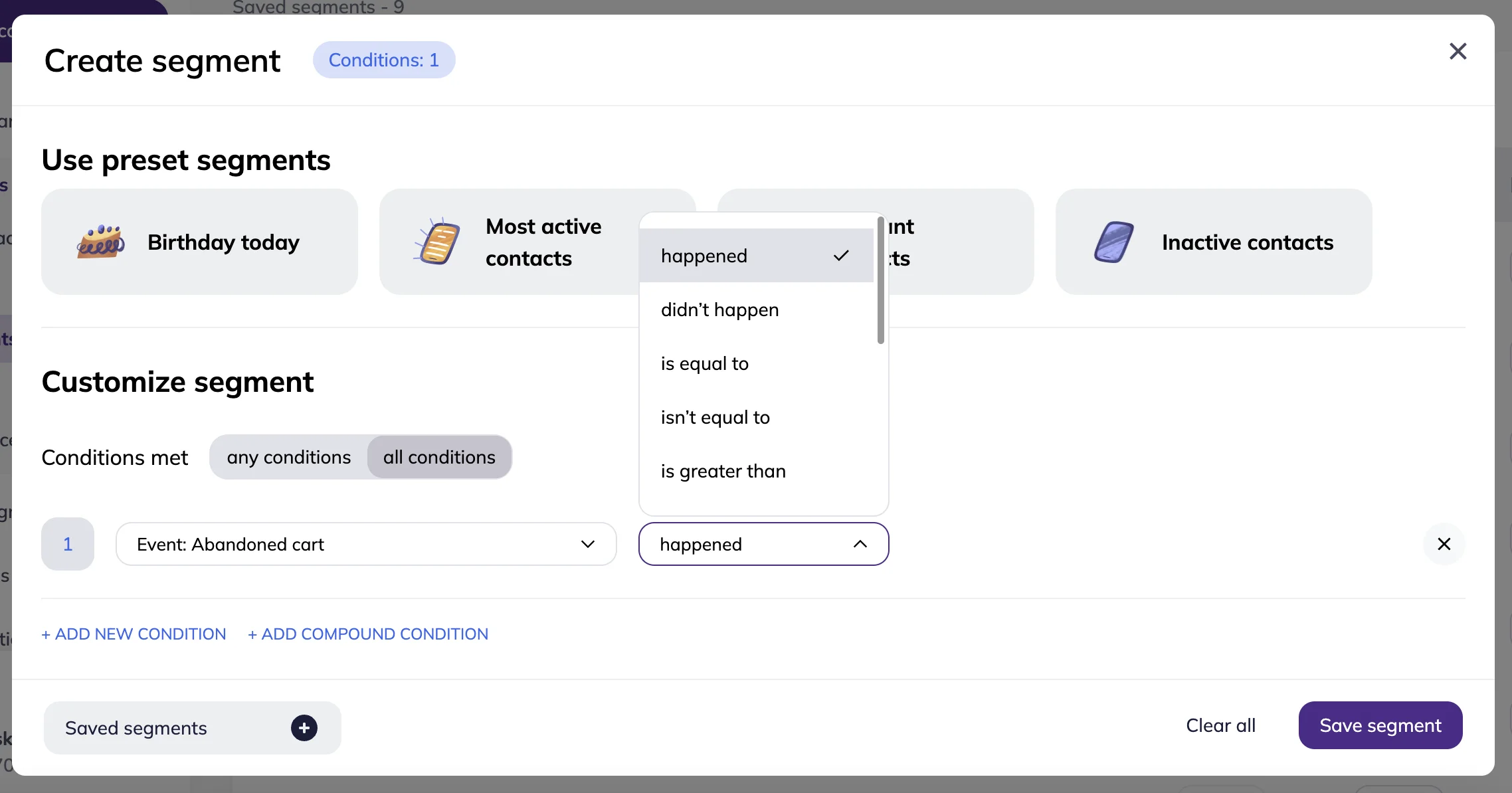
For example, you can create segments of contacts who used a specific discount code, added products to the cart but didn’t complete the purchase, or purchased certain products during a sale. Segments can also help you identify contacts who did not perform an action. To do that, you can select “Happen” or “Didn’t happen” when creating the segment.
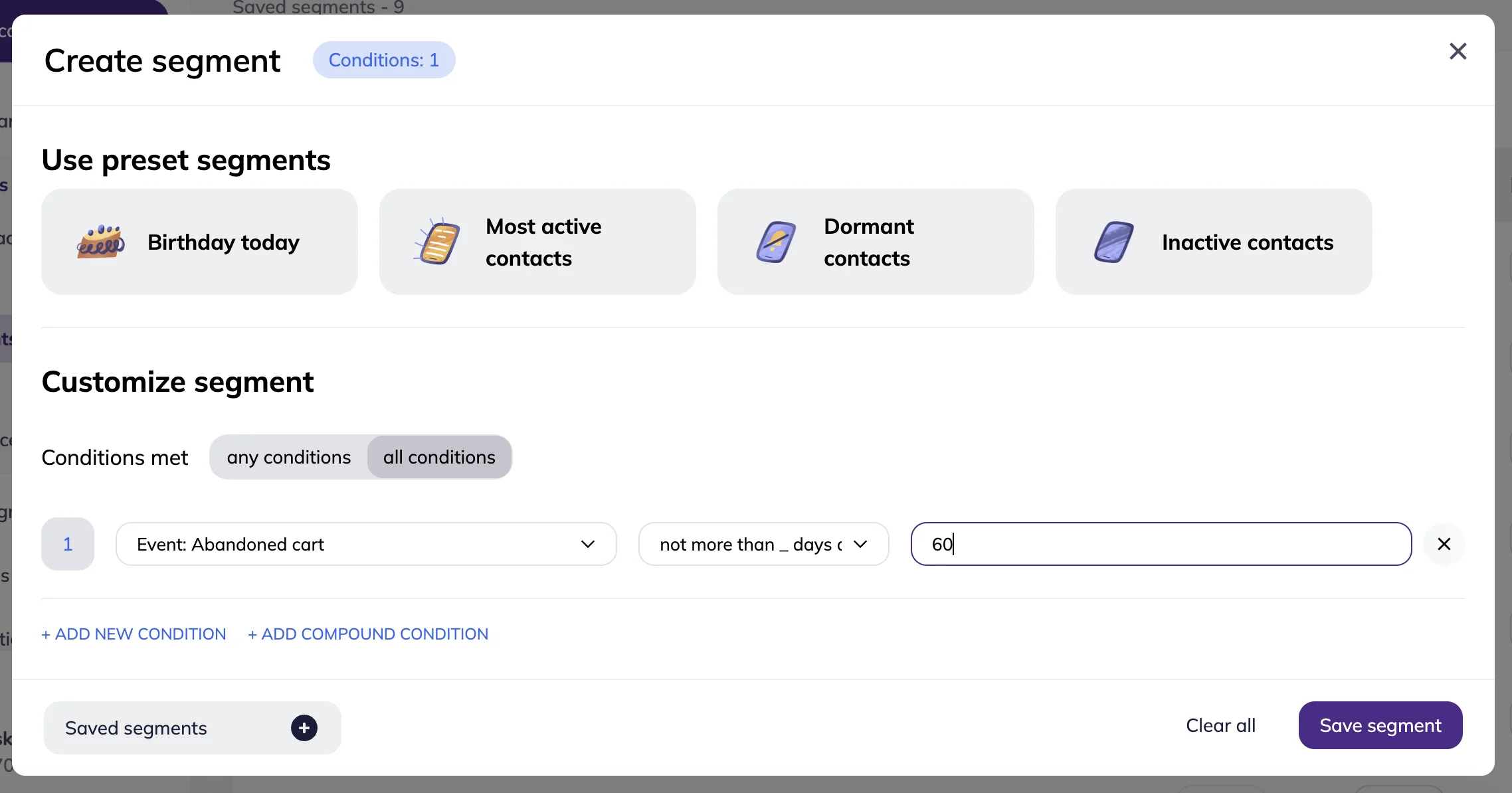
Unlike contact lists, segments can also work with time conditions. For example, you can track customers who made a purchase in the last 30 days or those who abandoned carts last week.
Event data in omnichannel automation
For example, when someone registers for a webinar on your website, they can choose a communication channel — email or Telegram. Based on their choice, you can automatically send reminders, updates, and follow-up messages through the selected channel.
You can also use event data to launch onboarding scenarios after sign-up, send delivery updates after a purchase, or request reviews after an order is completed.
Because the automation is based on real customer actions and preferences, messages arrive at the right moment and feel more relevant to recipients.
Example
Let’s say an online shop wants to track abandoned carts and use this data in omnichannel automation scenarios later on. They create an event configuration in Selzy, specify the event title and event name, select a contact list, and get the API URL for the event.
Next, their developer sets up the integration with their website’s backend. If a registered customer adds items to the cart but doesn’t complete the purchase within 24 hours, the website sends the event data to Selzy automatically, including email, unfinished purchase details, etc.
After that, the shop team can see all contacts with abandoned carts in the event logs. Then they set up a segment with “Event: Abandoned cart — Happened” as a condition. Next, they create a triggered scenario with a Segment trigger. As soon as a contact is added to the segment, Selzy sends them an email reminder with a discount code encouraging them to complete the purchase.
Learn more about scenarios and triggers:
- How to create an omnichannel automation scenario
- Contact list trigger block
Segment trigger block - API trigger block
Event data in personalized communications
Event data can help make campaigns more personalized and targeted. Instead of sending the same communication to all contacts, you can tailor it based on customer behavior.
For example, you can:
- recommend products similar to the ones a customer viewed,
- send special offers to customers who frequently purchase certain categories,
- or create campaigns only for contacts who used a particular promotion before.
This helps improve engagement and makes communication more useful for customers.
Learn more about personalization: