Connect a WhatsApp number to Selzy to send WhatsApp campaigns and use chatbots to respond to incoming messages.
The connection is set up through 360dialog, Selzy's WhatsApp integration partner, and Meta.
🙂 To access WhatsApp messages feature, contact our Support team. It is available 24/7 by email (support@selzy.com) or through the chat in your account.
Before you start
To connect a WhatsApp number, you'll need:
- A phone number you can easily access. You'll receive a verification code by SMS or voice call.
- A Meta Business Portfolio. You'll use it to create or connect your WhatsApp Business Account (WABA). If you don't have a Meta Business Portfolio yet, you can create one during setup.
- Admin access to your Meta Business Portfolio.
- A bank card. Your WhatsApp number fees and messages are billed through 360dialog separately from your Selzy plan.
Your phone number must not be registered in the regular WhatsApp app. If you're currently using the number in the WhatsApp Business app, you can either remove it from the app or connect it using coexistence mode. See Connect an existing WhatsApp business number.
Before starting, check the business information in your Meta Business Portfolio. Make sure your company name, address, phone number, and website are up to date.
Connect a WhatsApp number
Step 1. In Selzy, go to Scenarios → WhatsApp and click Add number.
You'll be redirected to 360dialog to set up the connection.
Step 2. Follow the setup steps in 360dialog.
Select your pricing plan and, if prompted, add a payment method. The payment method is used to pay for your WhatsApp number and messaging charges.
Step 3. Enter the phone number you want to connect.
360dialog will ask how the number is currently connected to WhatsApp.
Step 4. Confirm that you have admin access to your Meta Business Portfolio.
Sign in with the Facebook account that has admin access to the Meta Business Portfolio you want to use. Only an owner or administrator of the Meta Business Portfolio can complete this step.
Step 5. Select your Meta Business Portfolio and WhatsApp Business Account (WABA).
You can select existing business assets or create a new Meta Business Portfolio and WABA during setup.
To create a new portfolio, enter your business details and follow Meta's instructions. For more information, see Meta's guide to creating a business portfolio.
Step 6. Add and verify your phone number.
Select Add a new number and follow the instructions to register your business phone number. You'll need to verify it using a code sent by SMS or voice call.
Step 7. Review the information shared with 360dialog and click Confirm.
Wait while the account is connected and complete the verification when prompted. Once the number has been successfully onboarded, click Finish.
For detailed instructions and screenshots of the Meta setup process, see the 360dialog Embedded Signup guide.
Once you've completed the setup, you'll return to Selzy. Your number will appear in the list of WhatsApp numbers after it has been registered by 360dialog. This may take a few minutes.
If you close the setup window before completing the process, the number will have the Awaiting connection status. Click Continue connecting to resume setup. You don't need to add the number again.
Check the connection status
After you add a number, its current status appears in the WhatsApp numbers list:
| Status | Meaning |
| Awaiting connection | You've started the setup process but haven't completed it yet. Click Continue connecting to continue. |
| Business review in Meta | Meta is reviewing your business information. The review usually takes anywhere from a few hours to a couple of days. You don't need to do anything while the review is in progress. |
| Awaiting activation | The number has been registered and our partner is generating an access key. This is a temporary status. |
| Connected | The number is ready to use. You can send WhatsApp campaigns and receive incoming messages. |
| Error | Something went wrong with the connection. For example, the partner may no longer be able to use the access key, or its permissions may have been revoked. In this case, contact Selzy support for assistance: support@selzy.com |
Connect an existing WhatsApp Business number
If you're already using the number in the WhatsApp Business app, you have two options — either remove your number from WhatsApp Business app, or use coexistence mode.
In both cases, we recommend contacting Selzy support first to avoid losing your data. Our support team is available 24/7 by email (support@selzy.com) or through the chat in your account.
Release the number from the WABA
You can delete the account from the WhatsApp Business app. Once the number is released, you can connect it to Selzy using the standard setup process above.
Your chat history and contacts will be lost when you delete the account.
Use coexistence mode
Coexistence mode allows you to continue using your number in the WhatsApp Business app while also using it to send campaigns through Selzy.
Your existing chat history and contacts remain available in the WhatsApp Business app, but they can't be transferred to Selzy.
To keep the connection active:
- Don't delete the WhatsApp Business app.
- Open the app at least once every 13 days.
Coexistence mode also has several limitations:
- Official Business Account status (blue checkmark) is unavailable.
- Standard business verification is unavailable. Only Partner-Led verification or Meta Verified can be used.
- The number can't be transferred between WhatsApp Business Accounts.
- Devices linked to your WhatsApp Business app (companion devices) will be disconnected during setup, except for Windows and WearOS devices.
WhatsApp templates and the 24-hour messaging window work normally.
For detailed setup instructions, see the 360dialog Coexistence Onboarding guide.
Understand WhatsApp messaging rules
Once your number is connected, there are two WhatsApp rules to keep in mind.
Get consent before messaging contacts
You can only send WhatsApp messages to people who have agreed to receive them.
A recipient must explicitly consent to receiving WhatsApp messages from your business. For example, they can opt in on your website, through a form, or during a conversation.
This is a Meta requirement. Complaints and blocks can lower your number's quality rating and eventually lead to messaging restrictions.
Follow the 24-hour messaging window
When a customer sends you a message, a 24-hour messaging window opens.
During this period, you can reply with regular WhatsApp messages without using an approved template. The window resets whenever the customer sends another message.
Once 24 hours have passed since the customer's last message, you can initiate a new conversation only using an approved WhatsApp template.
To learn how to create and use templates, see WhatsApp templates.
Understand WhatsApp messaging rules
On the WhatsApp page, you can see a table with connected numbers, their state, and templates. There is also the Quality and limit column that comes from Meta.
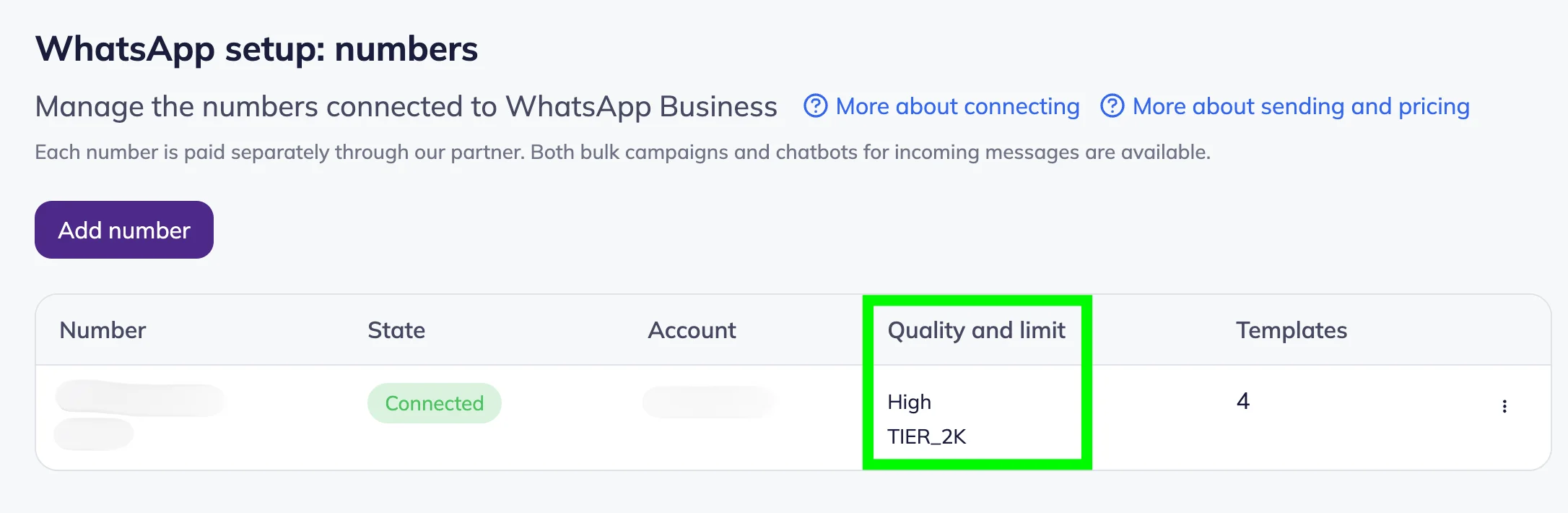
In the Quality and limit column, you can see two values that come from Meta:
- Quality rating: High, Medium, or Low. Your quality rating can decrease when recipients block your number or report your messages. Maintaining good quality and stable messaging volumes can increase your messaging limit. Poor quality can reduce the limit and may eventually prevent you from sending messages.
- Daily limit — the number of recipients you can initiate conversations with, such as TIER_1K or TIER_10K.
We strongly recommend to send messages only to people who have agreed to receive them, and don't send promotional content disguised as service messages.
Manage your WhatsApp number
On the WhatsApp page, Click the Action menu icon (three dots) at the end of the number's row to access the settings.
| Settings | Meaning |
| Templates | View all the WhatsApp templates you’ve created. |
| Details | Here you can check:
360dialog sends incoming messages and message statuses to the webhook URL. The URL must use HTTPS. |
| Show API key | View the 360dialog API key. Keep your API key private. Anyone with access to it can send messages using your WhatsApp number. |
| Rename | Change the name used for the number inside Selzy. This doesn't affect WhatsApp message delivery. |
| Delete | This option is available only if a number connection hasn't been completed yet. To disconnect an active WhatsApp number, contact Selzy support: support@selzy.com |
Need help to set up?
🙂 To access WhatsApp messages feature or help set it up, contact our Support team. It is available 24/7 by email (support@selzy.com) or through the chat in your account.
Contact our support team if you need to:
- set up video or document headers;
- edit an existing template;
- create an Authentication template with a verification code;
- disconnect an active WhatsApp number;
- transfer a number in coexistence mode or disconnect it from the platform.