You can import Telegram contacts to Selzy and use them in omnichannel automation scenarios with Telegram bots. During import, you can add Telegram user IDs, usernames, phone numbers, emails, and other contact data, assign contacts to lists, and connect them to a Telegram bot for future communication.
Preparing a file
To import Telegram contacts, you need a file with contacts data in CSV, TXT, XLS or XLSX format, or a list of contacts to paste manually.
You can import:
- Telegram user IDs
- Telegram usernames
- Phone numbers
- Email addresses
- First and last names
- Other data for available custom fields
The file encoding is set to UTF-8.
The maximum file size is 20 MB.
The maximum number of columns in a file is 50.
Telegram user ID vs Telegram username
To import contacts from Telegram, you need Telegram user IDs. Since usernames and phone numbers can change, the Telegram user ID serves as the most reliable identifier. Without it you can’t reliably send communication to your Telegram subscribers.
Note that Telegram user ID and Telegram username are different:
- A Telegram username is the public name that starts with @, for example: @johnsmith. The username (as well as phone number connected to the account) can be changed by the user at any point.
- A Telegram user ID is a unique numeric identifier assigned to a Telegram account. Usually it looks like: 123456789. Telegram user IDs stay the same even if the subscriber changes their phone number or Telegram username. They help correctly transfer subscriber databases from other platforms and help identify subscribers who already communicated with your bot before.
Telegram user IDs help preserve subscriber data when migrating from another platform and make it possible to identify subscribers who have already interacted with you through Selzy.
Telegram user IDs are usually hidden and collected automatically by services and bots:
- When migrating contacts from another service
- Through custom integrations created by developers using the Telegram API
- When subscribers interact with your Telegram bot
Telegram user IDs are typically obtained from a chatbot platform or through a custom export prepared by a developer. Telegram users cannot view their own Telegram user ID, and Telegram does not provide a built-in way to export subscriber IDs from a bot.
For example, user ID can be obtained through:
- Services or platforms you used previously. You can contact support asking how to transfer your subscriber database. The exact export process depends on the provider, as each platform has its own rules for exporting contacts.
- Telegram bots (to learn a specific user’s ID). Some chatbots can provide you with an ID when you forward user’s message to it
- Telegram Bot API if your chatbot is connected to it. Every message Telegram sends to the bot contains the user's ID in the from.id field. A developer can collect and export these IDs.
You only need to import Telegram user IDs when migrating an existing subscriber base from another platform. If subscribers join your Telegram bot directly through Selzy, their Telegram user IDs are collected automatically and no manual import is required.
Telegram contact import
To start the import, go to Contacts → Add contacts → Upload contacts through Telegram bot. Alternatively, you can start the import from the Growth center.
Upload the contacts
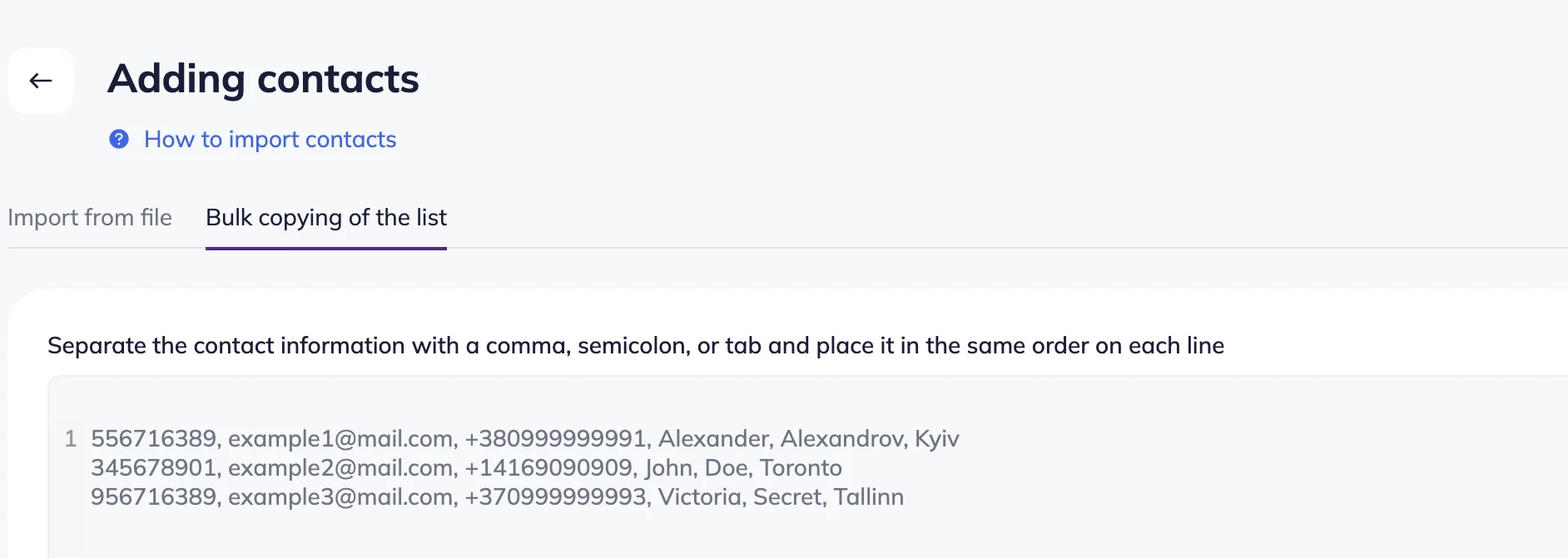
Upload a CSV or XLSX file with contact data by dragging it to the upload window or click “Upload from computer.” in the “Import file” tab.
Alternatively, open the “Bulk copy and paste” tab to paste contacts manually.
Map the fields
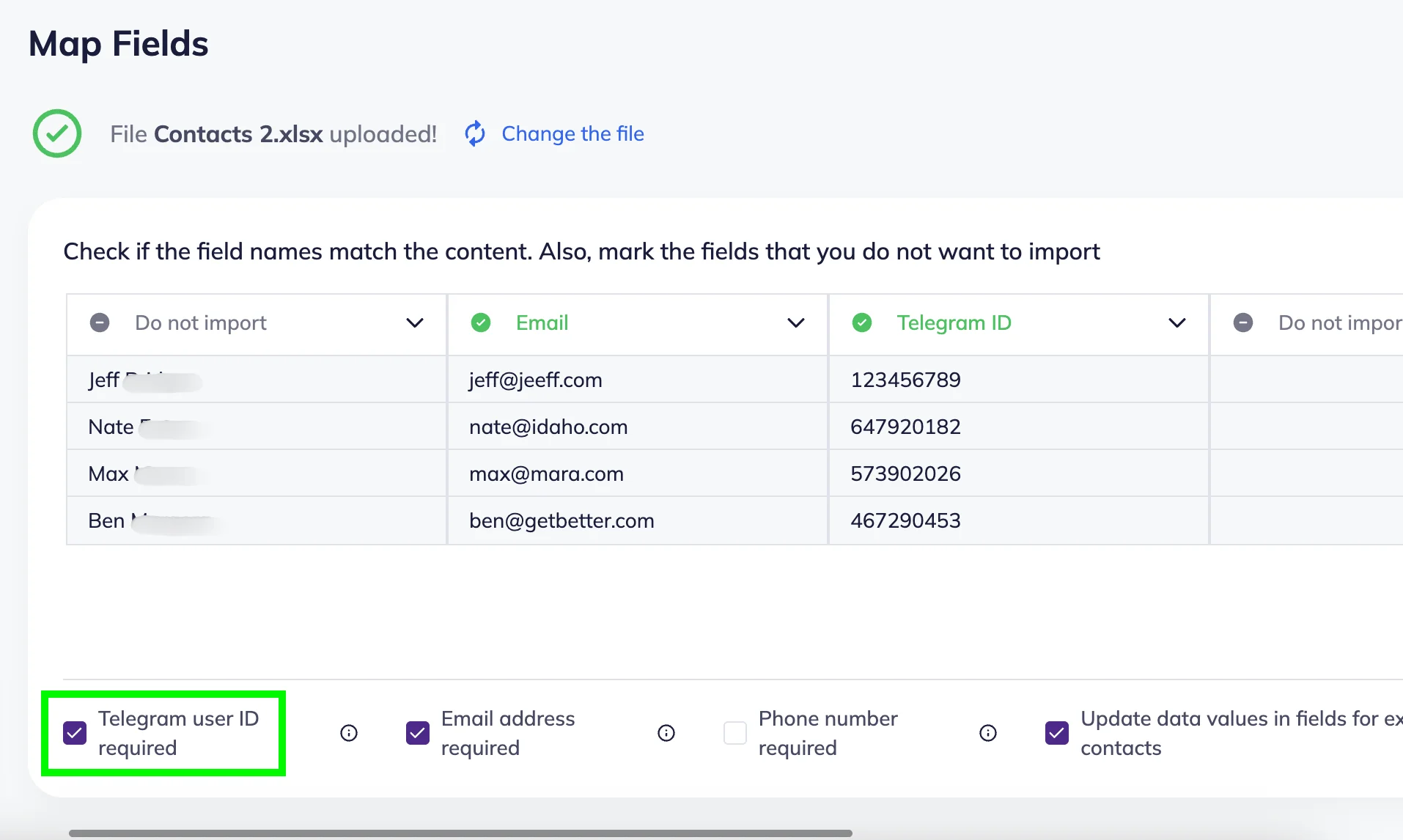
When your contacts are successfully uploaded, check if all the fields are matching its content. Selzy automatically maps fields during import, but it’s important to review the mapping before starting the import.
Incorrect mapping may cause import errors or prevent Telegram communication from working correctly later. We recommend to pay special attention to:
- Phone number fields
- Telegram user ID fields
You can enable the Telegram user ID required checkbox. If enabled, contacts without a Telegram user ID won’t be imported. Selzy also automatically tries to detect the Telegram user ID field and assign it correctly during import.
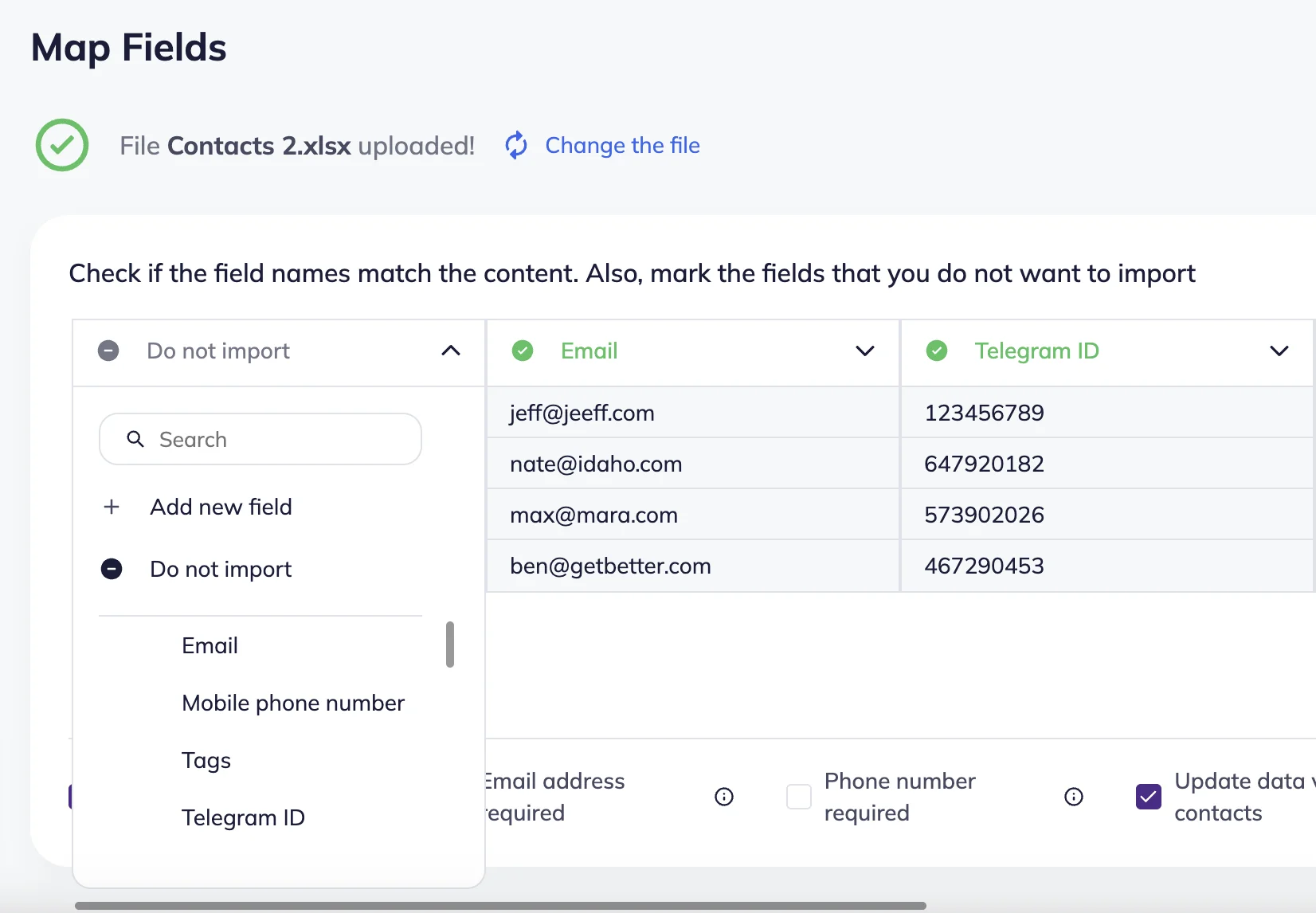
If you have custom data, follow the instructions to create custom fields.
If you don’t want to import some contact information, choose a field for Do not import.
Choose contact settings
On this step, you need to select a Telegram bot. The imported contacts should be subscribers of the Telegram bot selected or connected during the import process.
Note that Telegram user IDs work only for the bot through which the subscriber previously interacted with your business.
For example, a subscriber clicks /start in Bot A, so their Telegram user ID becomes linked to Bot A. If you try to use the same Telegram user ID with Bot B in an automation scenario, an error will appear. However, the contact itself will still be imported into Selzy successfully.
To fix this, you can contact the subscriber through another communication channel and invite them to start the new Telegram bot. After the subscriber interacts with the new bot, the data updates automatically in the contact card and can be used in automation scenarios without errors.
If no Telegram bot has been connected yet, click the Connect new bot button. Follow the instructions in the pop-up window to connect a new bot.
If at least one bot is already connected, you’ll also see a dropdown list with available bots.
Next, select one of the existing lists or create a new one for your imported contacts. You can add tags to the contacts you import. You can choose an existing tag or create a new one.
Import and view the statistics
To complete the import, click the Import button.
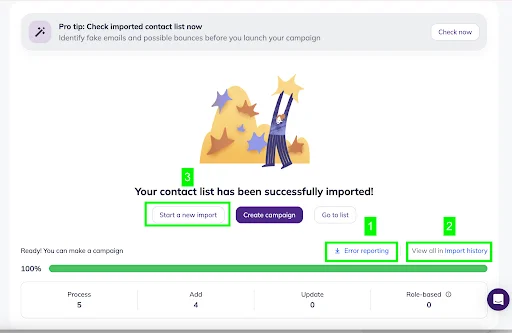
After the import, you will be able to see the following statistics:
- Processed — all imported contacts.
- Added — contacts new to the lists.
- Updated — contacts that were already in the lists.
- Errors — the number of errors.
You can also download the error report (1), look at the import history (2) or start a new import (3).