You can automatically import contacts from SendPulse to Selzy.
Get your SendPulse Client ID and Secret
Client ID and Secret allow Selzy to access the data required to migrate your contacts from SendPulse.
Log in to your SendPulse account. Go to Account settings → API. Under API access, open the Client credentials tab. Copy the values from the Client ID and Secret fields.
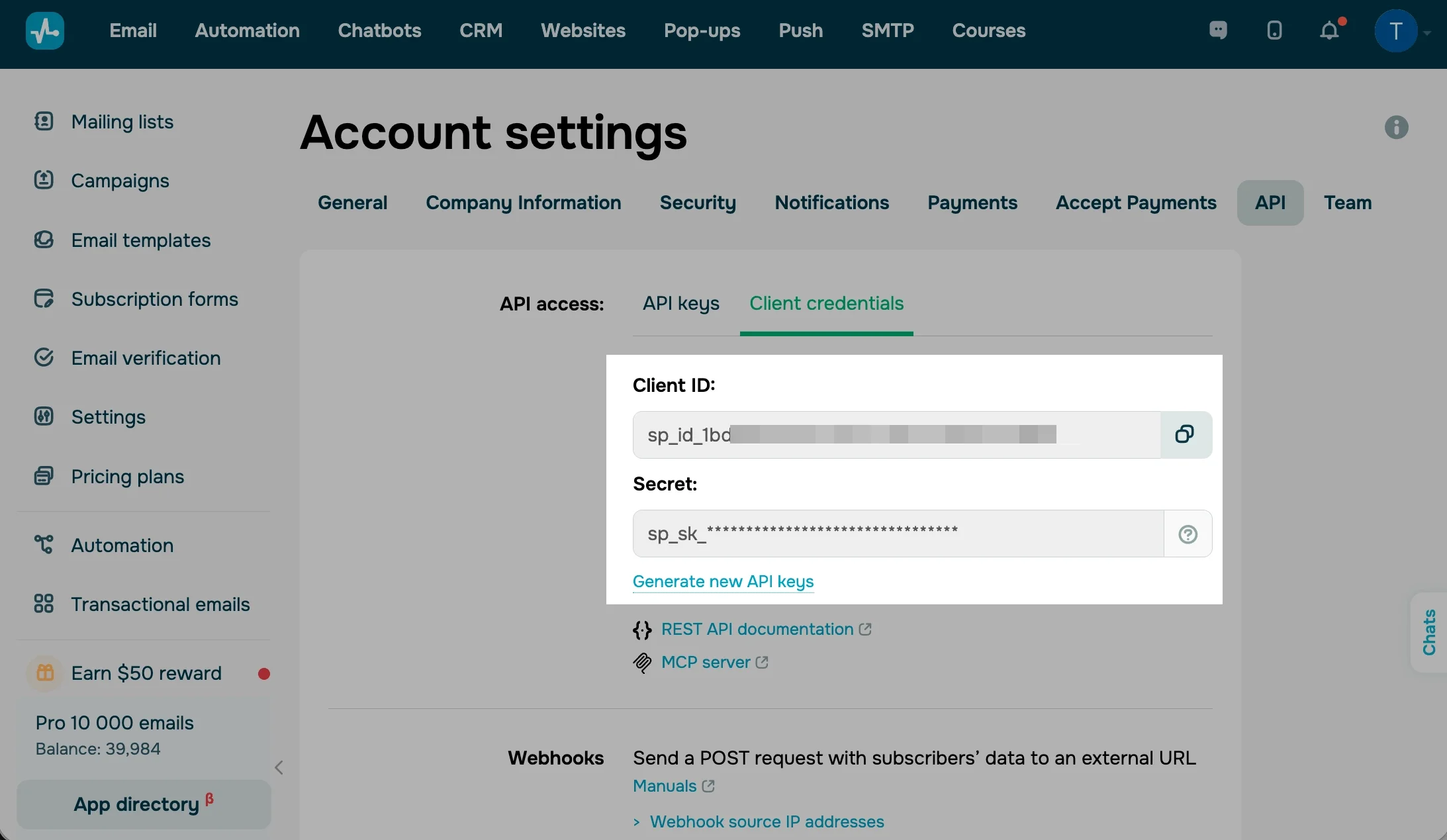
Source: SendPulse
If you don't have credentials showing, click Generate new API keys and confirm the action. Then, copy your new Client ID and Secret.
Save the Secret when you generate your credentials. For security reasons, SendPulse won't allow you to view or copy the Secret again later.
Generating new Client ID and Secret revokes the previous credentials. Any other integrations that use the old credentials will stop working until you update them.
For the up-to-date instructions, see the SendPulse guide on generating keys for integrations.
Connect SendPulse to Selzy
In Selzy, go to Contacts → Contact migration and select SendPulse. Click Import contacts.
Enter the Client ID and Secret you copied from SendPulse into the corresponding fields and click Connect.
You only need to connect your SendPulse account once. Selzy saves the connection credentials, so the next time you start a migration, you can proceed directly to choosing how to import your contacts.
If SendPulse is successfully connected, you’ll see the “Connected” tag in the Transfer contacts menu.
Choose how to import contacts
You can migrate your SendPulse contacts in one of two ways:
- Put them into one list. All contacts from SendPulse will be imported into a single Selzy contact list. You can select an existing list or create a new one.
- Keep the original lists. Selzy will import the contact lists from SendPulse separately. New lists will be created in Selzy based on your lists in SendPulse.
Select the option you need and start the migration.
Complete the import
The migration has three stages:
- Exporting contacts. Selzy retrieves your contacts from SendPulse.
- Parsing fields. Selzy processes the exported data and automatically maps contact fields.
- Importing contacts. Selzy imports the processed contacts into your account.
You don't need to map the fields manually. Field mapping is automatic.
During the migration:
- The progress may pause or temporarily show 0%. This is normal: contacts get exported in batches, and Selzy may retry a batch if needed.
- Importing multiple lists may take longer. If you keep the original lists, Selzy imports each list as a separate batch, so there may be pauses between the lists.
You don't need to keep the migration page open. Once the migration has started, Selzy runs it in the background, and you can check the progress in the migration history.
Check the import results
Once the migration is complete, Selzy displays the import results. You can see how many contacts were added and how many were skipped.
If there are errors, download the Error report to see which contacts were affected and why.
You can also find previous imports under Contacts → Tools → Import history. Error reports are available for 7 days.
Note that if you choose to keep the SendPulse list structure, each list is processed as a separate import. You can check the import results for each individual list.
Disconnect SendPulse
Selzy saves your SendPulse credentials so you don't have to connect the account again every time you migrate contacts.
If you've edited contact fields, moved contacts between lists, or otherwise changed the imported contacts in Selzy after the first migration, another import from SendPulse may overwrite some of these changes.
If you made changes in Selzy and want to import contacts from SendPulse again, we recommend disconnecting SendPulse first. To do this, go to Contacts → Contact migration → Find SendPulse → Click Disconnect.
Selzy will then delete the saved credentials for this connection.