




Key takeaways
- NBSP is a non-breaking space HTML entity that prevents automatic line breaks.
- It is useful for keeping words, numbers, or elements together in emails.
- Avoid overusing NBSP for layout or spacing; stick to HTML and CSS.
- Test your email campaign in different clients before sending to subscribers.
- NBSP works in most email clients but rendering can vary.
- Use CSS for spacing and alignment in emails.
- Unicode and named entities serve the same purpose but differ in implementation.
HTML emails don’t just rely on text and images, they’re built with code. Sometimes, that code includes invisible characters that affect how everything looks. If you ever wondered about the meaning in email, that’s one example we’ll tackle in this article.
We’ll cover different types of HTML entities, what NBSP is, proper syntax, and how to use it in email design, as well as alternative ways to format your email.
TL;DR:
- NBSP is a non-breaking space HTML entity that prevents automatic line breaks.
- It’s useful in emails for keeping words, numbers, or elements stuck together.
- Don’t overuse it for layout or spacing, stick to HTML and CSS when possible.
- NBSP isn’t your only option. You can also add space in HTML emails using padding, margins, or regular spaces.
- NBSP works in most email clients, but rendering can vary, so test your campaign before sending it to your subscribers.
What are HTML entities?
HTML named entities are little bits of code that stand in for special characters in HTML. For example:
- & stands for &.
- € becomes €.
They’re so useful because they spell out exactly what you want the browser or email client to display.
These entities are used in every HTML email — an email coded using HTML (HyperText Markup Language), which allows for rich formatting like images, colors, fonts, and layout. This is different from plain text emails, which have no styling at all.
Most modern marketing emails are HTML-based (or multipart) because they give more control over how the email looks. If you’re not sure about the difference between plain text, multipart, and HTML, check out our guide to email formats.
Here’s an example of an email from my own inbox. This email was built with HTML for structure and inline CSS for styling.
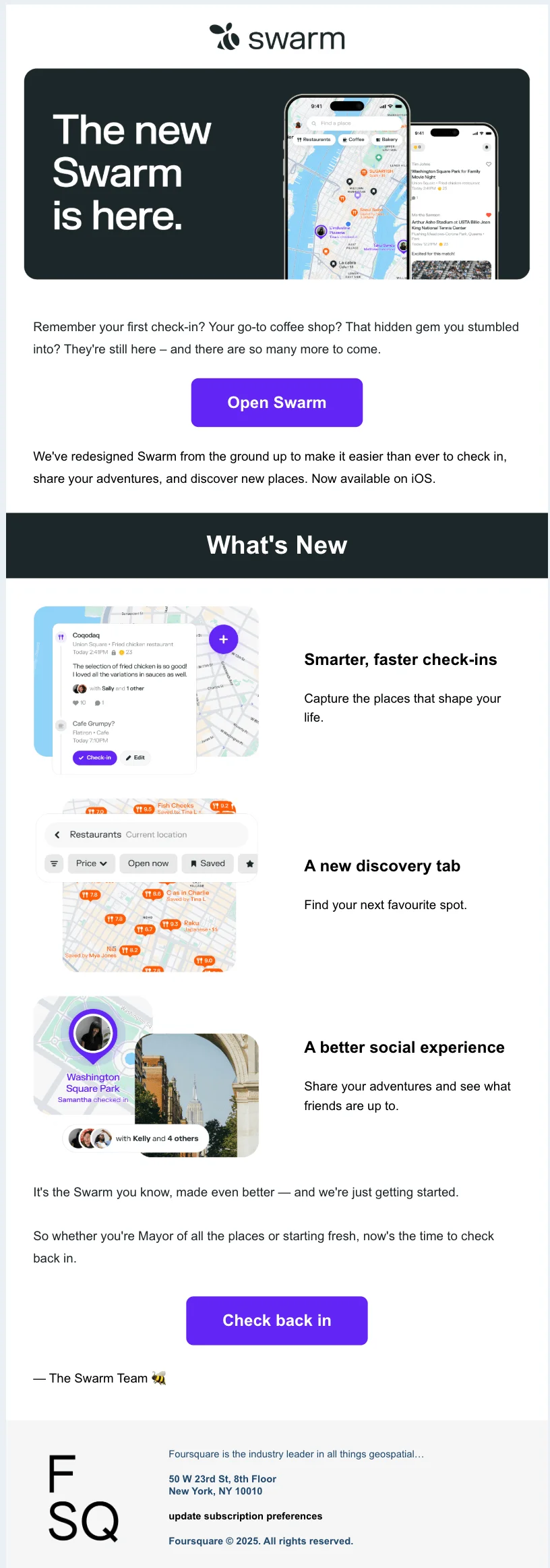
And here’s what’s happening behind the scenes — you can see that this email includes several entities, NBSP among them. I’ve highlighted these for your convenience:

What is NBSP in HTML emails?
NBSP is also an HTML entity. It stands for “non-breaking space,” and it’s written in HTML as .
For simplicity, we’ll keep calling it NBSP throughout this article.
In email design, we use NBSP to:
- Prevent awkward line breaks.
- Keep elements (like a date or a name) stuck together on the same line.
- Add consistent spacing.
How NBSP works in email coding
Let’s now explore how this useful HTML entity works.
Syntax of NBSP
As you already know, NBSP is written as in HTML. It just means “put a space here that can’t break onto a new line.” Example: Jan 10 keeps “Jan” and “10” on the same line.
NBSP and other entities are easy to read and are commonly used when writing HTML by hand (or in email builders). You can use one or several in a row if needed, but try not to overdo it.
Email client support for NBSP
Generally speaking, NBSP is supported by most major email clients, including Gmail, Outlook, Apple Mail, and Yahoo. You can usually rely on it to prevent unnecessary line breaks or tweak spacing without worrying too much about compatibility.
It’s not foolproof, however. Some clients, especially older versions of Outlook, can render it unpredictably, particularly if you stack several together. You might see strange spacing, unexpected breaks, or layouts that look fine in one inbox but break in another.
Here are a few tips to make sure NBSP works as intended in your emails:
- Use for small, intentional spacing (names or dates).
- Don’t stack several NBSPs together to create a big gap — use CSS instead (code for styling emails).
Always preview and test your email using testing tools like Litmus or Email on Acid to catch rendering issues before sending.
Unicode vs named entity
Short answer: and U+00A0 both mean “non-breaking space.” The difference is that U+00A0 is the official Unicode character, while is the HTML-safe version you’ll actually use in your email code.
Need more details? Let’s examine both Unicode and named entities.
Unicode is a universal system that gives every character — letters, symbols, emojis, even spaces — a unique code behind the scenes. Think of it like a giant phonebook where every character has a number.
For example:
- The letter A is U+0041, while a is U+0061
- The emoji 🐸 is U+1F438
- A regular space (from your space bar) is U+0020
- A non-breaking space is U+00A0
You won’t usually see a difference between a normal space and a non-breaking space, but they act differently. The non-breaking one keeps words stuck together — like in “Jan 10” — so they don’t split across lines.
When you send emails, these codes are read by the email client (like Gmail or Outlook). Not all clients treat Unicode the same way, especially older ones. Sometimes, Unicode characters can sneak in when you copy-paste from tools like Word or Notion. That’s when emails can have inconsistent rendering.
Here’s an example of Unicode gone wrong:

This is exactly why named HTML entities like NBSP exist. Rather than risking invisible Unicode glitches, named entities give your email code clear, consistent instructions that work reliably across different platforms and devices.
When and why to use NBSP in emails
When is NBSP a better choice?
When you only need small layout changes and don’t want to mess with CSS or tables, NBSP is fast, simple, and mostly safe.
Here are some of the most common examples of NBSP use cases in emails.
Preventing line breaks
We discussed this — using NBSP to keep two words or numbers together on the same line, like “John Smith.”
Formatting prices, dates, addresses
Non-breaking spaces help keep elements like “123 Main St,” “23 Sep 2025” or “99 USD” from getting split up awkwardly.
Aligning text without CSS
If you don’t want to use CSS in an email — or can’t rely on it because some clients (Outlook, we’re looking at you) have limited support for it — using a couple of NBSPs together can help align text. It’s not perfect, but it’s a handy fix when your styling options are limited.
What is CSS (Cascading Style Sheets)?
CSS is a type of code that works alongside HTML to handle visual styling. While HTML structures the content (like “this is a heading” or “this is a button”), CSS tells it how to appear (like “make this heading blue” or “center that button”).
How to add NBSP in HTML emails: practical examples
Enough theory, let’s have a look at NBSP in practice. To demonstrate, we’ll be using Selzy’s email template builder.
Note: The screenshots show the beta version of the Selzy email editor. To access it, contact Selzy’s support team after registering your account and enjoy a smooth drag-and-drop design process, an AI assistant, and a user-friendly HTML coding experience.

Basic example of NBSP in a sentence
First of all, let’s try NBSP to prevent a long sentence from splitting. Here’s our sentence in Selzy’s template builder. Our first step would be to view it in code mode.
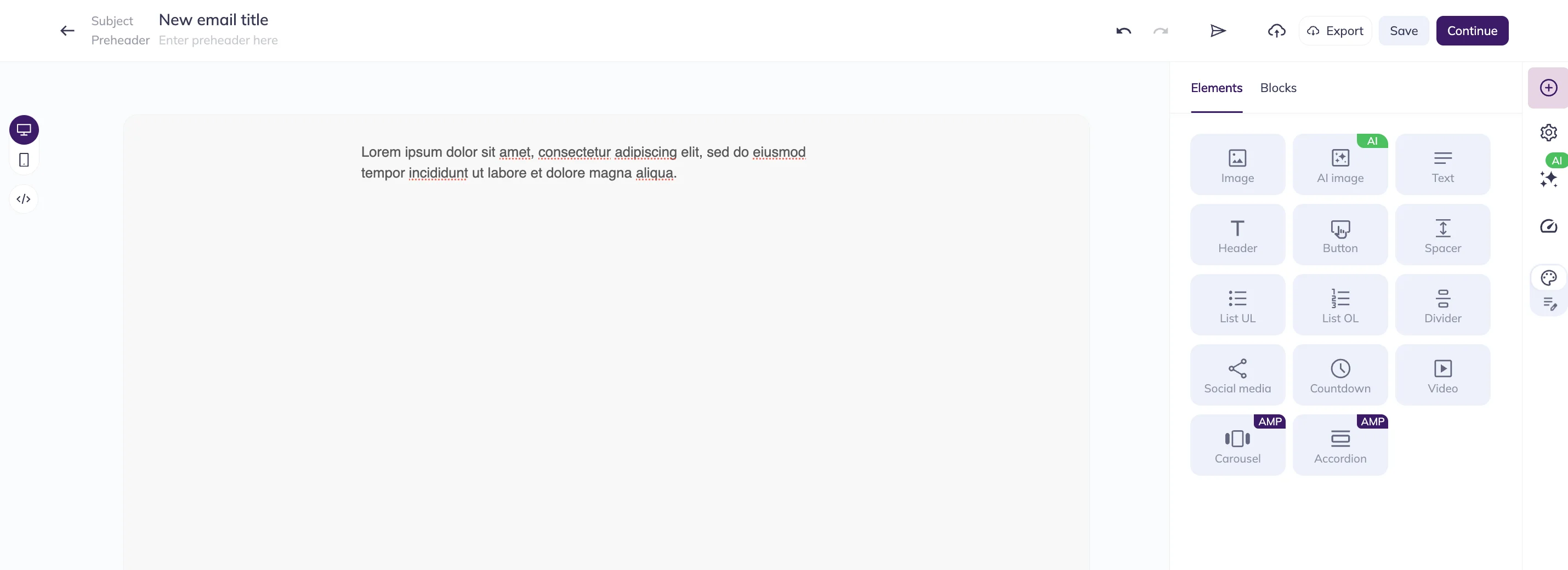
Switch to code mode by clicking on the </> symbol on the left.
It’ll look a little something like this. When we view the HTML, we can see where the magic happens.

At the moment, the text wraps between the words “eiusmod” and “tempor.” Let’s see what happens if we insert NBSP between the two:

And voila! The words “eiusmod” and “tempor” are now on the same line. Let’s take it a step further by inserting an NBSP entity between every word of this sentence.

As you can see, the whole sentence now sits on the same line. The text doesn’t wrap at all because our NBSP entities prevent it from doing so. Of course, you probably don’t want to glue your whole email into one giant line, but for key phrases like dates, names, or prices, NBSP can make all the difference.
NBSP in address lines or contact details
Now let’s repeat this process — but with an address. Here, NBSP is especially helpful when it comes to preventing address splitting when viewed on a smaller screen like a phone.
Here’s our imaginary address:
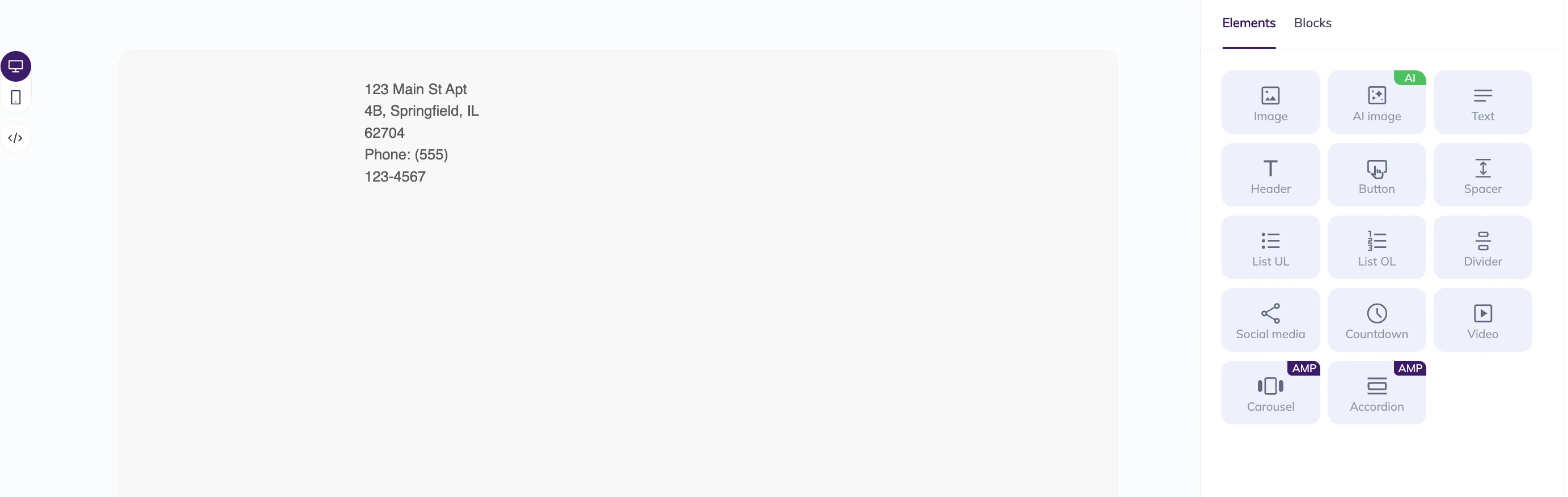
By inserting NBSP between all the elements of the address and all the elements of the phone number, you can make sure they stay on the same line without wrapping awkwardly.

Preventing text wrapping in buttons
Let’s imagine you’ve designed a button with a lot of text. Depending on how your email is coded (and how wide the button is), that text might wrap weirdly onto several lines, breaking the flow and messing with your layout.
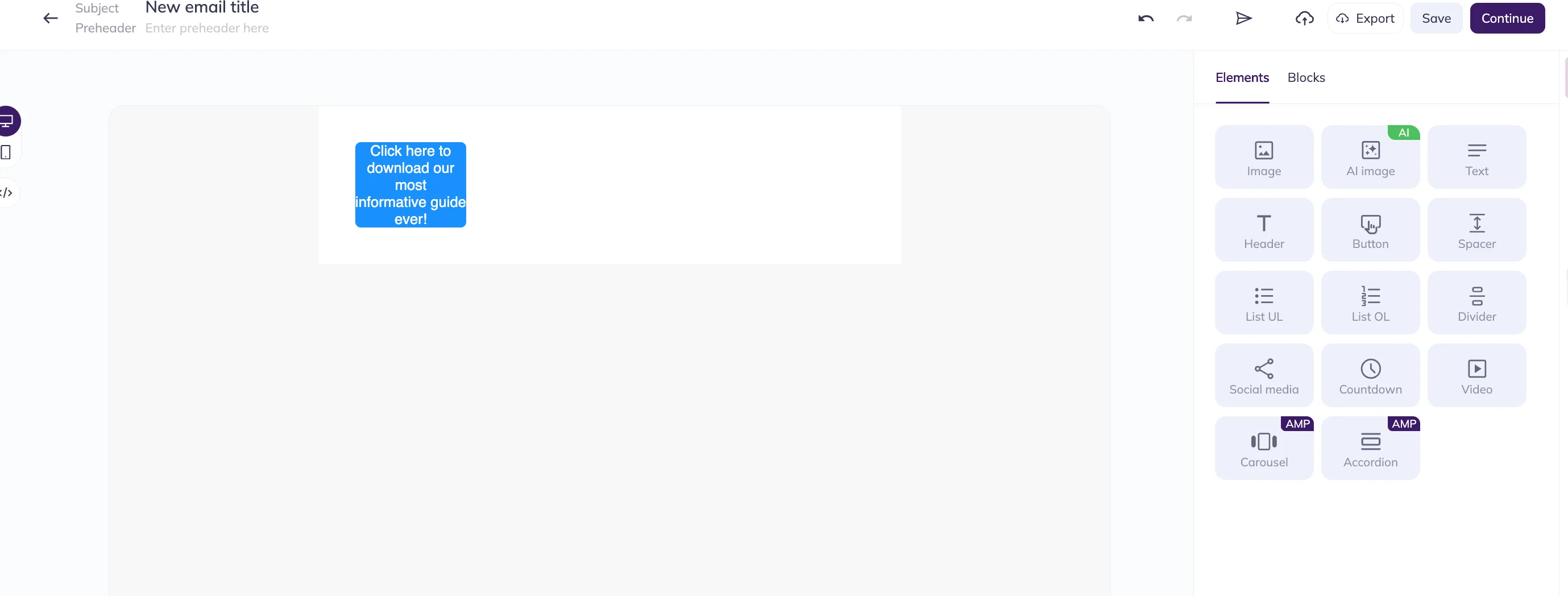
So let’s insert NBSP between every word of the text on the button to prevent it from wrapping.

That’s it, now the entire button is on the same line.
That said, don’t overdo it. Buttons with tons of text aren’t great for readability or conversions. Even if NBSP can help control wrapping, your call-to-action buttons should stay short, clear, and easy to scan. Think “Get the guide,” not “Click here to download our most informative guide ever.”
In other words, use NBSP to tidy things up, not to force a bad layout to behave the way you want it to.
How to create spaces in HTML emails without NBSP
NBSPs are useful in small doses, but they’re not designed to handle layout tasks. When you need to create space in an email, it’s better to use proper HTML and CSS methods that offer more control and better rendering across clients.
Here are some reliable options:
- Use inline padding or margin styles. Padding is the empty space around content, like margins inside a button. Add spacing around elements by applying style=”padding: 16px;” or style=”margin: 0 12px;” directly on your tags (like <td>, <div>, or <a>).
- Use line breaks for vertical spacing. <br> tags can create line breaks between text blocks. Use them sparingly and avoid stacking multiple <br><br><br>.
- Apply line-height and spacing to text. Control how text flows by setting line-height and letter-spacing via inline styles.
- Add padding to buttons instead of using NBSP. Instead of stuffing a button with spaces ( ), style it with: style=”padding: 12px 24px;”
Common mistakes when using NBSP in emails
Here are some common errors when it comes to using NBSP.
Overusing NBSP for layout
NBSP is great for preventing line breaks, not for creating spacing or alignment. Using a bunch of NBSPs to fake padding or push elements can break layouts on different devices.
Note: Some email builders use rows of NBSP to create invisible spacing in the preheader.

That doesn’t mean you should do that. For your main content, stick to real padding and margins whenever you can.
Breaking responsive design
Too many NBSPs can stop text from wrapping at all, which causes overflow issues on mobile. Long unbreakable phrases can break out of their containers (like blocks or columns), force the recipient to scroll horizontally, and make buttons or paragraphs unreadable.
Always preview your emails at narrow widths (like phone screens) to avoid accidentally locking a full sentence onto one line. Tools like Selzy let you test by sending the email to yourself before launching it into the wild.
Rendering issues in specific clients
As we mentioned earlier, NBSP is technically supported by most major email clients, but it doesn’t always act consistently. Overusing it or combining it with complex layouts can cause issues. Some clients might ignore it, collapse multiples into one, or break your layout in strange ways.
I tried to send the “lorem ipsum” email from our example earlier in the article to my own Gmail address — and it didn’t arrive as one long string of text, which I intended to happen, despite NBSP being preserved in the source code of the email.


Mixing NBSP with CSS incorrectly
NBSP doesn’t always mix with CSS the way you want it to. Some styles can override or break the behavior you expect from non-breaking spaces. For example:
- If your element already uses the CSS property white-space: nowrap; (which stops all line breaks), then adding NBSP doesn’t do anything. Using both together can make long lines unbreakable, which may cause layout issues on small screens (like text overflowing or getting cut off).
- If your element uses CSS properties like word-break: break-word; or overflow-wrap: break-word;, the browser might still break a line even at an NBSP, especially in tight layouts.
- If your block has a fixed width and a tight line height, NBSP might not help; the text can still break or overflow because there’s simply no room to stay on one line.
When not to use NBSP
NBSP is a helpful tool, but not a substitute for proper layout. Plus, it might cause accessibility issues as screen readers don’t always understand it well.
Avoid using NBSP:
- To fake padding or margins.
- To create large gaps or alignment.
- To supplement complex responsive layouts.
- To replace semantic HTML (using the right tags for meaning and structure, like <p> for paragraphs or <h1> for headings, not just to style elements visually).
If you don’t have a background in tech, you might find all these coding terms like CSS, HTML, and word-break: break-word really confusing. That’s because they are. The good news is that you don’t need to be a computer genius to build beautiful, responsive emails with Selzy’s email builder. You can either pick a template from our extensive library or bring your email customization game to the next level by creating your own template from scratch using drag-and-drop features. No coding needed!
How to test NBSP in your email template
So, as you can see, using NBSP to prevent a line break isn’t always as simple as just sticking in your string of code. Before you send your campaign, you have to ensure it renders properly.
Testing NBSP in Gmail, Outlook, Apple Mail
We’ve mentioned this already — most ESPs let you send a test email to yourself before sharing it with your list. So do that!
Send a test to each major client (especially Gmail, Outlook, and Apple Mail) and check how it renders. Don’t forget to test on both desktop and mobile, as they often behave differently. Watch out for problem areas like buttons, long phrases, and stacked elements.
Using tools for email rendering tests
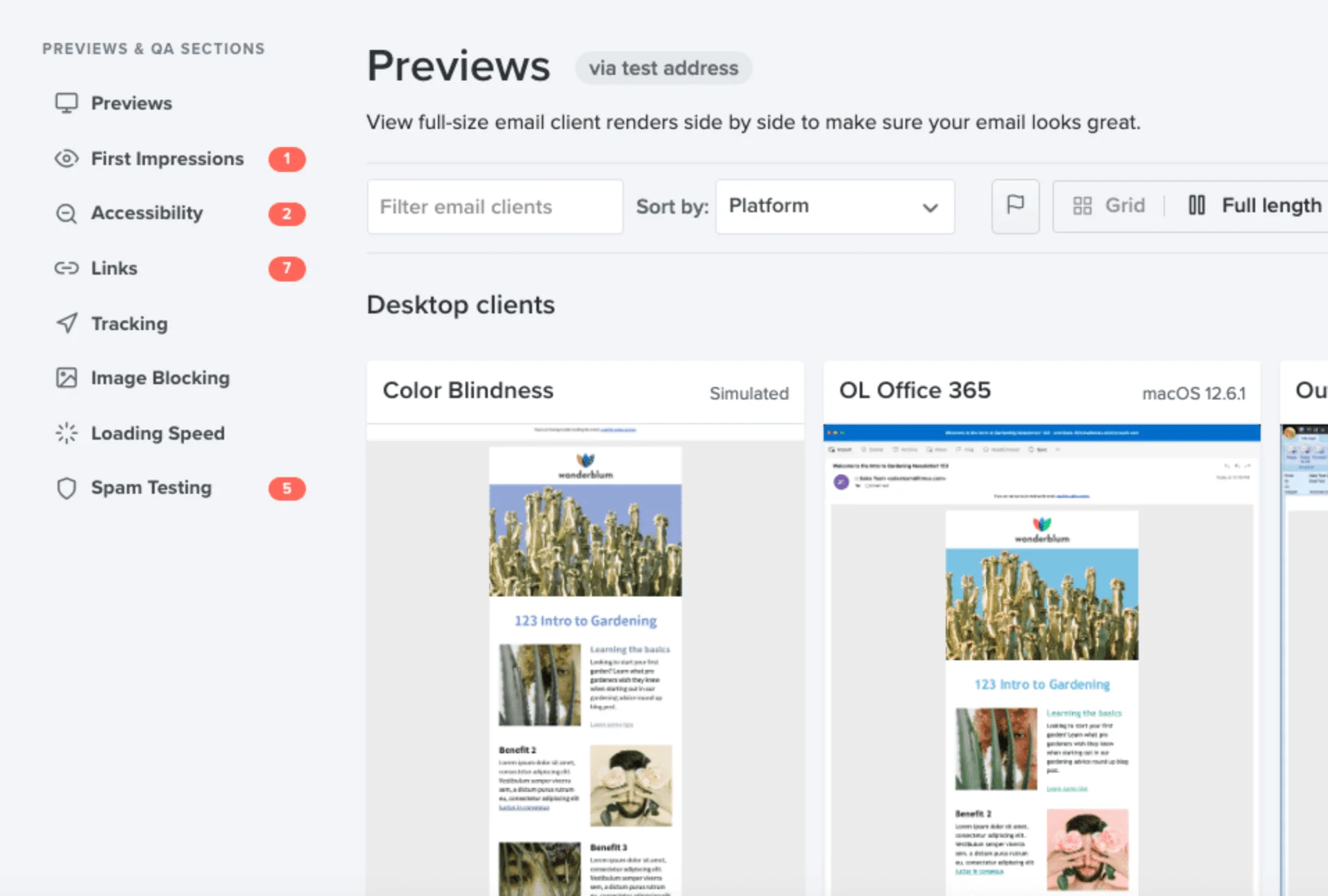
You don’t need five email accounts and three phones to test every campaign. Tools like Litmus and Email on Acid let you preview how your email renders across 100+ clients.
Litmus, in particular, helps catch client-specific bugs before sending and even includes a live code editor.
Conclusion
NBSP may be a tiny entity, but it can make a big difference in how your emails look and feel. Whether you’re preventing addresses from splitting or keeping a button label tidy, using NBSP the right way helps your message come across more clearly.
Just remember: like any formatting tool, it works best in moderation.
 New and noteworthy on our blog
