With Selzy, you can create and send SMS campaigns to your contacts.
Use SMS campaigns to:
- Send important updates, such as order confirmations, delivery notifications, and appointment reminders.
- Share time-sensitive offers, discounts, and promotions.
- Reach customers instantly with high open rates.
- Stay connected with your audience alongside email and other marketing channels.
Access SMS Campaigns
Before you can send your first SMS campaign, contact the Selzy support team via live chat or support@selzy.com.
You’ll be asked to provide:
- A list of countries you plan to send messages to.
- Your marketing goals (for example, transactional or promotional messaging).
- Examples or templates of your SMS messages.
- Your Sender ID (also known as an Alpha Name), which appears in the From field instead of a phone number.
- Your estimated daily or monthly message volume.
For detailed requirements and setup instructions, see Start sending SMS with Selzy.
Create an SMS Campaign
In your account, go to Campaigns → SMS → Create campaign.
Alternatively, click Create campaign on the main page → SMS.
SMS Content and Sender
First, fill in the required fields:
- Sender. Select a previously registered Sender ID (Alpha Name). Learn how to register a Sender ID.
- Message. Enter your message. To personalize it, click Personalization and select the merge tag you want to insert from the dropdown menu.
‼️ SMS messages are divided into parts based on their length. When creating an SMS campaign, the system automatically calculates the number of parts in your message.
A standard SMS contains up to 160 Latin characters or 70 Cyrillic characters. If your message exceeds this limit, it will be split into additional parts, each billed separately.
We recommend avoiding messages that are split into three or more parts. Providers may deliver parts separately, which can cause the message text to appear out of order or fragmented.
After editing your message, click Save. On the right side of the page, you’ll see a preview of how the message will appear on a mobile phone.
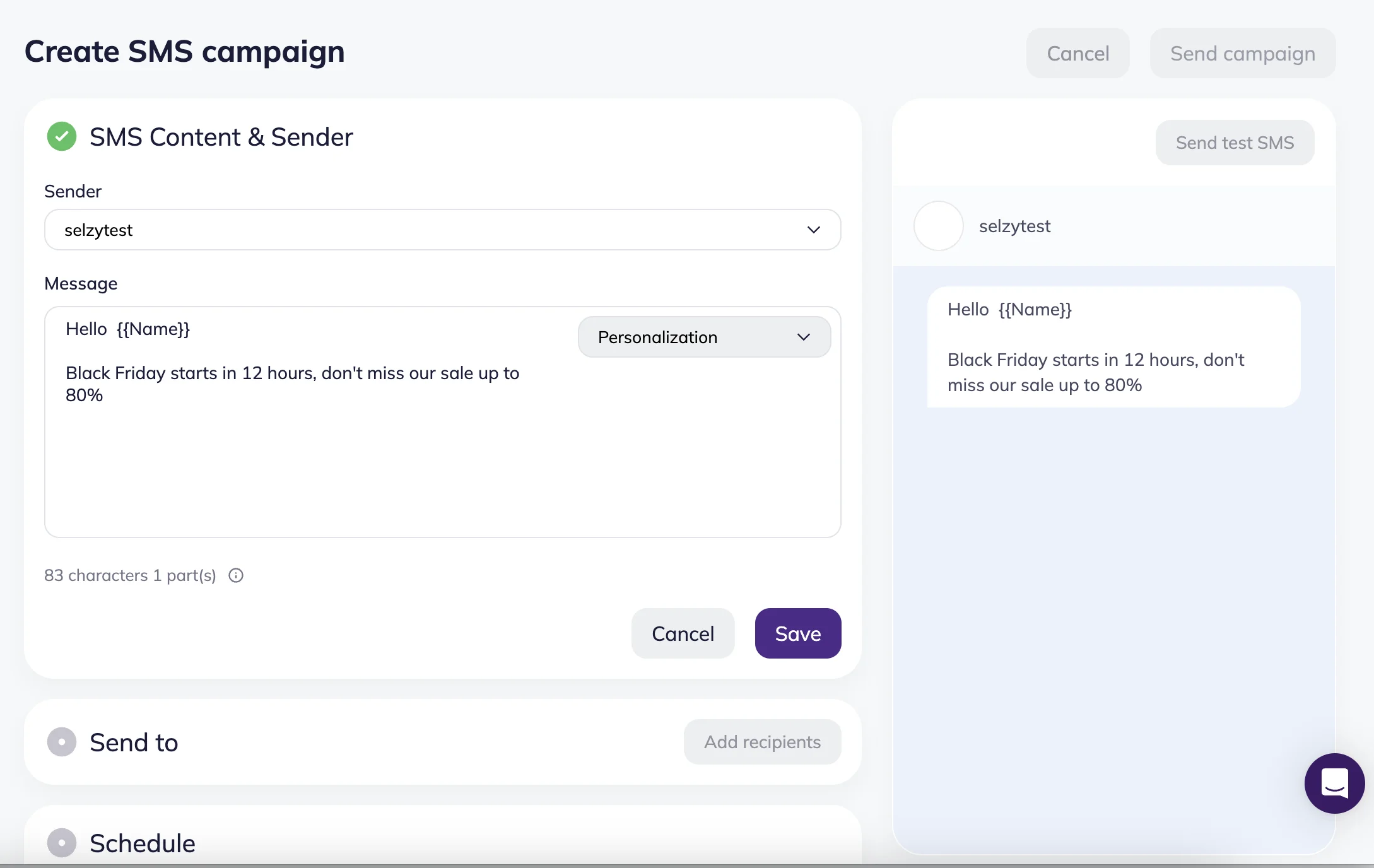
Before sending your campaign, it’s a good idea to send yourself a test SMS. Click Send test SMS, enter your phone number, and click Send test SMS.
To edit the content of your message, click Edit in the SMS Content & Sender block.
Select recipients
Next, choose the list you want to send your campaign to.
Click Add recipients and select a contact list from the dropdown menu. You’ll see both the total number of contacts in the list and how many of them have phone numbers. Lists without any phone numbers appear grayed out.
To create a new list, click + New list in the dropdown menu.
To import contacts, click Import contacts in the Send to section.
To send your campaign to only a portion of the list, click Segment and create a contact segment.
Schedule SMS campaign
You can either send your SMS campaign immediately or schedule it for later.
To schedule the campaign, select Send later, then choose the date, time, and time zone.
If you’re not ready to send the campaign yet, click Save to save it as a draft.
Saved drafts appear under Campaigns → SMS → Draft status.
Manage SMS Campaigns
Use folders to organize your SMS campaigns.
To create a folder, go to SMS → Create a new folder.
To move a campaign into a folder, click the campaign’s action menu (three dots) and select Move to folder. The folder will then appear in the Folders section.
To archive a campaign, open the action menu and select Archive. Archived campaigns are stored in the Archive folder.
You can also view scheduled campaigns in the calendar and create new campaigns directly from it.
Use the Status filter to display campaigns with a specific status.
You can also use Filters to search a specific campaign on the Campaign history page, but note that filters do not apply to campaign drafts.
SMS Character Limits
The cost of an SMS is based on a standard message containing up to 160 Latin characters or 70 Cyrillic characters. If limits are exceeded, SMS is automatically split into multiple parts, each billed separately. For example, a message containing 75 Cyrillic characters is divided into two SMS parts, so you’ll be charged for two SMS messages.
Once a message is split, each part can contain up to 153 Latin or 67 Cyrillic characters due to technical headers used to join the parts. This affects how many SMS messages you’ll be billed for.
| SMS parts | Cyrillic characters | Latin characters |
| 1 | 70 | 160 |
| 2 | 134 | 306 |
| 3 | 201 | 459 |
| 4 | 268 | 612 |
We recommend avoiding messages that are split into three or more parts. Providers can deliver parts separately, which can cause the message text to appear out of order or fragmented.