Meeting scheduling feature in Selzy helps you share your availability so customers can book meetings online — no more back-and-forth.
Use Meeting scheduling to:
- Accept bookings through a page on a branded subdomain
- Set your availability
- Create different meeting types
- Sync meetings with Google Calendar and other platforms
- Automatically create Google Meet and messenger links
- Send email confirmations and reminders
- Collect contacts for future marketing campaigns
Create booking page
To create a booking page, you need to set up:
- Schedule. It defines your availability and time set up via calendar. Without setting up a schedule, you can’t create meeting types or bookings.
- Meeting type. It is a booking template, where you specify the details such as meeting duration, meeting place (online services or in-person), availability schedule, and pricing.
- Preferences. Select a list to save new contacts, sync up to 10 external calendars, and set up notifications and reminders.
- Booking page. Choose your URL, language(s), title, subtitle and brand colors for your page.
Once your booking page is set up, you can share the link to it online.
Clients can visit the booking page without registering, choose an available time slot, and submit their contact details. The meeting is created immediately and, if calendar synchronization is enabled, added to your external calendar. All new contacts are automatically added to the contact list selected in Settings, allowing you to use them in future campaigns.
Manage bookings
Both you and your clients can create new bookings. While clients can do it only from your public booking page, you can do it from:
- Schedules page by clicking any available time slot in the calendar
- Meetings page by clicking the “New meeting” button
Open Meetings to view and manage all bookings.
Bookings are organized into the following categories:
- Upcoming
- Past
- Cancelled
Click a booking to view its details and make changes.
To reschedule a meeting, click Reschedule. To cancel a meeting, click Cancel meeting. In both cases, the client will automatically receive a notification.
Booking from the clients’ perspective
Note that Selzy is shown as a sender of any communication.
When your clients open the booking page, they click on the preferred timeslot. Next, they fill out a form with their name, email, and other contact information. They can also leave a comment if needed.
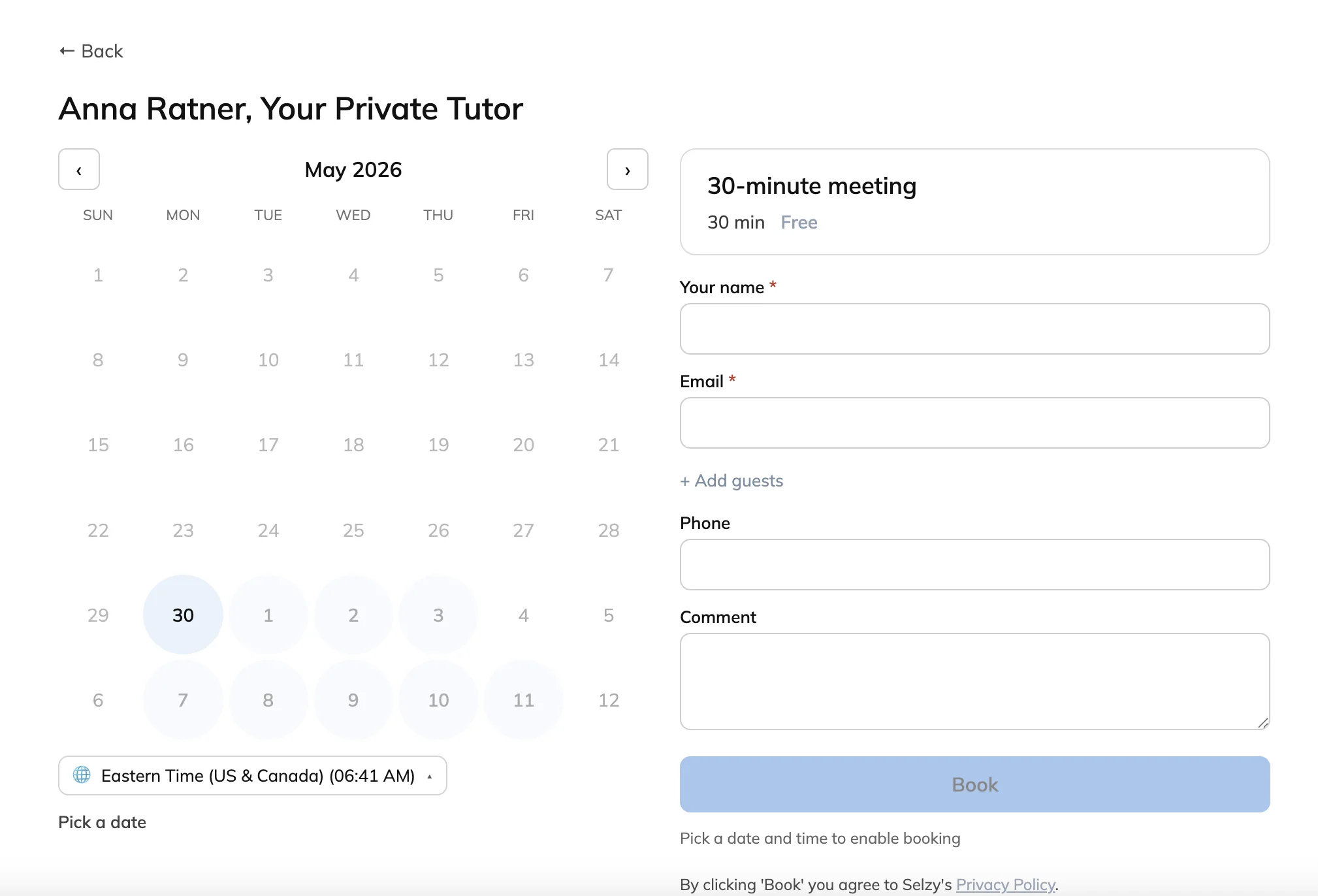
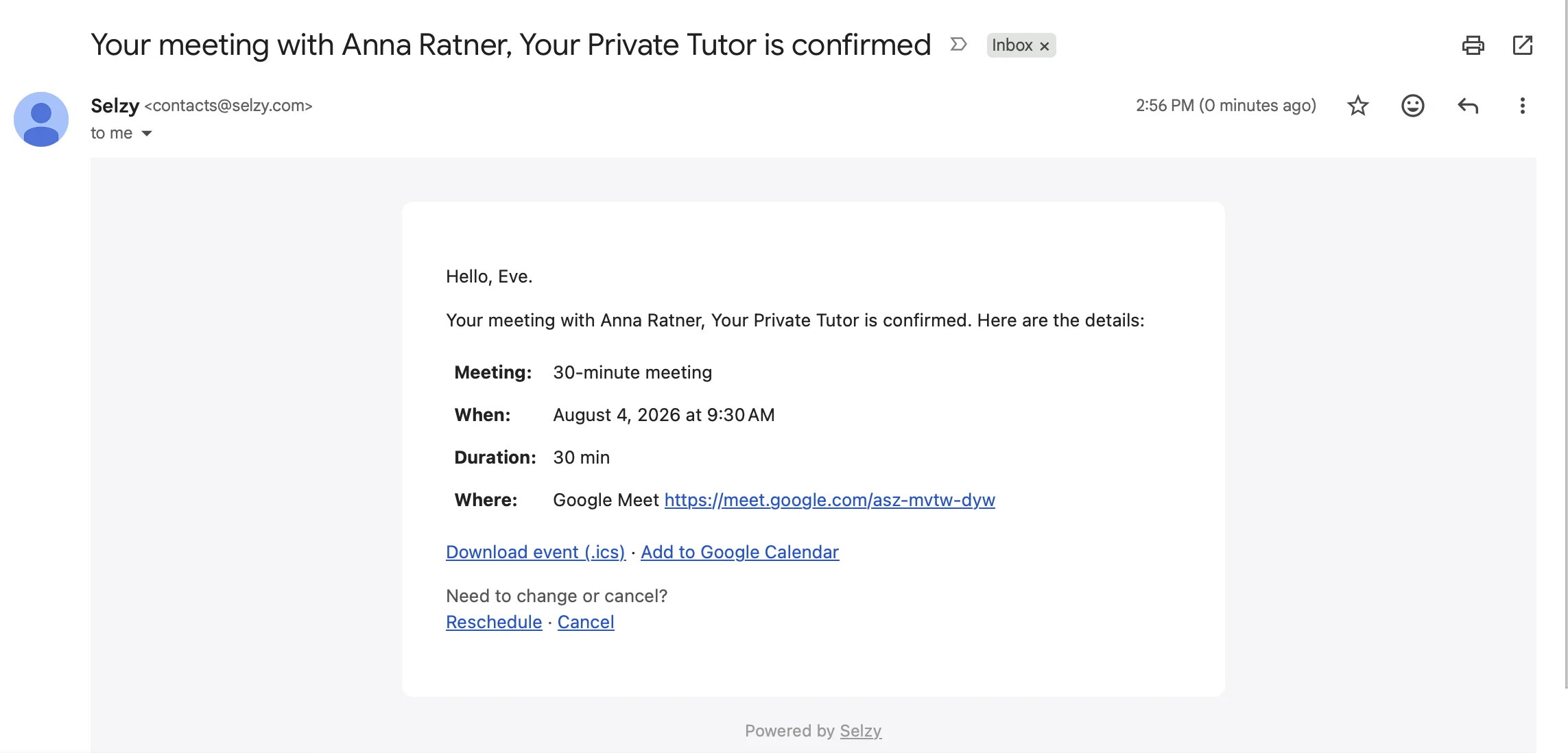
After they click “Save,” the booking is confirmed, and they receive an automatic email with the booking details, link to a Google Meet, if they choose this option, and links for rescheduling or cancelling their bookings.
Frequently asked questions
Can I create multiple schedules?
Yes. You can create different schedules for different types of meetings.
Can participants reschedule their bookings?
Yes. Participants can use the reschedule link included in the confirmation email.
Can participants cancel meetings?
Yes. Participants can use the cancellation link included in the confirmation email.
What happens if a time slot is booked by someone else?
Participants will see an error message and will need to select another available time slot.
Can I connect more than one calendar?
Yes. You can connect up to 10 calendars to a single Selzy account.
What happens if I disconnect my calendar?
Existing bookings remain in the system, but synchronization with the disconnected calendar will stop.