A schedule is the set of hours you're available for meetings. You'll attach it to your booking page so customers only see times that work for you. Without setting up a schedule, you can’t create meeting types or bookings.
Set up schedule
To create your first schedule, click the Schedules in the main menu. You will then be prompted to create a schedule.
To create an additional schedule, click the Schedules in the main menu → Click the action menu (three dots) in the top-right corner → Create schedule.
Next, configure the following settings:
- Schedule name.
- Time zone. All meetings are displayed in your time zone, while clients see available time slots in the time zone set on their devices. You can select a different time zone if needed. Changing your time zone won’t affect existing meetings. It will only change the availability shown for future bookings.
- Time format. Both 12-hour and 24-hour formats are available.
- Holidays. You can block bookings on public holidays. Select a country from the list to automatically block its public holidays. You can also set up holidays based on your preferences, or skip this step.
If your country is not listed, click “Don’t see your country?”, enter the country name in the pop-up window, and click “Send”. The Selzy team will review the request and add the country if supported.
- Available slots. Set one or more availability intervals for each day. For example, Monday: 9:00-12:00 and 14:00-18:00. To do that, click on any date in the datepicker, and select preferred intervals in the pop-up window.
You can apply availability intervals for a specific date or for a selected day of the week.
We recommend setting up available hours on the weekdays, so the system will automatically suggest them in the future.
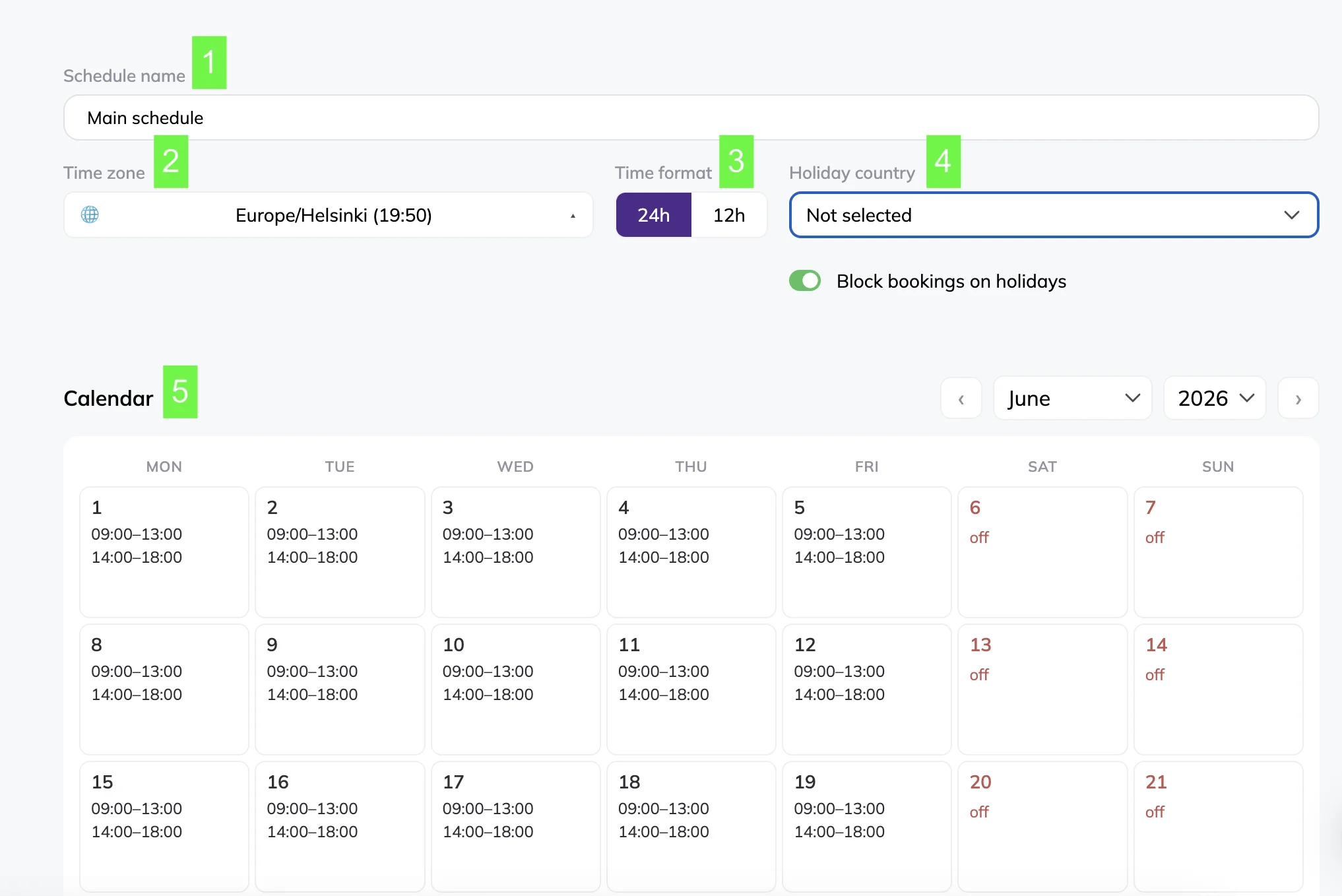
You can copy schedules between days and add exceptions for specific dates. To set up a slot, click on any date in the datepicker.
Click “Save” to save the schedule. You will then be prompted to connect an external calendar. You can connect one immediately or do it later in Settings.
Supported services include:
- Google Calendar
- Apple Calendar (iCloud)
- Microsoft Outlook
- Other iCal calendars (Proton Mail, Yahoo, etc.)
Once connected, events from your external calendar are automatically blocked in Meeting scheduling. New bookings are added to your calendar, and Google Meet links can be created automatically when required.
After saving, you’ll be redirected to the schedule page.
Manage schedules
On the Schedules page, you can:
- Edit the schedule by clicking Edit schedule in the top-right corner.
- Add a new meeting by clicking any available time slot in the calendar.
- Preview your booking page by clicking Public booking page link
Use the action menu (three dots) in the top-right corner to rename, duplicate, and delete the schedule.
Frequently asked questions
Can I create multiple schedules?
Yes. You can create different schedules for different types of meetings.
Can I connect more than one calendar?
Yes. You can connect up to 10 calendars to a single Selzy account.
What happens if I disconnect my calendar?
Existing bookings remain in the system, but synchronization with the disconnected calendar will stop.