A meeting type is a booking template that defines how a meeting is scheduled. It includes meeting duration, meeting type and channel (for example, in person or online via a specific service), availability schedule, and pricing.
Clients can choose a meeting type on your booking page and book a meeting according to its settings.
Each meeting type can be linked to only one schedule, but you can set up different schedules for different types of bookings.
Set up meeting types
A 30-minute meeting type with Jitsi and Phone call as meeting options is created automatically when you create your first meeting schedule. You can edit it at any time.
Note that creating multiple meeting types is available only on paid plans.
To create a new meeting type, go to Meeting types in the main menu and click Create meeting type.
Enter a name and description for the meeting type. Note that if you set up more than one language for the booking page, you’ll need to write a name and description for each of them.
You can also customize the default URL. For example, instead of timeslot.selzy.com/en/book/anna-tutor/30-minute-meeting you can use timeslot.selzy.com/en/book/anna-tutor/short-call.
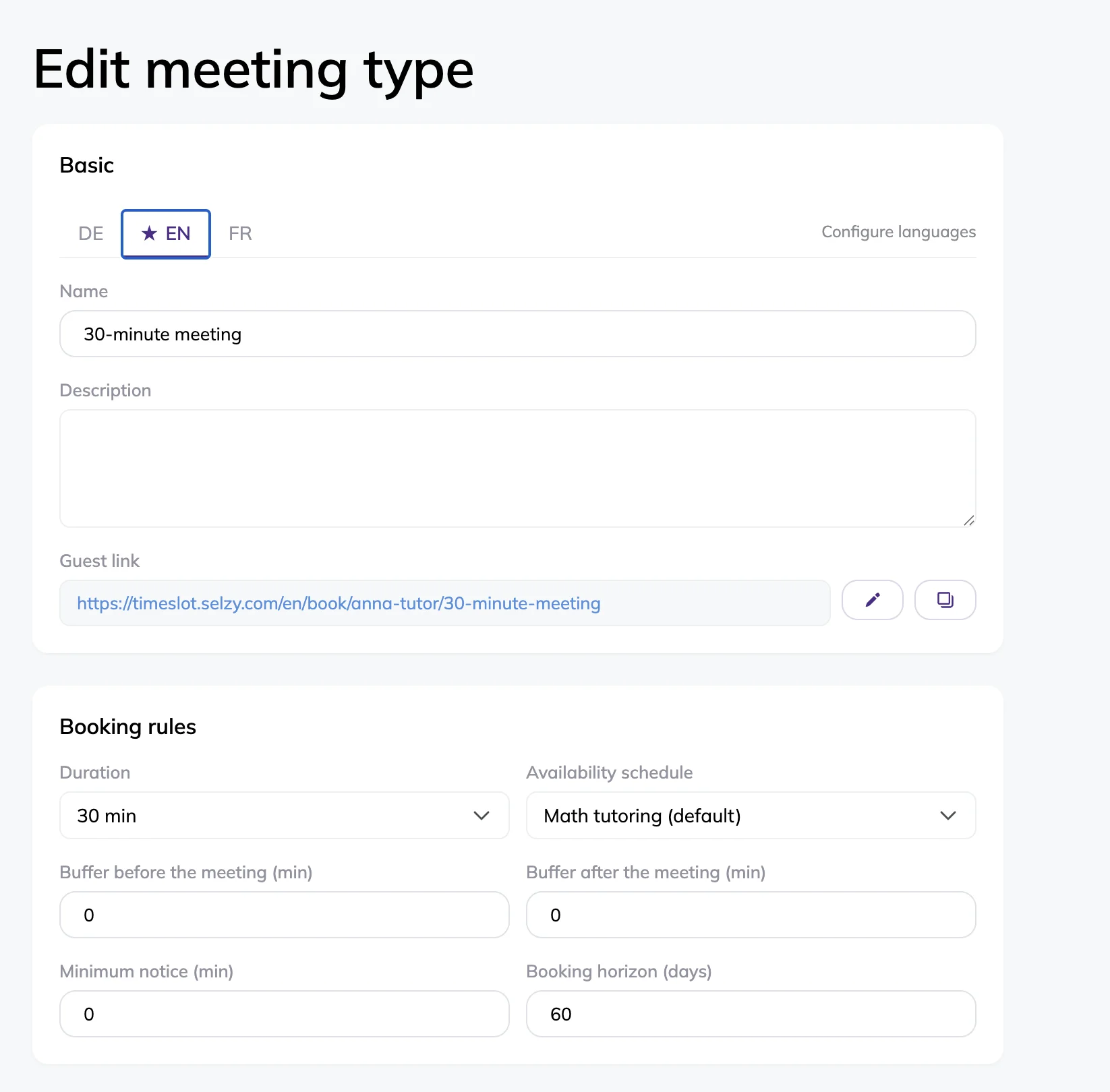
Next, configure the booking rules:
- Choose a duration between 15 and 120 minutes.
- Select a schedule from the dropdown list.
- Add buffer time before and after meetings if needed (in minutes).
- Set a minimum booking notice (in minutes) — minimum amount of time in advance that someone can book a meeting. For example, you want your clients to book meetings at least 3 hours in advance, then you can set 180 minutes.
- Set a booking horizon (in days) — maximum amount of days in advance that someone can book a meeting. For example, you don’t want your clients to book appointments 5 months in advance, so you set up a 30 days booking horizon.
You can also configure the following parameters:
- Free or paid meeting. Disable free meetings, then enter the amount and currency. Your booking page will display either a Free label, or the meeting price, depending on your choice.
- Public or private meeting. Public meetings appear on your booking page. Private meeting types are hidden and can only be booked via a direct link.
- Active or inactive meeting. Inactive meeting types cannot be booked, but existing bookings remain available.
- Additional participants. Allow participants to invite up to 10 additional people.
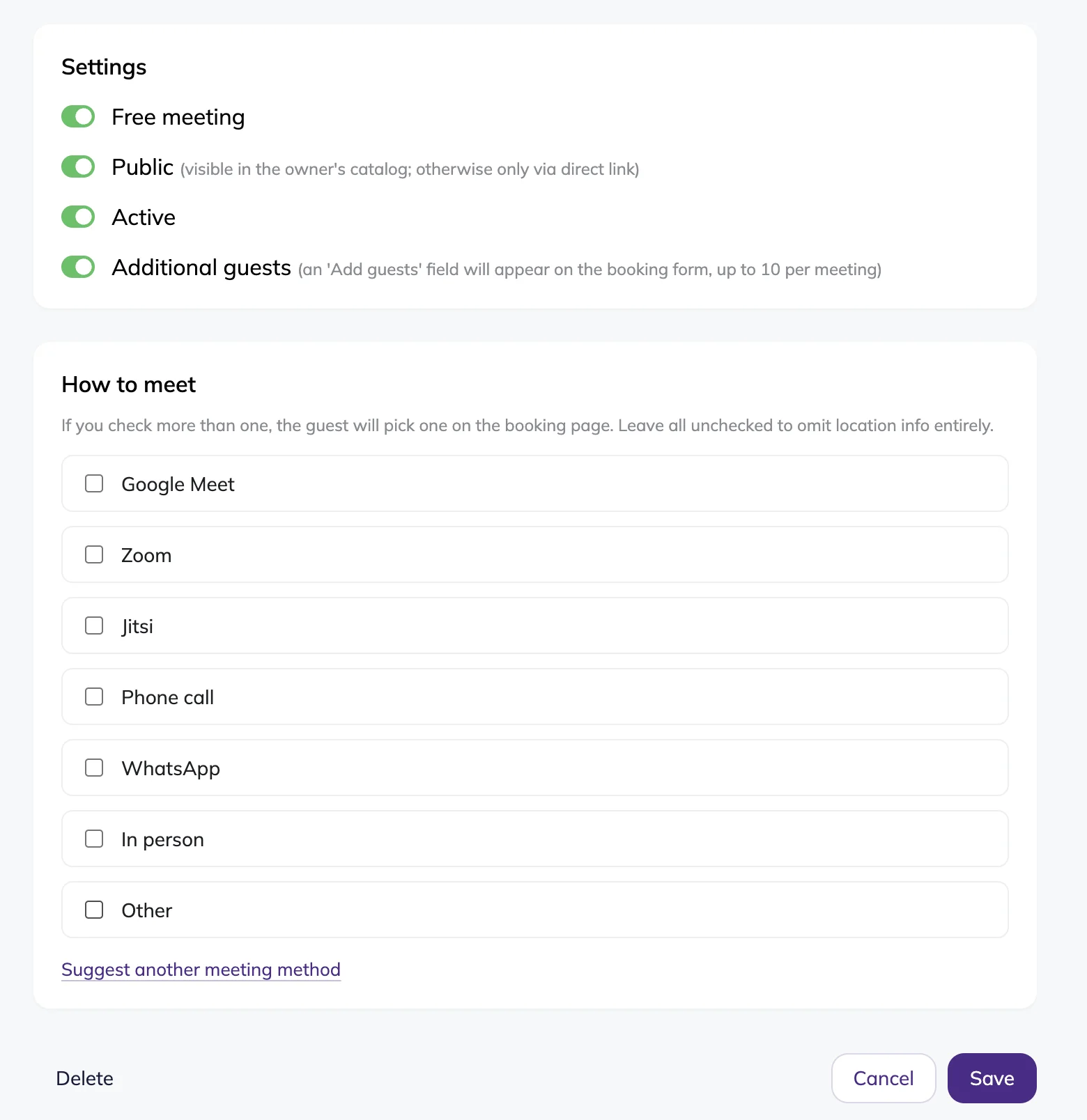
Finally, choose how you want to meet with clients. Available meeting options include:
- Google Meet
- Zoom
- Jitsi
- Phone call
- In-person meetings
- Custom meeting instructions
If multiple meeting options are enabled, participants can choose their preferred option during booking.
Manage meeting types
To manage meeting types, go to the Meeting types page in the main menu.
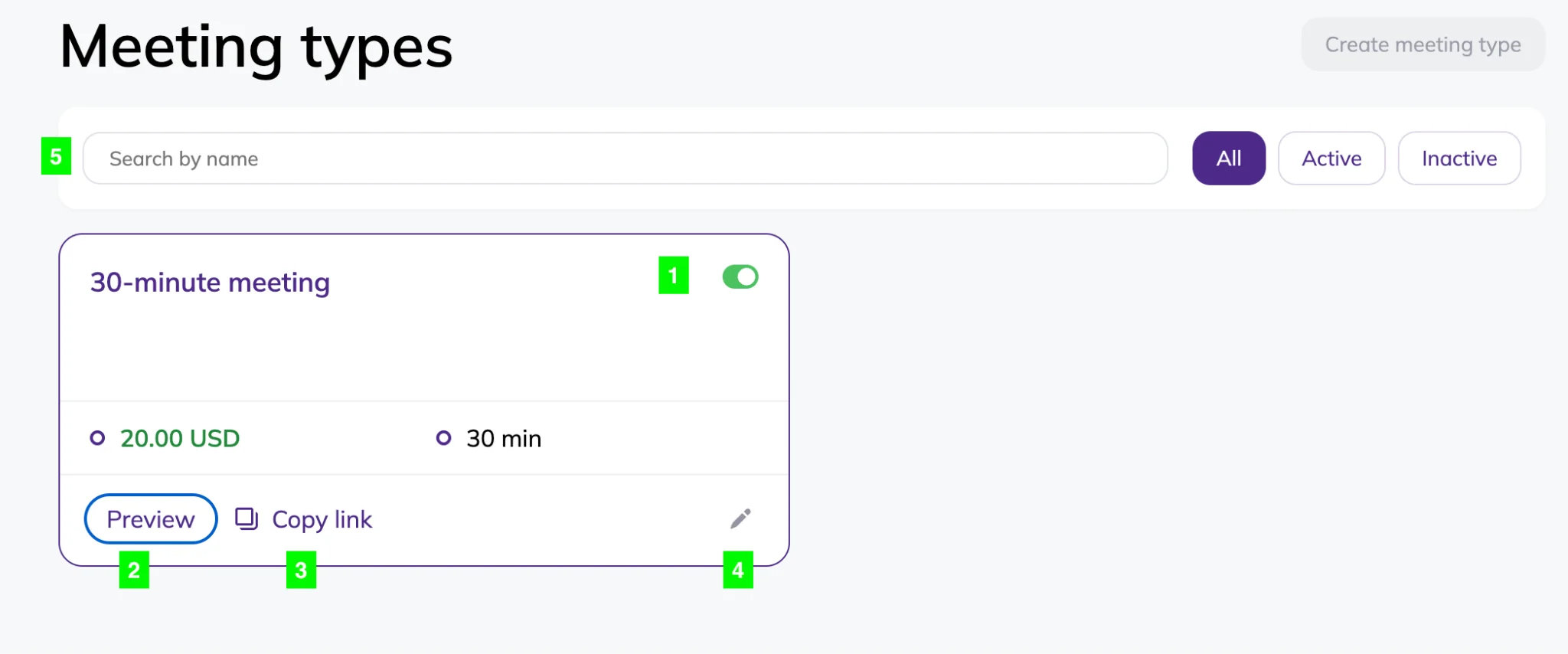
There you can:
- Edit the meeting type, click the pen icon (4).
- Copy the link to the meeting type, click the Copy link button (3).
- Preview the meeting type and see what it looks like for your clients, click “Preview.”
- Deactivate or activate the meeting type, use the green switcher (1). If the meeting type is deactivated, it won’t be available for bookings anymore.
- Search a meeting type by name, or Active/Inactive buttons to filter meeting types by status.
To delete a meeting type, click the pen icon to open the Edit meeting type page, then click Delete in the bottom-left corner.
Note that a meeting type can only be deleted if it has no upcoming bookings.